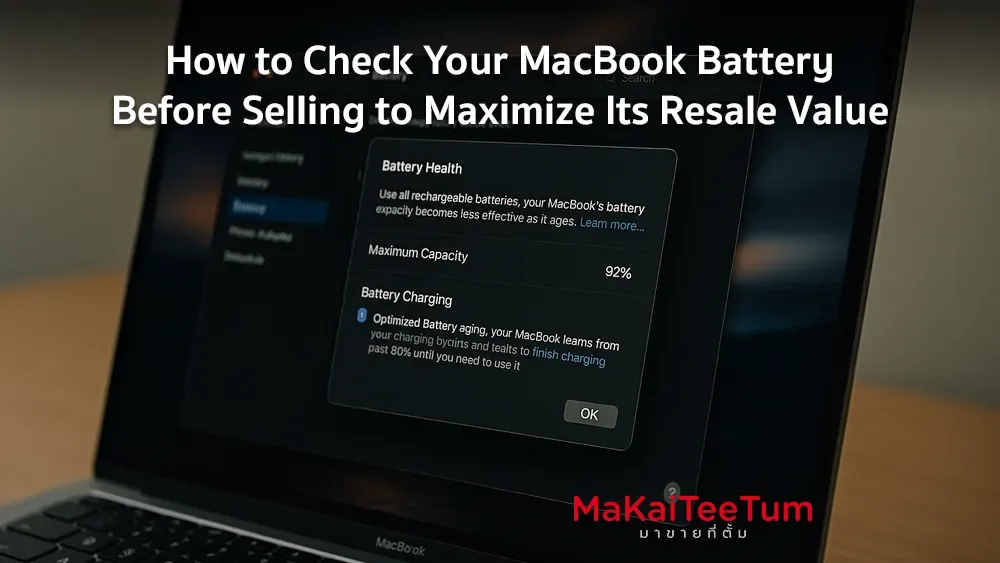
Before selling your MacBook, ensuring the battery is in good condition can significantly increase its resale value. This guide provides comprehensive steps to assess your MacBook’s battery health effectively.
Why Battery Health Matters in Resale
Buyers often consider battery health a critical factor when purchasing a used MacBook. A well-maintained battery indicates the device has been cared for, justifying a higher price point.
Understanding Battery Cycle Count
A battery cycle count refers to the number of complete charge and discharge cycles a battery has undergone. Apple states that MacBook batteries are designed to retain up to 80% of their original capacity at 1,000 complete charge cycles under normal conditions.
Steps to Check Battery Health
- Access System Information: Click on the Apple menu and select “About This Mac.”
- Open System Report: In the window that appears, click on “System Report.”
- Navigate to Power Section: In the sidebar, under “Hardware,” select “Power.”
- Review Battery Information: Look for “Cycle Count” and “Condition” under the “Battery Information” section.
Interpreting Battery Condition Status
- Normal: The battery is functioning properly.
- Service Recommended: The battery is functioning but may hold less charge than when new. Consider replacing it.
Tips to Enhance Battery Health Before Selling
- Calibrate the Battery: Fully charge and then discharge the battery to recalibrate the system’s battery meter.
- Reset the System Management Controller (SMC): This can resolve battery-related issues.
- Keep macOS Updated: Ensure the operating system is up-to-date for optimal battery performance.
Using Third-Party Tools for Detailed Insights
Applications like coconutBattery can provide more detailed information about your MacBook’s battery health, including current charge capacity and battery age.
Preparing Your MacBook for Sale
- Backup Data: Use Time Machine or another backup method to save your data.
- Sign Out of Accounts: Sign out of iCloud, iTunes, and other services.
- Erase the Hard Drive: Use Disk Utility to erase your MacBook’s hard drive.
- Reinstall macOS: Reinstall the operating system to provide a fresh start for the new owner.
Contact Us for a Free MacBook Evaluation
Looking to sell your MacBook? Contact us for a free evaluation and competitive offer:
- Phone: 064-564-7945
- Line ID: @KunTum