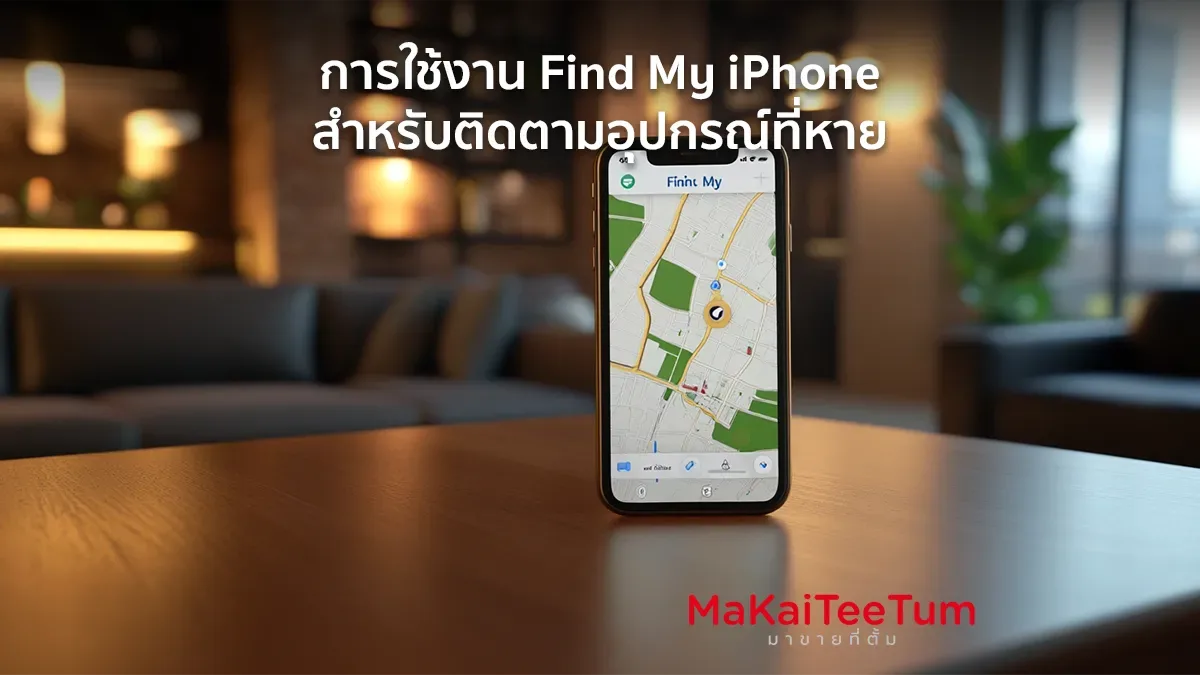
Find My iPhone is a powerful feature that allows Apple users to track lost devices, including iPhone, iPad, MacBook, and Apple Watch. With the latest advancements, users can even track their iPhones when they are turned off (for iPhone 11 and later running iOS 15 or newer). This guide will walk you through the setup process and usage of Find My iPhone to ensure you can locate your device in any situation.
What is Find My iPhone and How Does It Work?
Importance of Find My iPhone
- Helps locate lost Apple devices
- Allows you to play a sound, lock the device, or erase its data remotely to protect your privacy
How It Works
- Uses GPS, Wi-Fi, Bluetooth, and cellular networks to determine the device’s location
- Can share the location with other Apple devices linked to the same Apple ID
How to Set Up Find My iPhone
Enable Find My iPhone
- Go to Settings > [Your Name] > Find My
- Tap Find My iPhone and enable it
- Turn on Enable Offline Finding to locate your device even without an internet connection
- Enable Send Last Location to send the last known location when the battery is low
Enable Share My Location
- Allows you to share your location with family or friends for easier tracking
Check Apple ID Connection
- Ensure your device is linked to your Apple ID to use Find My iPhone effectively
How to Use Find My iPhone to Track Your Device
Using the Find My App
- Open the Find My app on iPhone, iPad, or Mac
- Tap Devices and select the lost device
- View the device’s location on the map
Using iCloud to Track Your Device
- Go to iCloud.com
- Sign in with your Apple ID
- Click Find iPhone
- Select the lost device and view its location
Key Features of Find My iPhone
Play Sound
- Use this when the device is nearby but cannot be found (e.g., inside a house or car)
Lost Mode
- Locks the device and displays a message on the screen (e.g., a phone number for someone who finds it to contact you)
Erase iPhone Remotely
- Deletes all data on the device to protect personal information
Tips for Using Find My iPhone Effectively
- Regularly check that Find My iPhone is enabled
- Use Family Sharing to let family members help locate lost devices
- Set a strong passcode to prevent unauthorized access
Limitations of Find My iPhone
- Requires an internet connection unless Offline Finding is enabled
- Battery-dependent – If the device runs out of battery, it will only send the last known location
Frequently Asked Questions
Can I track my iPhone if it’s turned off?
- Yes! iPhone 11 and later running iOS 15 or newer can still be tracked even when powered off. For older models, you can only see the last known location before the device turned off.
Can I use Find My iPhone to track other Apple devices?
- Yes, Find My iPhone also works for iPad, MacBook, Apple Watch, and AirPods.
What if I don’t have a spare iPhone to track my device?
- You can track your device by logging into iCloud.com on a computer or using the Find My app on another Apple device (such as a family member’s iPhone or iPad).
Conclusion
Find My iPhone is an essential feature for tracking lost Apple devices, especially with the ability to locate iPhones even when they are turned off. By setting it up correctly and using its key features, you can protect your data and increase your chances of recovering your lost device.
References: