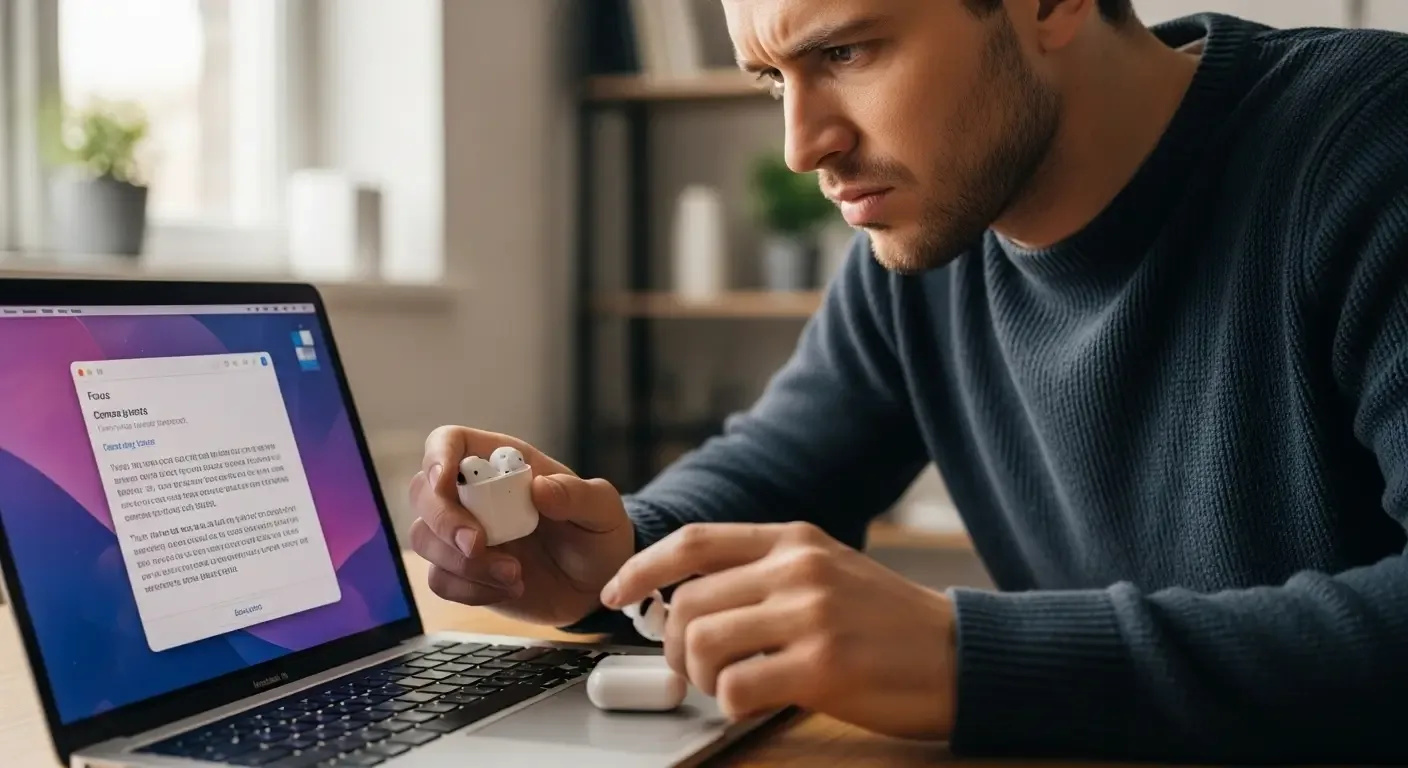
Many MacBook users encounter issues when trying to connect their AirPods — whether it’s failure to connect, frequent disconnections, or the MacBook not detecting the AirPods at all. These problems can stem from both software and hardware factors. Fortunately, most of them can be resolved with simple troubleshooting steps. This guide will walk you through the most common causes and effective solutions to restore smooth connectivity.
Possible Reasons Why AirPods Won’t Connect to MacBook
- Bluetooth glitches: The Bluetooth system on your MacBook may malfunction temporarily.
- Incomplete pairing: AirPods may not have paired correctly with the MacBook.
- Outdated macOS: Older software versions may contain bugs affecting Bluetooth connections.
- AirPods connected to another device: If they’re still paired with an iPhone or iPad, conflicts may occur.
- Hardware issues: Either AirPods or the MacBook’s Bluetooth components may be faulty.
Basic Fixes to Try First
1. Check Bluetooth Status
Ensure Bluetooth is turned on:
- Go to System Settings (or System Preferences) > Bluetooth
- Verify Bluetooth is enabled and in discovery mode
2. Put AirPods Back in the Case and Reconnect
- Place both AirPods in the charging case
- Close the lid, wait 15 seconds, then reopen it
- Press and hold the button on the back until the light flashes
- Reconnect from the MacBook’s Bluetooth settings
3. Remove and Re-Pair AirPods
- Go to System Settings > Bluetooth
- Select your AirPods in the device list
- Click “Remove” or the “i” icon
- Put AirPods in pairing mode and connect again
4. Update macOS
- Click the Apple logo () in the top left
- Go to System Settings > General > Software Update
- Install available updates
5. Disconnect from Other Devices
- Unpair or temporarily disable Bluetooth on iPhone/iPad
- This ensures the MacBook can take priority connection
Advanced Troubleshooting
1. Reset AirPods
- Put AirPods back in the case
- Press and hold the back button for 15 seconds
- Wait until the LED flashes white
- Reconnect to your MacBook
2. Restart Your MacBook
A restart often refreshes Bluetooth and related system functions.
3. Reset Bluetooth Module (Older macOS Versions)
- Hold Shift + Option and click the Bluetooth icon in the menu bar
- Select Reset the Bluetooth module
- Restart the MacBook and re-pair AirPods
Tips for Stable AirPods–MacBook Connectivity
- Avoid areas with heavy Bluetooth interference (e.g., routers, microwaves, multiple wireless devices)
- Keep AirPods and the charging case clean for better contact
- Limit the number of active Bluetooth devices connected to your MacBook at the same time
FAQ
Q: My AirPods always connect to my iPhone first. How can I prioritize MacBook?
A: On your MacBook, go to Bluetooth > AirPods > Options, then set “Connect to This Mac” to “When Last Connected to This Mac”.
Q: Audio stutters when using AirPods with MacBook?
A: This may be caused by interference or unstable Bluetooth. Turn off other Bluetooth devices nearby and update macOS.
Q: Can AirPods Pro (1st gen) work with newer MacBooks?
A: Yes. AirPods Pro connect to any Bluetooth-enabled MacBook, though some advanced features may only work with the latest Apple devices.
Conclusion
AirPods connection issues with MacBook are common but usually easy to fix. By following these troubleshooting steps, you can resolve most problems on your own. If the issue persists, contacting Apple Support may be necessary.
With the right fixes, your AirPods and MacBook will work together seamlessly once again.