Mac computers are known for their powerful performance, but over time, you may notice your device becoming slower. Apps take longer to open, files load sluggishly, and overall system responsiveness decreases. This article will guide you through the best techniques to optimize your Mac, from clearing unnecessary files to tweaking settings that help restore its speed to like-new performance.
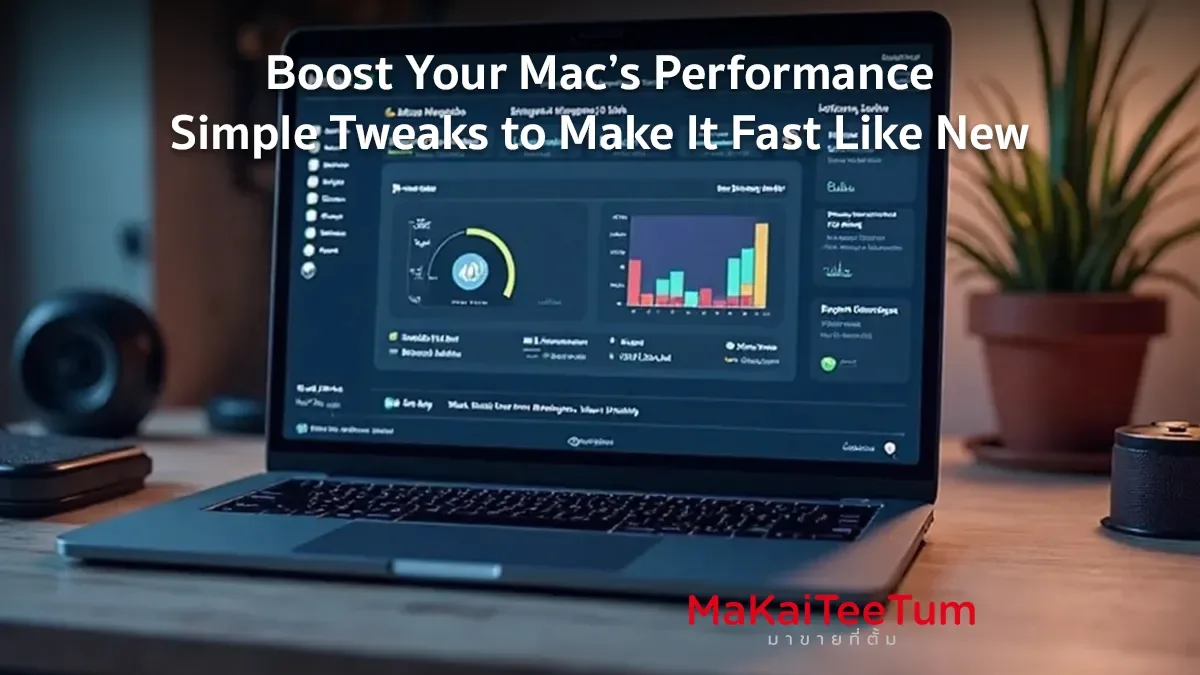
1. Check Your Mac’s Resource Usage
Before making any adjustments, it’s essential to identify what’s slowing down your Mac.
- Open Activity Monitor by pressing Command + Spacebar, then typing “Activity Monitor.”
- Navigate to the CPU and Memory tabs to see which applications are consuming the most resources.
- Close unnecessary apps by selecting them and clicking Quit Process.
2. Clear Junk Files and Unnecessary Data
Over time, Macs accumulate unnecessary files that take up storage and slow down performance.
- Go to Apple Menu > About This Mac > Storage > Manage.
- Delete large files and old downloads you no longer need.
- Empty the Trash Bin by right-clicking on it and selecting Empty Trash.
3. Disable Apps That Launch at Startup
Too many apps launching at startup can slow down your Mac’s boot time.
- Go to System Settings > General > Login Items.
- Remove any apps that don’t need to start automatically.
4. Use Terminal to Clear Cache and Optimize Performance
For advanced users, macOS Terminal can help remove cache files that slow down the system.
- Open Terminal and enter the following command to clear memory caches: sudo purge
- Press Enter and enter your administrator password when prompted.
5. Update macOS and Applications
Apple frequently releases updates to improve system speed and fix bugs.
- Navigate to System Settings > General > Software Update.
- Install any available updates.

6. Upgrade RAM or Switch to an SSD (For Older Macs)
If your Mac supports hardware upgrades, adding more RAM or replacing an HDD with an SSD can significantly improve speed and performance.
7. Disable Unnecessary Visual Effects
macOS includes animations and transparency effects that use system resources. You can disable these for better performance.
- Go to System Settings > Accessibility > Display.
- Enable Reduce Motion and Reduce Transparency.
8. Reset PRAM and SMC to Fix Performance Issues
If your Mac remains slow despite these optimizations, resetting the PRAM and SMC may help.
- Reset PRAM: Shut down your Mac, then hold Option + Command + P + R when turning it on until you hear the restart sound.
- Reset SMC (for Intel-based Macs): Shut down your Mac, then hold Shift + Control + Option + Power for 10 seconds before restarting.
9. Use Mac Optimization Apps
Apps like CleanMyMac or DaisyDisk can help analyze storage and remove unnecessary files automatically.
10. Monitor Battery and Hardware Health
A deteriorating battery can slow down performance.
- Check battery health in System Settings > Battery.
- If it shows “Service Recommended,” consider replacing it.
References: Apple Official Website, MacRumors, iMore, 9to5Mac