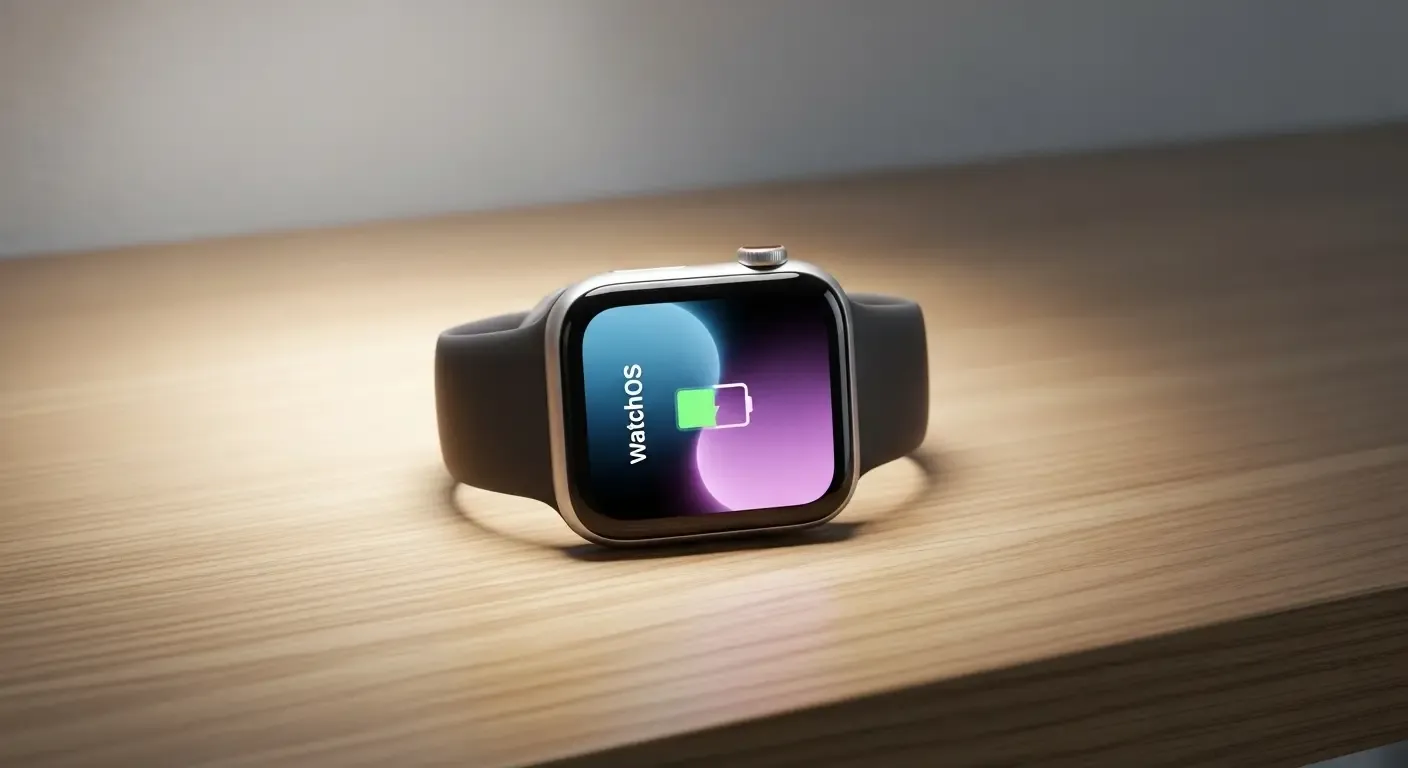
After updating to watchOS 26, many users have reported faster battery depletion on their Apple Watch — particularly on newer models like the Apple Watch Series 11 and Apple Watch Ultra 3. This issue is understandable since the new OS introduces AI and proactive processing features that run continuously in the background.
Main Causes of Battery Drain in watchOS 26
- New AI and Proactive Features: watchOS 26 introduces AI-driven Watch Faces, which automatically adjust information and backgrounds based on user context, and a Proactive Health Analysis system that uses the new Neural Engine to monitor sleep, heart activity, and movement patterns. These features can consume more power when constantly active.
- Background Processing After Update: Following a major update, the system reindexes and resyncs data with the iPhone, which can take 1–2 days to complete.
- Inaccurate Battery Percentage Display: After large updates, the system may temporarily misreport battery levels, creating the impression of faster drain.
AI and Proactive Features in watchOS 26 That Affect Battery Life
watchOS 26 focuses on using AI to make the experience smarter and more adaptive, such as:
- AI-driven Watch Faces: Dynamically displays images, weather, calendar, or health data in real time.
- Proactive Health Tracking: Continuously monitors vital signs and can predict stress or insufficient rest.
Tip: If you notice the battery draining faster than normal, try disabling certain features temporarily, such as automatic health data updates or switching to a simpler watch face.
How to Temporarily Disable AI Features in watchOS 26
- Go to Settings > Watch Face > Intelligent Face and toggle off “AI Suggestions.”
- Navigate to Settings > Health > Proactive Suggestions to disable proactive notifications.
- Enable Low Power Mode when not using intensive features.
Check Battery Health and Perform a Recalibration
watchOS 26 includes a new battery health monitoring system that may suggest performing a Calibrate process to correct inaccurate percentage readings after major updates.
- Open Settings > Battery > Battery Health
- Select “Recalibrate Battery” if available
- Charge to 100%, use until below 10%, then fully recharge again.
Model-Specific Issues
- Apple Watch Ultra 3: The barometric pressure sensor and high-precision GPS may drain the battery faster when both are active simultaneously.
- Apple Watch Series 11: The new Neural Engine powers Proactive Health and Siri enhancements, providing higher performance but increased power use.
Additional Tip: For these models, use the Smart Low Power Mode to balance energy efficiency without disabling essential functionality.
Notes for Beta Users
If you are using the Developer Beta or Public Beta of watchOS 26, battery drain is expected as the system collects diagnostic data for optimization in the final release. Avoid frequent resets; instead, submit issues via the Feedback app.
Additional Tips to Extend Battery Life
- Avoid keeping Always-On Display enabled constantly.
- Disable background app refresh for non-essential apps.
- Use Theater or Sleep Mode when not actively using the watch.
- Ensure your software is always updated to the latest version.
FAQ: Frequently Asked Questions
Q: After updating to watchOS 26, my battery drains faster. How long until the system stabilizes?
A: Typically, it takes about 48 hours for the system to rebalance and optimize usage data. After that, power consumption should normalize.
Q: Can AI features in watchOS 26 be permanently disabled?
A: Yes, users can disable them via the Settings menu as described above without affecting core watch functions.
Q: How often should I Calibrate the battery?
A: Perform calibration after each major OS update or whenever battery percentage readings seem inaccurate compared to real usage time.
Further References