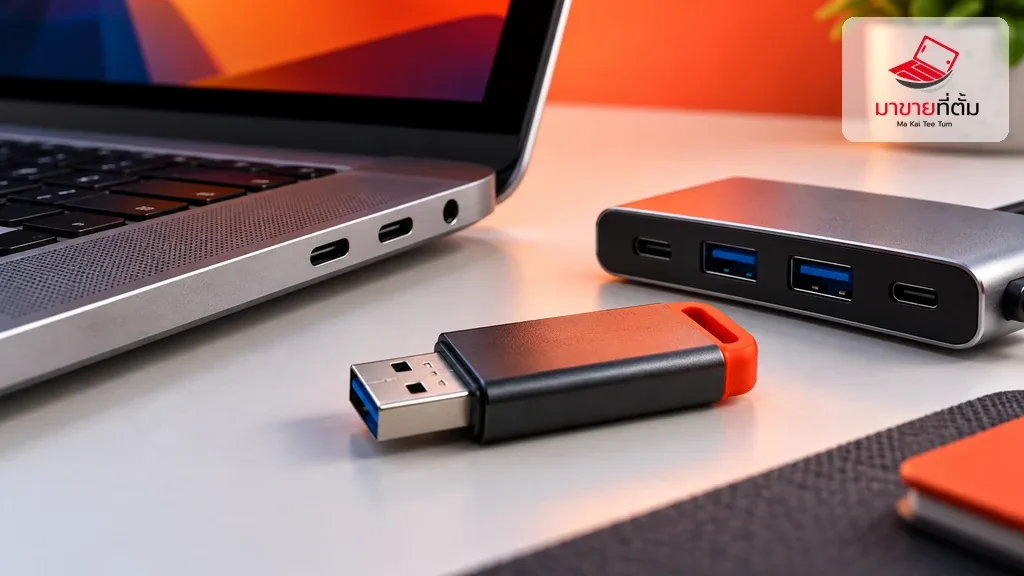
When a Mac does not recognize a flash drive, camera, keyboard, or USB hub, note any alert and test the cable, port, and hub separately. For a USB Devices Disabled or insufficient-power message, start with power and connection checks.
Work through these checks in order
- Disconnect and reconnect the device firmly. Check the cable and connector for damage, and make sure the accessory is powered on or supplied with power as its manufacturer requires.
- Try the device in another USB or Thunderbolt port on the Mac to find out whether the issue is limited to one port.
- If you use a hub or dock, bypass it and connect the device directly to the Mac. If the hub is self-powered, connect its power adapter.
- Try another compatible cable or adapter, and check the accessory’s instructions for required software or a connection-approval prompt.
- Restart the Mac and check for a macOS update. If the device remains missing, test it with another compatible computer or test another device in the original port to isolate the cause.
When to get more help
Stop using a port if it is scorched, loose, or smells unusual. If several devices fail on every port despite suitable cables and hubs, contact Apple Support or arrange an inspection.
Have an Apple device assessed before upgrading
If you are considering selling or replacing your Mac, Makaiteetum can assess Apple devices before you decide. Call 064-564-7945 or contact Line @KunTum.
References
Apple Support’s USB Devices Disabled and Mac accessory connection guidance: