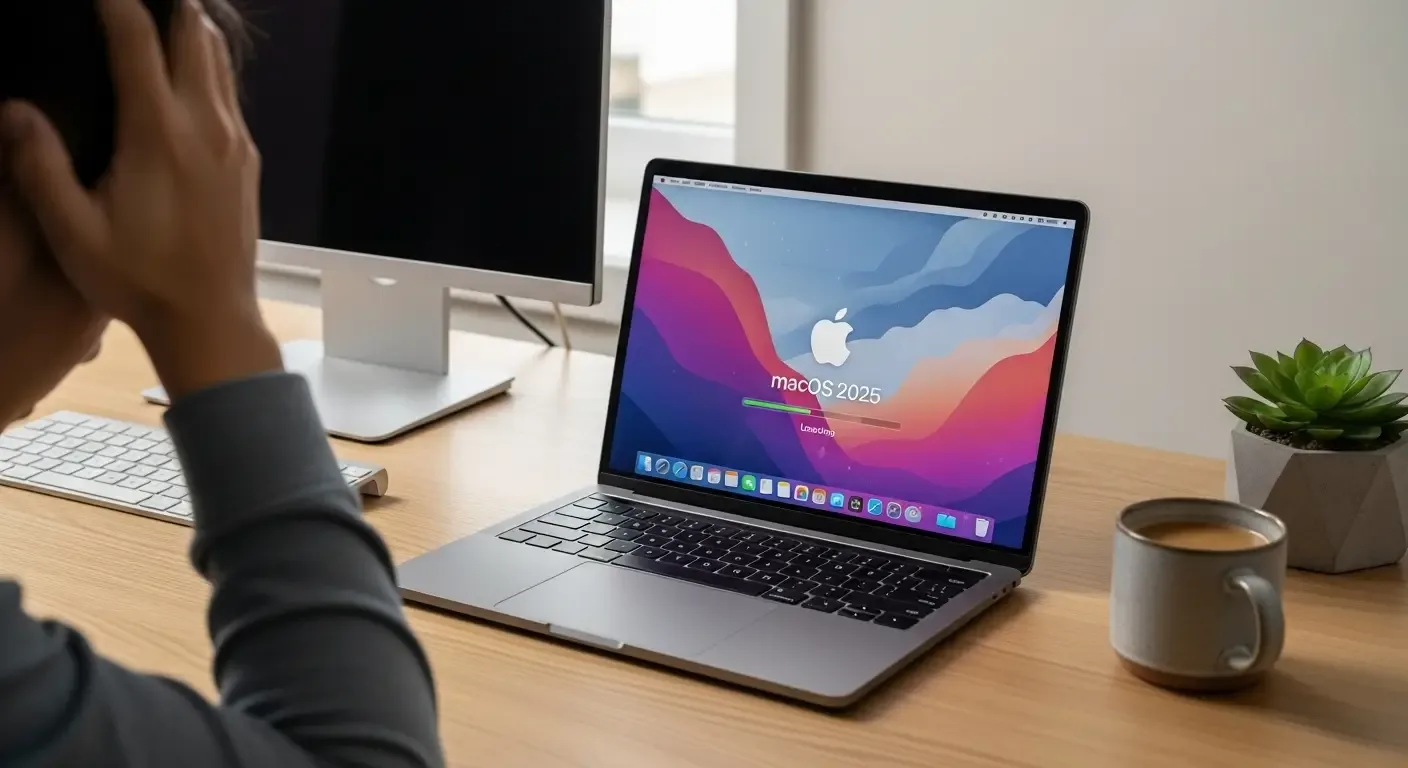
Updating macOS is essential for performance, new features, and security improvements. However, some MacBook users may encounter issues where the device freezes or becomes unresponsive during the macOS 2025 installation. This can cause concern about data loss or system damage, but most of the time, it can be fixed with the right steps.
Why Does MacBook Freeze During macOS Update?
- Insufficient storage space: The update requires about 20–30 GB of free space.
- Corrupted system files: Damaged cache or installer files can cause issues.
- Download interruptions: Internet disconnections may result in incomplete installations.
- Hardware problems: Aging SSD or RAM failures can affect stability.
- Incompatible macOS or Mac model: Older Macs may not fully support new updates.
Check If It’s Really Frozen
Sometimes updates take longer than expected, especially on older Macs. Before assuming it’s frozen:
- Look for movement in the Apple logo or progress bar.
- Listen for fan noise or feel for device warmth.
- Test Caps Lock light or trackpad responsiveness.
If there’s no response for over 30–60 minutes, the Mac is likely frozen.
Fixes for MacBook Frozen During Update
1. Force Restart
Hold the Power button for 10 seconds until the Mac shuts down, then power it back on. If the update doesn’t resume, try the next steps.
2. Boot into Recovery Mode
- Restart and hold Command + R until the Apple logo appears.
- Open Disk Utility from macOS Utilities.
- Run First Aid to check and repair disk errors.
3. Reinstall macOS
- If Disk Utility shows no issues, choose “Reinstall macOS” in macOS Utilities.
- Ensure stable internet connection.
- Select the main disk and proceed. Your personal files should remain intact with a standard reinstall.
4. Use Safe Mode
- Restart and hold Shift until you enter Safe Mode.
- Clear cache or update via System Preferences → Software Update.
5. Restore with Time Machine
- Enter Recovery Mode.
- Select Restore from Time Machine Backup.
- Choose a backup point before the failed update.
How to Prevent Freezing During Future Updates
- Keep at least 30 GB of free storage before updating.
- Regularly check SSD and battery health.
- Always back up with Time Machine before updates.
- Update on stable Wi-Fi with power connected.
FAQ
Q: Will forcing shutdown damage my Mac?
Normally no, but only do it if the system is truly unresponsive. Restarting often helps continue the update.
Q: Can I reinstall macOS again?
Yes, you can reinstall via Recovery Mode without erasing personal data.
Q: What if I don’t have a Time Machine backup?
Try reinstalling macOS without erasing data. If it fails, seek help from Apple Support.
Q: How long should I wait before assuming it’s frozen?
Updates typically finish within an hour. If it takes much longer with no response, it may be stuck.
Conclusion
MacBook freezing during the macOS 2025 update is stressful but usually fixable. By using Recovery Mode, Safe Mode, or reinstalling macOS—and keeping regular backups—you can resolve the issue safely and prevent future problems.