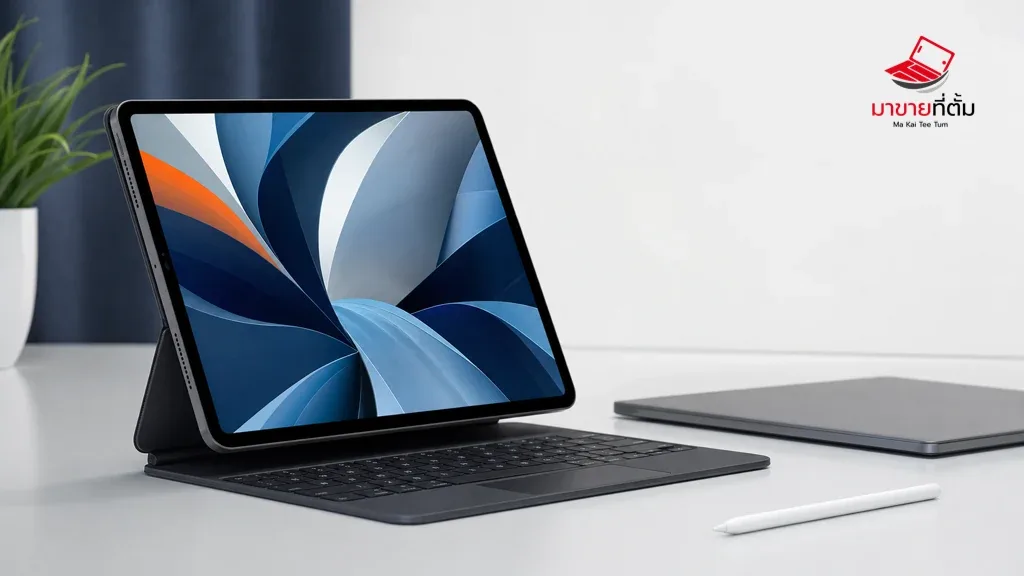
An iPad keyboard may connect through Bluetooth or through a Smart Connector, and each route has a different failure pattern. Check power and pairing for Bluetooth models; check contact alignment and cleanliness for Apple’s connector-based keyboards.
Checks to try first
- Charge the keyboard, turn it on, and place a Bluetooth model in pairing mode
- Open Settings > Bluetooth, forget the old entry, and pair the correct device again
- For a Smart Keyboard, remove the case, clean and dry the contacts, and align it with the connector
- Restart the iPad and install iPadOS updates if typing fails in every app
- Cross-test with another iPad or keyboard to identify which component is failing
When the device needs further help
A keyboard that fails with multiple iPads, or a Smart Connector that remains unresponsive after cleaning and alignment, should be inspected rather than bent or pressed into place.
Bottom line
Start with reversible checks that do not erase personal data, then isolate the accessory, setting, network, or hardware involved. If the symptom survives the basic steps or follows impact or liquid exposure, professional assessment is safer than repeated resets.
Thinking about selling or upgrading an Apple device?
If the problem is part of an upgrade decision, MaKaiTeeTum can help assess an iPhone, iPad, Mac, or Apple Watch and discuss your selling options. Describe the real condition and repair history for a more useful valuation.
- Call: 064-564-7945
- Line ID: @KunTum