
An unresponsive iPad touchscreen can hinder your productivity and device enjoyment. This guide provides detailed steps to diagnose and resolve touchscreen issues, addressing both software and hardware causes.
Possible Causes
- Software Issues: Glitches or unresponsive applications.
- Hardware Problems: Physical damage or debris on the screen.
- Accessories: Incompatible screen protectors or cases.
- Charging Equipment: Use of non-certified chargers or cables.
Troubleshooting Steps
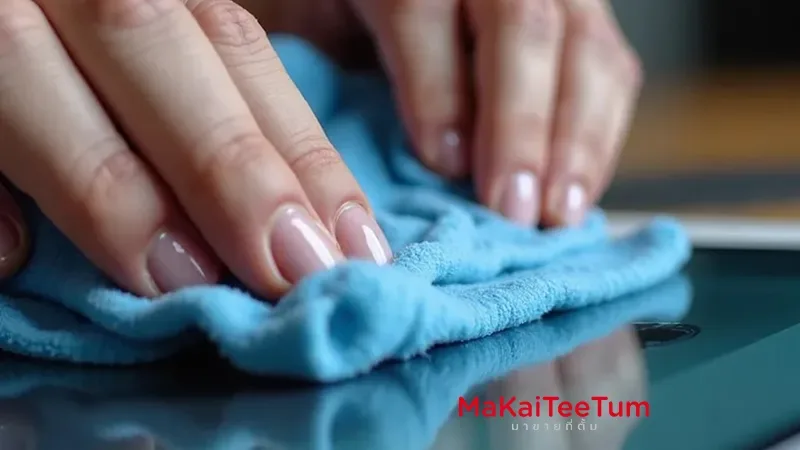
1. Clean the Screen
- Procedure: Turn off your iPad and use a soft, lint-free cloth slightly dampened with water to gently wipe the screen.
- Note: Avoid using household cleaners, as they can damage the screen.
2. Remove Accessories
- Procedure: Detach any screen protectors or cases and test the touchscreen.
- Reason: Some accessories may interfere with screen responsiveness.
3. Force Restart the iPad
For iPads without a Home Button:
- Press and quickly release the volume up button.
- Press and quickly release the volume down button.
- Press and hold the top button until the Apple logo appears, then release.
For iPads with a Home Button:
- Press and hold both the Home and top buttons simultaneously until the Apple logo appears, then release both.
This method can resolve minor software glitches causing unresponsiveness.
4. Update iPadOS
Procedure:
- Go to Settings > General > Software Update.
- If an update is available, follow the on-screen instructions to install it.
- Benefit: Updating can fix known bugs and improve system performance.
5. Reset All Settings
Procedure:
- Navigate to Settings > General > Transfer or Reset iPad > Reset > Reset All Settings.
- Confirm the action.
- Note: This will reset system settings like Wi-Fi passwords and wallpapers but won’t delete personal data.
6. Restore iPad via Computer
Procedure:
- Connect your iPad to a computer with iTunes (on macOS Mojave or earlier) or Finder (on macOS Catalina or later).
- Select your device when it appears.
- Choose Restore iPad and follow the prompts.
Caution:
- This process will erase all data. Ensure you have a backup before proceeding.
7. Adjust Touch Accommodations
Procedure:
- Go to Settings > Accessibility > Touch > Touch Accommodations.
- Enable and customize settings to adjust touch sensitivity.
- Benefit: Helps if the screen responds inconsistently to touch.
8. Inspect Charging Equipment
- Procedure: Use only Apple-certified chargers and cables.
- Reason: Non-certified accessories can cause device malfunctions, including touchscreen issues.
9. Contact Apple Support
- When to Seek Help: If the above steps don’t resolve the issue, there may be a hardware problem.
- Action: Schedule an appointment with Apple Support or visit an authorized service provider.
Conclusion
An unresponsive iPad touchscreen can result from various factors. By systematically following the steps outlined above, you can identify and often resolve the issue. If problems persist, professional assistance is recommended to prevent further complications.
Experiencing persistent issues with your iPad’s touchscreen? Considering an upgrade or need professional repair services? Contact Mister Service for expert assistance. We offer competitive prices for buying and selling used Apple devices and provide top-notch repair services. Call us at 095-916-9453 or reach out via Line ID: @MisterService for prompt support.
References: