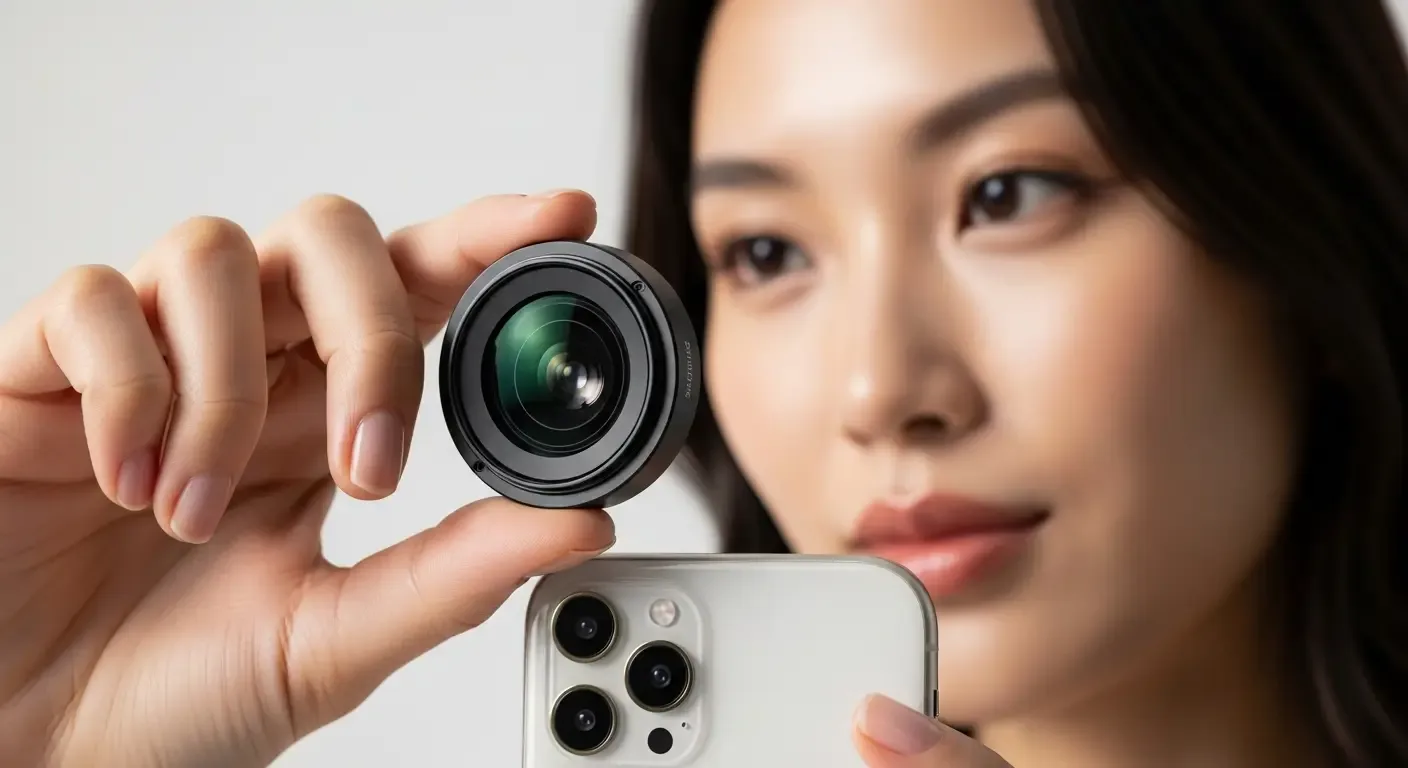
Dust inside iPhone lenses is a problem many users may encounter without realizing. Sometimes, photos may show black spots or hazy areas caused by foreign particles within the lens assembly. This is especially common in complex camera modules like those in the iPhone 16 Pro and other Pro models with zoom or periscope systems consisting of multiple lens layers. Moisture or microscopic dust can slip in when the waterproof seal starts to deteriorate.
Possible Causes of Dust or Fog Inside the Camera
- Rapid temperature changes, such as going from an air-conditioned room to outdoors, can create condensation and fog on the lens.
- Deteriorated dust and water seals, especially on devices that have been repaired or dropped.
- Air vents from the Telephoto lens module could be points where tiny dust particles infiltrate.
- Storing in humid environments increases the risk of fog and moisture stains inside the lens.
Using iOS On-device Diagnostics
Apple is now developing On-device Diagnostics to let users test hardware issues directly on their own devices. This feature is expected to become standard in future iOS versions such as iOS 18 and beyond. The system will test camera sensors, optical image stabilization (OIS), and lens modules to ensure they function normally. If anomalies occur—such as reflective signals distorted by dust or smudges on the lens—the system can alert the user and recommend contacting an authorized service center.
Specific Advice for iPhone Pro Models with Zoom Lenses
Users of the iPhone 16 Pro or any Pro models featuring Telephoto/Periscope Lenses should test image capture at various zoom levels (1x, 2x, 5x, and 10x) to check whether dust spots or smudges appear only at certain ranges. If the issue shows up only at higher zoom levels, it usually points to a problem in the zoom lens rather than the main lens, helping technicians identify and fix the issue precisely.
Safe Preliminary Remedies
Do not use rice to absorb moisture, as rice powder dust can get into ports or air vents inside the device. Instead, use silica gel or dedicated electronic moisture absorbers. Power off the phone, place it inside an airtight box with the desiccant, and leave it for 24–48 hours to remove any interior moisture that could create fog inside the lens.
Initial Testing and Cleaning Steps
- Use a microfiber cloth to thoroughly wipe the external lens surface first.
- Open the camera app and aim it at a plain white surface to check for persistent dark spots.
- If the spots remain visible in all modes, internal dust contamination is likely.
- Visit an authorized Apple service provider for internal inspection and possible module replacement.
AI Image Processing and Dust Spot Management
The AI Image Processing system in iPhones—especially in iOS 18—can analyze and process images in real-time, automatically reducing or masking small dust spots in JPEG or HEIC photos. However, such corrections do not apply to RAW files, which retain unprocessed image data. Therefore, those shooting in RAW mode should always ensure the lens is clean beforehand.
Self-repair for iPhone Cameras: Should You Do It?
Although Apple has introduced a Self-repair program for certain iPhone components, repairing or opening the camera module yourself is not recommended. The lens structure is highly precise and sealed; opening it can compromise its water resistance. Diagnostics and repairs should be performed by authorized service centers equipped with specialized tools such as microscopes for tiny dust inspection and pressure seal kits.
Checking iPhone Waterproof Seals
Before using the phone near pools or in humid environments, check that the waterproof seal remains intact. After screen replacement or repairs, request a “Seal Check” service from authorized centers or compatible diagnostic apps to ensure that dust and moisture cannot infiltrate the camera module.
FAQ: Common Questions About iPhone Camera Dust Issues
Q1: If there are dust spots in photos but none are visible externally, what should I do?
A: Capture images at various zoom levels. If the spots appear in all ranges, take the phone to a service center for internal examination.
Q2: Can external apps be used to diagnose camera issues?
A: Some apps can test for dead pixels or focus issues, but it’s best to wait for Apple’s integrated On-device Diagnostics in iOS for more accurate results.
Q3: If condensation forms inside the lens, does the entire module need replacement?
A: If humidity clouds persist even after drying with silica gel, replacing the camera module is recommended to prevent long-term damage.
Summary and Additional Advice
While dust inside iPhone lenses might seem minor, it has a direct impact on photo quality—particularly for professional users. Regular inspections, proper storage, and utilizing iOS diagnostic tools can substantially reduce risks and extend camera lifespan.
References
- Apple Support Official Pages: “Cleaning your iPhone” and “About iPhone splash, water, and dust resistance.”
- iFixit: Detailed internal breakdowns of various iPhone models.
- DXOMARK: Technical analyses of camera lens and sensor performance.