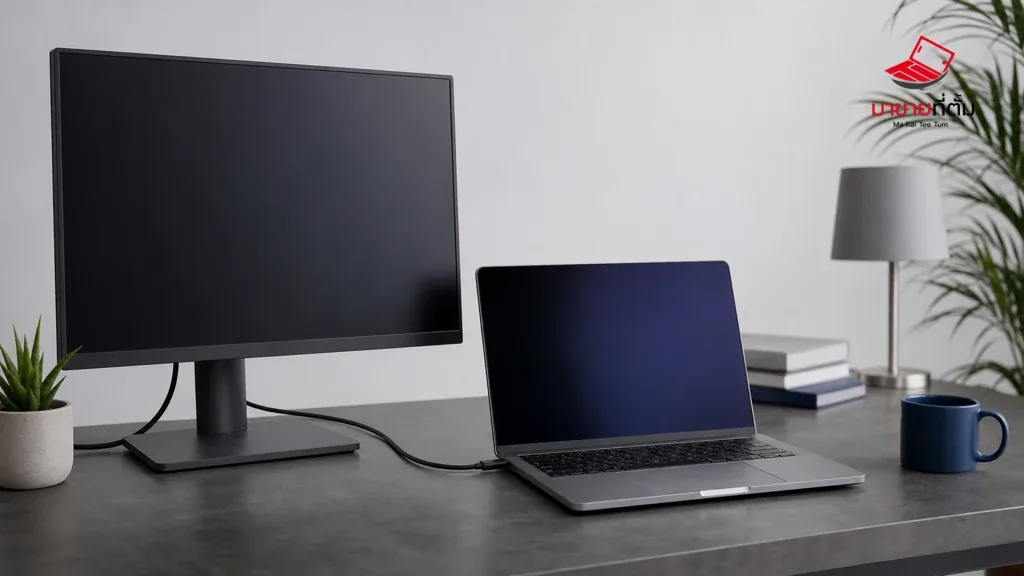
An external monitor that stays blank or is not detected by a MacBook can be caused by the display input, cable, adapter, dock, or macOS display configuration. Isolate those parts in order before replacing the computer.
Checks to try first
- Power on the monitor and select the input source that matches the connected port
- Reconnect both ends of the cable, inspect it for bends, and test a cable or adapter rated for the display
- Open System Settings > Displays; hold Option if you need the Detect Displays control
- Connect the display directly to the MacBook instead of through a hub or dock
- Restart the MacBook and check for macOS updates if the same display repeatedly fails
When the device needs further help
If a known-good display and cable work with another computer but several displays fail on this MacBook, have the port or video circuitry inspected. Do not force a damaged connector into the port.
Bottom line
Start with reversible checks that do not erase personal data, then isolate the accessory, setting, network, or hardware involved. If the symptom survives the basic steps or follows impact or liquid exposure, professional assessment is safer than repeated resets.
Thinking about selling or upgrading an Apple device?
If the problem is part of an upgrade decision, MaKaiTeeTum can help assess an iPhone, iPad, Mac, or Apple Watch and discuss your selling options. Describe the real condition and repair history for a more useful valuation.
- Call: 064-564-7945
- Line ID: @KunTum