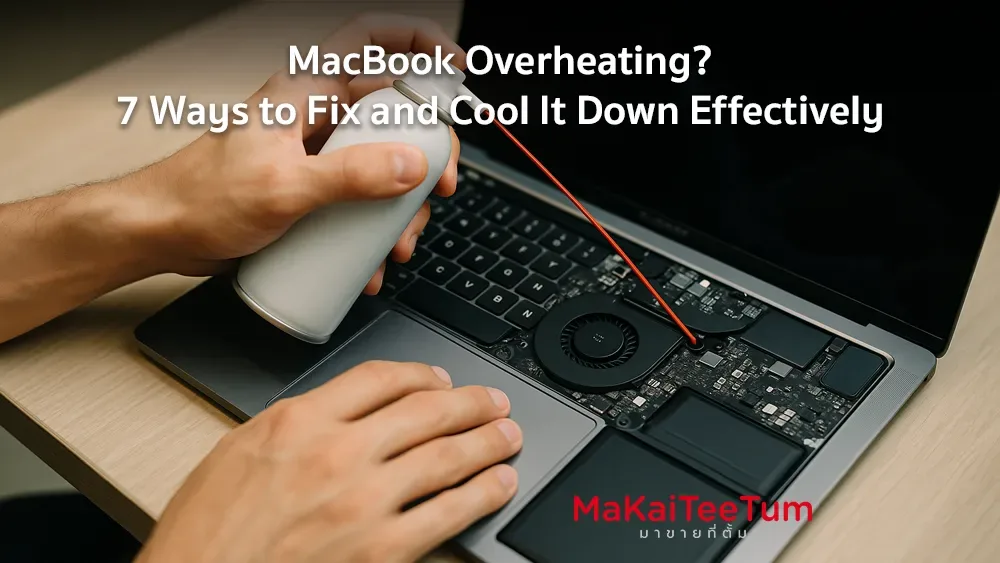
An overheating MacBook can degrade performance, shorten its lifespan, and cause serious hardware stress. In this guide, we’ll explore seven effective ways to identify the causes and fix MacBook overheating issues properly.
1. Monitor CPU Usage and Close Resource-Heavy Apps
High CPU usage is a common cause of overheating. Here’s how to monitor and manage it:
- Open Activity Monitor from the Utilities folder
- Switch to the CPU tab to see which processes consume the most resources
- Close unnecessary apps by selecting them and clicking “Quit” or “Force Quit”
This reduces system strain and lowers internal temperatures.
2. Close Unused Browser Tabs
Excessive browser tabs, especially in Chrome, can stress both CPU and RAM. Use Safari for better macOS integration and close tabs you no longer need.
3. Remove Unnecessary Login Items
Apps that launch at startup consume resources immediately:
- Go to System Settings > General > Login Items
- Remove unnecessary apps from the list
Fewer background apps = lower heat.
4. Clean the Fans and Vents
Dirt and dust can clog fans and vents, limiting airflow:
- Turn off your MacBook and unplug it
- Use compressed air to clean the vents and fans
- If unsure, bring your MacBook to a certified technician
Routine cleaning significantly improves cooling efficiency.
5. Keep macOS and Apps Updated
Apple releases performance and thermal management improvements via updates:
- Go to System Settings > General > Software Update
- Install the latest updates
Staying updated can fix bugs causing overheating.
6. Avoid Hot Environments
Using your MacBook in high-temperature environments can easily cause it to overheat:
- Use the MacBook in ambient temperatures between 10°C–35°C (50°F–95°F)
- Keep it off soft surfaces like beds or pillows that block ventilation
Proper environmental conditions make a huge difference.
7. Reset the SMC (System Management Controller)
The SMC controls thermal management and fan behavior. Resetting it may help:
- Shut down your MacBook
- Press and hold Shift + Control + Option + Power for 10 seconds
- Release all keys, then turn your MacBook back on
This can often solve stubborn overheating problems.
Contact Us
If your MacBook continues to overheat and you’re thinking of upgrading, sell or exchange it with us. Contact:
- Call: 064-564-7945
- Line ID: @KunTum
We offer professional advice and the best value for your Apple devices.