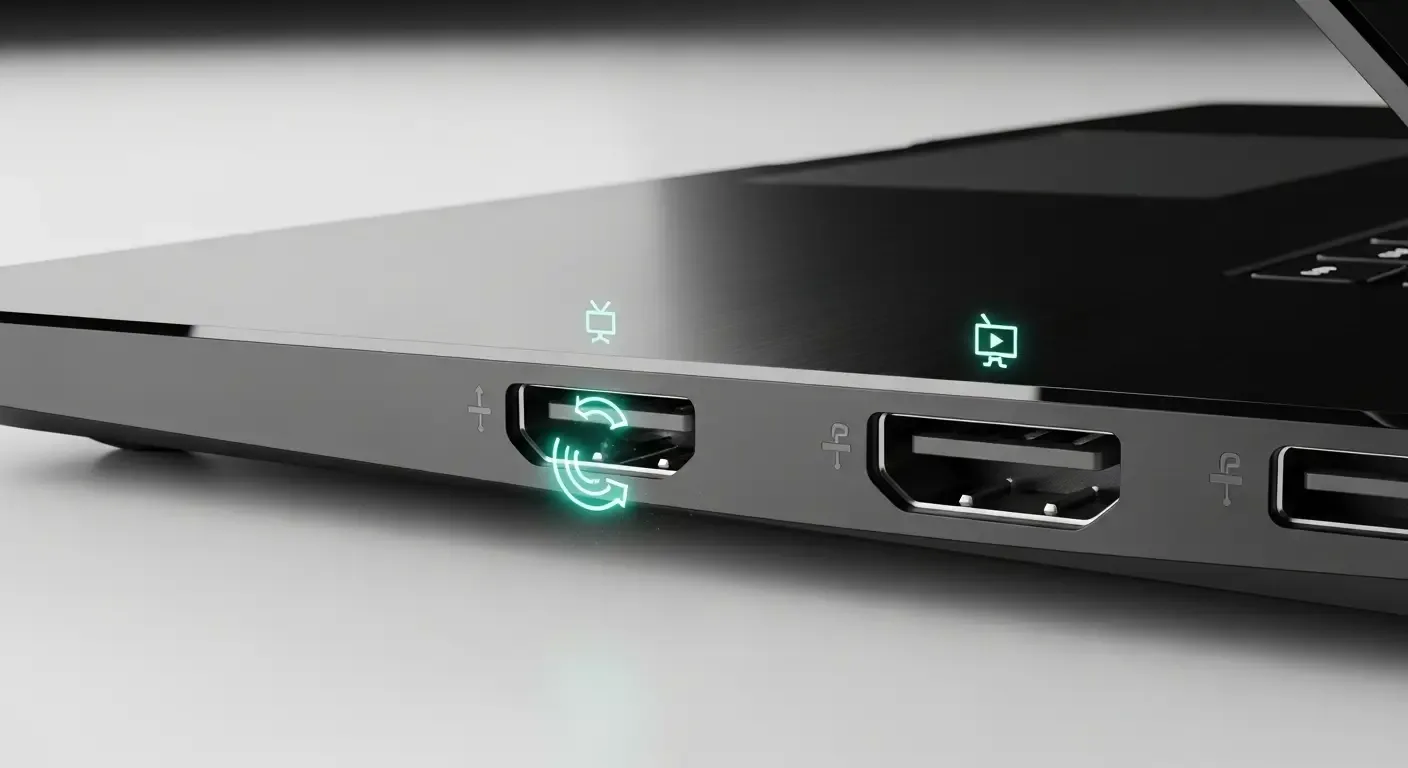
Connections through ports such as USB-C, Thunderbolt, or HDMI are crucial for MacBook users—especially professionals who frequently rely on external devices. When ports malfunction or behave abnormally, such as not charging, failing to detect displays, or transferring data slower than expected, it’s important for users to know the correct diagnostic steps to prevent damage and reduce repair time.
1. Using Apple Diagnostics to Identify Hardware Issues
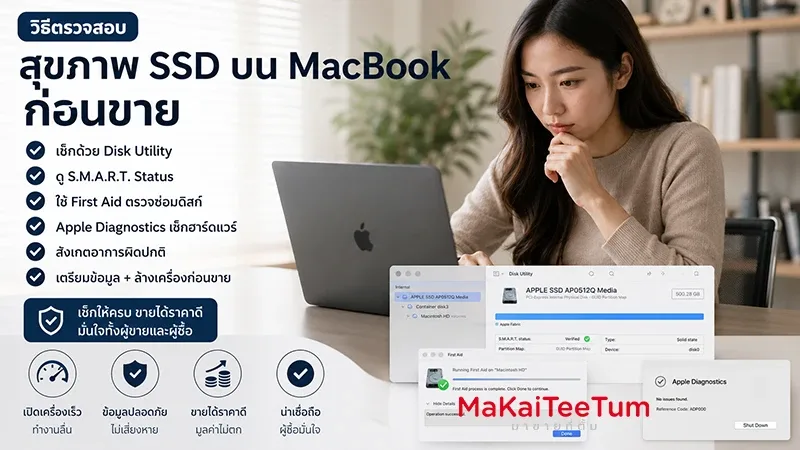
Apple Diagnostics is a built-in macOS tool that efficiently checks hardware abnormalities. It can be used easily as follows:
- For Macs with Apple Silicon: Turn off the computer, then hold the Power button until the startup options window appears. Choose “Options” and press Command + D to start diagnostics.
- For Intel-based Macs: Turn off the device, then hold the D key while turning it on.
After diagnostics are complete, the system will display error codes if any port hardware issues are detected, such as USB controllers or power circuits. These codes are valuable references for service centers or technicians.
2. Verifying Port Speed for USB4 and Thunderbolt
Modern MacBooks feature Thunderbolt 5 and USB4 v2.0 ports, supporting speeds up to 80Gbps. To ensure ports perform at full capability, you can:
- Use benchmark apps such as Blackmagic Disk Speed Test to measure read/write speeds of connected drives.
- Check System Information > Thunderbolt / USB4 to confirm that connected devices are operating under the latest standard.
If performance results fall short, the issue may stem from outdated cables or partial port damage. Try other devices or cables to pinpoint the cause.
3. USB Power Delivery 3.1 (EPR) Power Standards
The USB Power Delivery 3.1 with Extended Power Range (EPR) standard supports up to 240W, ideal for power-hungry MacBook Pro models. To check actual power input:
- Go to Apple menu > About This Mac > System Report
- Select Power or USB/Thunderbolt to view wattage received by your MacBook.
- Compare these values to the adapter’s rating; if lower than expected, the issue may be a non‑EPR cable or a damaged port.
This technology ensures reliable and safe power delivery, reducing the risk of overheating or overvoltage.
4. Inspecting Ports via System Report
Another simple yet powerful method is using the macOS System Report tool, which displays details for all ports—including USB, Thunderbolt, HDMI, and Ethernet. Users can verify whether macOS detects connected devices and see which mode each port is operating in, such as USB 3.2, USB4, or Thunderbolt 4.
5. Future Outlook: Smart Diagnostic Tools in macOS
Apple is expected to integrate AI and Machine Learning into macOS 16, enabling automatic hardware anomaly detection. These tools may alert users if a USB or Thunderbolt port begins showing abnormal resistance or rising temperatures, helping minimize hardware damage and extend device lifespan.
Comprehensive Port Troubleshooting Overview
- Start with Apple Diagnostics to check hardware integrity.
- Assess connection speed and standards using benchmark tools.
- Verify that charging power meets the USB PD 3.1 EPR standard.
- Use System Report to review all port statuses.
- Stay up-to-date with upcoming macOS AI diagnostic features.
FAQ: Frequently Asked Questions
Q: Why does my MacBook charge slowly even with an original adapter?
A: The cable may not support the EPR standard, or there may be debris in the port blocking electrical contact. Use System Report to verify actual power readings and inspect both port and cable.
Q: How can I confirm that Thunderbolt 5 is working at full performance?
A: Run a benchmark test and confirm that System Information reports 80Gbps speed. If lower, try a different cable or port.
Q: Can I repair a USB-C port myself?
A: It’s not recommended. USB-C ports include complex power delivery circuitry. Repairs should only be performed by certified Apple technicians or authorized service centers.
References
- Apple Support: Use Apple Diagnostics to test your Mac
- Apple Support: Identify the ports on your Mac
- USB Implementers Forum (USB-IF): USB4 and USB Power Delivery standards
- Intel’s Thunderbolt Technology official page