
Before selling a MacBook, most people check the display, battery, keyboard, ports, and cosmetic condition. But one of the most important value factors is often overlooked: SSD health. The SSD stores macOS, apps, documents, photos, videos, and personal data. If it begins to fail, the MacBook may slow down, freeze, fail to copy files, or even risk data loss before the sale is completed.
This guide explains how to check MacBook SSD health before selling using Disk Utility, S.M.A.R.T. status, First Aid, Apple Diagnostics, real-world symptoms, and safe pre-sale preparation steps. The goal is to help sellers protect their data, price the device more accurately, and decide whether to sell now, keep using it, or get the Mac inspected first.
What Does SSD Health Mean on a MacBook?
SSD stands for Solid State Drive. It is the main storage component used in most modern MacBooks. Compared with older hard drives, SSDs are faster, quieter, and more durable against movement. However, SSDs still age over time due to repeated writes, heat, heavy workloads, and long-term use with very little free space.
- The SSD stores macOS, apps, files, and personal data
- SSD health affects speed, stability, and reliability
- Many MacBook models do not support simple storage replacement
- Storage problems can reduce resale value significantly
- Before selling, check both system status and real usage behavior
macOS includes built-in tools such as Disk Utility and Apple Diagnostics to help users inspect storage and hardware issues. These tools do not replace professional repair diagnosis, but they provide a strong first layer of evaluation before resale.
Why SSD Health Matters Before Selling a MacBook
It Directly Affects Resale Value
A MacBook with healthy storage feels fast, responsive, and trustworthy. A MacBook that freezes, fails to copy files, or shows disk-related warnings creates immediate buyer concern. On many modern MacBooks, internal storage is not as easy to replace as a standard removable drive, so buyers price in that risk.
It Helps Prevent Data Loss
Before selling, you should back up important data and check storage condition. If the SSD is already showing errors, data transfer may fail during backup or erasure. Identifying issues early helps protect your files.
It Supports More Accurate Pricing
A MacBook with a weak battery but healthy SSD may still sell well. A cosmetically clean MacBook with storage issues may lose value quickly. SSD health helps determine whether the device should be priced as normal, discounted, or inspected further before sale.
How to Check SSD Health With Disk Utility
Open Disk Utility and Show All Devices
Open Disk Utility from Applications or Spotlight. Then choose View and Show All Devices. This lets you select the physical storage device rather than only a volume such as Macintosh HD. Selecting the actual disk provides more useful device-level information.
Check S.M.A.R.T. Status
S.M.A.R.T. status is a self-monitoring indicator for storage devices. If it shows Verified or a normal status, macOS has not detected a major storage warning. If it shows Failing, Not Supported, or any abnormal message, back up your data immediately and avoid heavy use before further inspection.
Run First Aid
Disk Utility includes First Aid, which Apple says can find and repair errors related to formatting and directory structure. If First Aid repeatedly finds serious errors or cannot repair the disk, the MacBook should be evaluated before selling.
Use Apple Diagnostics as an Additional Hardware Check
What Apple Diagnostics Does
Apple Diagnostics helps detect hardware issues in a Mac. It can help identify potential problems with internal components such as the logic board, memory, and wireless modules. While it does not replace deep SSD analysis, it is a useful step before selling a MacBook.
When to Run It
Run Apple Diagnostics if the MacBook boots slowly, freezes often, restarts unexpectedly, shows a question mark during startup, or behaves strangely during file transfer. If a reference code appears, record it for further evaluation.
Why It Builds Buyer Confidence
Buyers want more than specifications. They want confidence that the device does not have hidden issues. Running basic diagnostics and sharing the result honestly can make the transaction smoother and more credible.
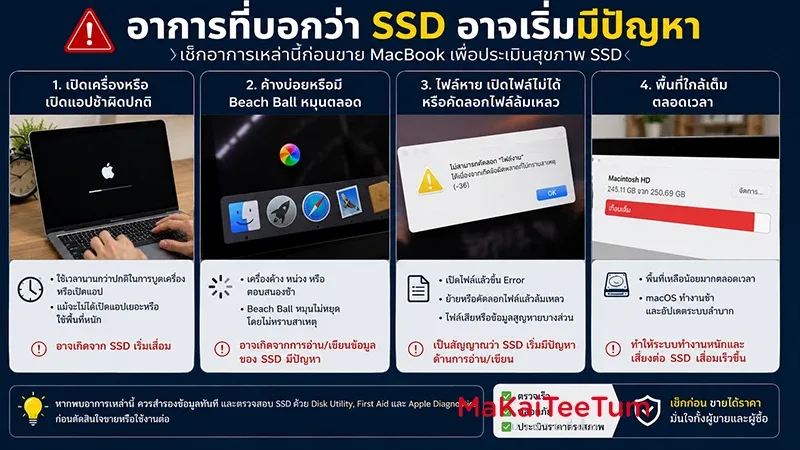
Warning Signs That a MacBook SSD May Have Issues
Slow Boot or App Launching
A healthy SSD should make the MacBook feel responsive. If the Mac boots slowly or apps open unusually slowly despite having enough free space, storage health should be checked.
Frequent Freezing or Spinning Beach Ball
The spinning beach ball can be caused by apps, memory pressure, macOS issues, or full storage. But when it appears together with file-copy failures or slow file access, the SSD may be involved.
Files Fail to Open, Save, or Copy
Repeated file corruption, failed transfers, or save errors are serious warning signs. Storage failures often begin with inconsistent read and write behavior before becoming more severe.
Storage Is Almost Always Full
Very low free space can make macOS feel slow because the system needs working room for cache, swap, temporary files, and updates. Even if the SSD is not failing, full storage can reduce the buyer’s confidence during testing.
Can You Check TBW or Wear Level on MacBook?
macOS Does Not Always Show Detailed Wear Data
Disk Utility and System Information show useful storage information, but detailed SSD metrics such as TBW, wear level, or percentage used may not be visible for every MacBook model, especially newer Apple Silicon devices.
Third-Party Tools Can Help, But Read Carefully
Some third-party tools can display deeper SSD data. However, readings may vary depending on the SSD controller, Mac model, macOS version, and permissions. These numbers should support the evaluation, not replace real-world testing.
Real Behavior Still Matters
A MacBook with good-looking numbers but frequent freezing should still be treated carefully. A MacBook with normal S.M.A.R.T. status, smooth performance, and no First Aid errors may remain highly usable even after years of ownership.
How to Prepare Data Safely Before Selling
Back Up Before Testing or Erasing
Before running intensive checks or erasing the Mac, back up important files using Time Machine, iCloud Drive, or an external drive. If SSD symptoms are already present, prioritize backup before troubleshooting.
Sign Out of Apple ID and Find My
Apple recommends preparing your Mac before selling or giving it away by backing up, signing out of Apple services, and erasing the device. This helps protect personal data and prevents Activation Lock-related issues for the next user.
Use Erase All Content and Settings
Supported Mac models can use Erase All Content and Settings from System Settings to remove user data, settings, and accounts before resale. This makes the device cleaner and safer to hand over.
How SSD Health Affects MacBook Resale Value
A MacBook with healthy SSD performance is easier to sell because buyers can trust that data storage is stable. Storage problems create concern about repair cost, future failure, and data loss risk.
- Abnormal S.M.A.R.T. status reduces value immediately
- Repeated First Aid errors lower buyer confidence
- Freezing or failed file transfers can reduce the offer
- Higher SSD capacities such as 512GB, 1TB, or 2TB are usually easier to sell
- A properly erased and ready-to-use MacBook feels more trustworthy
SSD health is not only about speed. It reflects the reliability of the entire MacBook experience. Even if the display, battery, and body are in good condition, storage issues can significantly lower second-hand market pricing.
Should You Keep Using It or Sell It?
Keep Using It If:
- S.M.A.R.T. status appears normal
- First Aid does not report serious errors
- Apps and file transfers remain responsive
- There is enough free storage for your daily workflow
- You do not need a capacity or model upgrade yet
Sell or Get an Estimate If:
- The MacBook freezes frequently without a clear cause
- File transfers or file opening repeatedly fail
- S.M.A.R.T. status is abnormal or First Aid cannot repair errors
- Storage capacity no longer fits your workflow
- You want to upgrade before resale value drops further
If SSD-related symptoms have started but the MacBook still works, getting a realistic valuation before the issue becomes severe can help preserve more resale value.
Why Professional MacBook Evaluation Helps Before Selling
A proper MacBook evaluation should consider more than model year and storage capacity. SSD health, battery condition, display quality, keyboard function, ports, repair history, and data-preparation status all influence resale value.
MaKaiTeeTum provides Apple device buyback and evaluation services for MacBook, iPhone, iPad, iMac, and Apple Watch. It is useful for sellers who want to understand how SSD condition and overall device health affect current market value.
- Fast inspection in around 10 minutes
- Pricing based on model, storage, condition, and real usage symptoms
- Pickup service available in supported areas
- Immediate payment after agreement
- Privacy-focused handling with no personal data retention
Quick Decision Summary
- Before selling a MacBook, check SSD health along with battery and cosmetic condition
- Start with Disk Utility and enable Show All Devices
- Review S.M.A.R.T. status and back up immediately if anything looks abnormal
- Run First Aid to detect and repair file-system errors
- Apple Diagnostics can help identify broader hardware issues
- Freezing, corrupted files, and failed transfers can point to storage problems
- Back up, sign out of Apple ID, and erase the Mac before handover
- A healthy SSD improves buyer confidence and resale value
If you are planning to sell your MacBook but are unsure about SSD health or current resale value, you can send the model, year, storage capacity, and symptoms for an initial estimate through LINE: @KunTum, visit makaiteetum.com, or call 08-1154-5496.
References
https://support.apple.com/guide/disk-utility/dskutl1005/mac
https://support.apple.com/en-us/102611
https://support.apple.com/en-us/102550