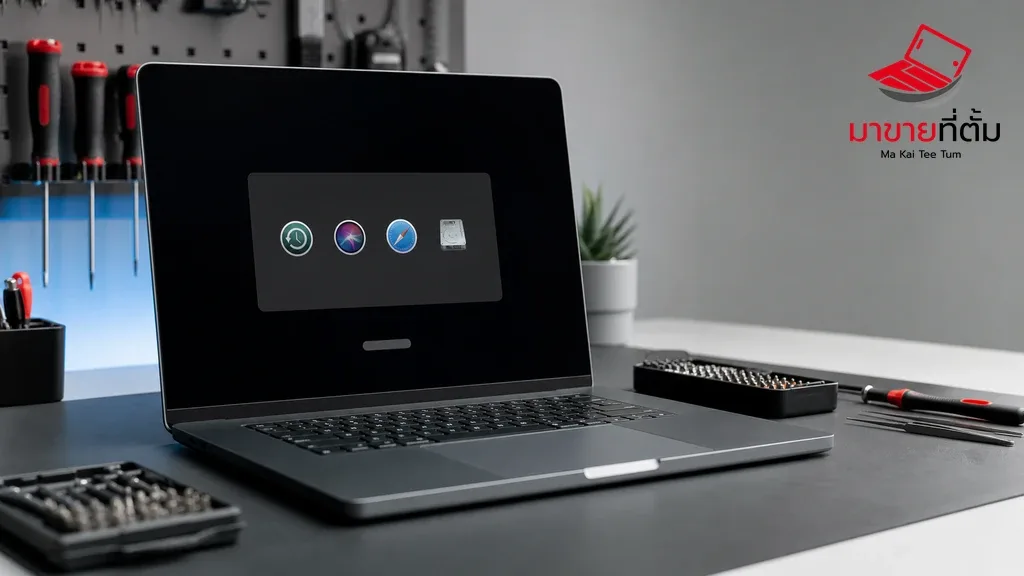
Your MacBook turns on, but macOS never reaches the desktop and keeps opening Recovery or Recovery Assistant. This does not always mean the computer has failed permanently. The cause may be the startup disk, the macOS installation, or an external device interfering with startup.
This guide walks through safer checks first. If the Mac contains important files that are not backed up, do not erase the disk as your first step.
Why does a MacBook keep opening macOS Recovery?
macOS Recovery is a built-in environment for repairing the startup disk, reinstalling macOS, and restoring from a backup. If the Mac cannot find a usable startup system or macOS cannot complete startup, it may open Recovery instead of the normal desktop.
Before troubleshooting: do not erase the disk yet
If you have important files, start with non-destructive checks. Choosing Erase in Disk Utility deletes the data on the selected disk and requires a fresh macOS installation. Use First Aid and backup or file-recovery options first whenever possible.
1. Disconnect external devices
Shut down the Mac and disconnect USB, USB-C hubs, Thunderbolt drives, SD cards, external displays, and other accessories. Leave only the power adapter connected. An external device can interfere with startup-disk selection or cause the boot process to hang.
2. Check whether the startup disk is visible
From Recovery, open Disk Utility and choose View > Show All Devices. Check whether the internal disk and the macOS volume are listed. Note the names, but do not erase or reformat anything at this stage.
3. Run First Aid
Select the macOS volume and choose First Aid. Follow the on-screen instructions. If Disk Utility shows several related disk levels, inspect the items it presents and complete the repair process before restarting the Mac.
4. Select the correct startup disk and restart
If the disk is visible and First Aid does not report an unrepairable problem, return to Recovery and choose the macOS startup disk or Restart. If the Mac returns to Recovery again, continue with the next step.
5. Reinstall macOS from Recovery
Choose Reinstall macOS when the system still cannot boot. Reinstalling macOS without erasing the disk is designed to replace system files while attempting to keep user data, but a backup is still strongly recommended. Use a stable internet connection and keep the Mac connected to power.
What if Disk Utility cannot repair the disk?
If the internal disk does not appear, First Aid reports errors it cannot repair, or reinstalling macOS repeatedly fails, the issue may involve storage, firmware, or other hardware. Erasing the disk will remove data, so only consider that step after confirming you have a backup or accepting the data-loss risk. If the files matter, stop and have the Mac inspected first.
Recovery startup methods by MacBook type
- Apple silicon: Shut down, then press and hold the power button or Touch ID until “Loading startup options” appears. Choose Options.
- Intel: Turn on the Mac and hold Command-R to start macOS Recovery. If built-in Recovery is unavailable, Internet Recovery may be required.
When should you bring the MacBook to a technician?
- The internal disk is missing from Disk Utility.
- First Aid reports an error it cannot repair.
- macOS installation fails more than once.
- The Mac restarts unexpectedly, becomes unusually hot, or shows power-related symptoms.
- Important files are present but no backup exists.
Summary
When a MacBook turns on but will not boot and keeps opening Recovery, start by disconnecting accessories, checking the startup disk, and running First Aid. Do not erase the disk prematurely. If the problem continues, reinstall macOS without erasing first, or have a technician inspect the Mac when the disk or data is at risk.
Need help with your MacBook?
MaKaiTeeTum can help assess a MacBook that powers on but will not boot, including advice on repair options or selling the device based on its condition.
- Call: 064-564-7945
- Line ID: @KunTum