Tags in Apple Notes offer a powerful way to keep your notes and tasks well-organized. By simply typing a hashtag followed by a word, you can categorize notes and access them faster when needed.
Understanding Tags in Apple Notes
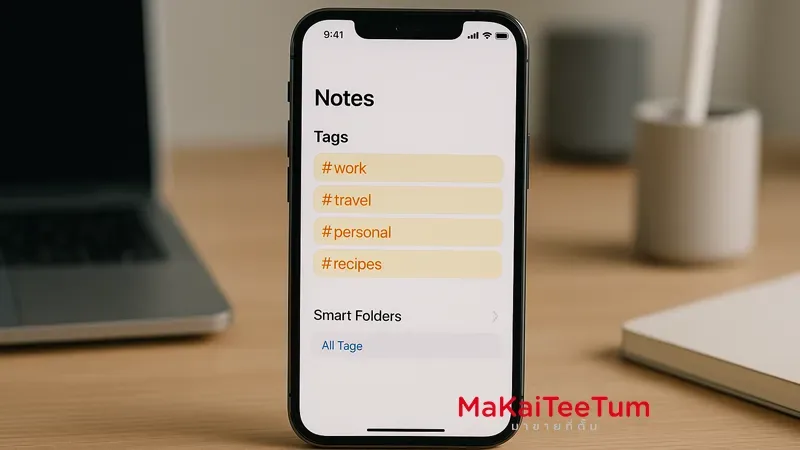
Tags are keywords prefixed with a # symbol, used to classify notes into categories. For instance, you can use #work, #meeting, or #ideas. Notes can have multiple tags, allowing for more flexible sorting.
How to Add Tags to a Note
- Open the Notes app on your device
- Create or edit a note
- Type # followed by the tag name, such as #ProjectA
- The tag will be recognized and reusable in the future
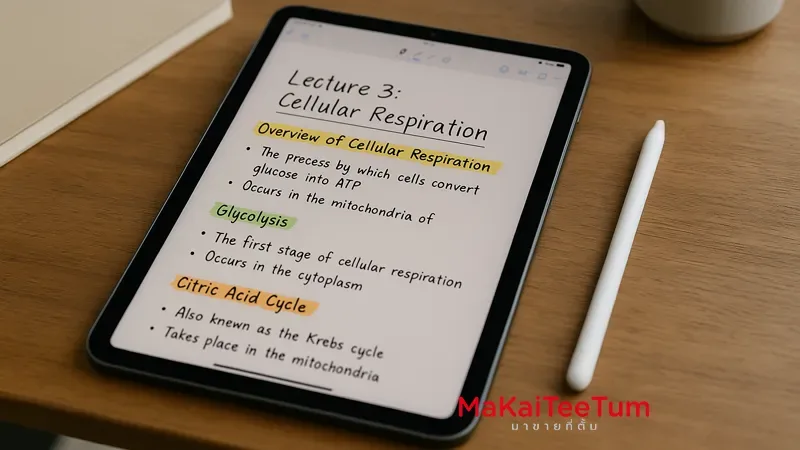
Tip: On iPad, you can handwrite tags using Apple Pencil and tap them to convert into functional tags.
Managing Your Tags
- Rename a Tag: Long-press the tag and select “Rename Tag”
- Delete a Tag: Long-press and select “Delete Tag”
Renaming or deleting a tag will apply to all notes using that tag.
Using Smart Folders with Tags
Smart Folders allow you to automatically group notes by tags:
- In the Notes app, tap “Add Folder”
- Select “Smart Folder”
- Name the folder and choose tags to include notes with those tags
- Tap “Done” to create the folder
All notes matching the selected tags will automatically appear in the Smart Folder.
Benefits of Using Tags
- Faster Note Retrieval: Filter and find notes instantly by tag
- Clear Categorization: Separate notes into work, personal, projects, and more
- Flexible Structure: Assign multiple tags for multi-dimensional grouping
Advanced Tips for Tagging
- Use tags to mark task status like #inprogress, #done
- Include tags for years or clients e.g., #2025, #ClientX
- Create multiple Smart Folders for different workflows or views
Conclusion
Tagging in Apple Notes is a simple yet powerful tool for organizing and managing information. Try using the above techniques to streamline your workflow and boost productivity across all your Apple devices.
Need Assistance?
If you have questions about using Apple Notes or other Apple products, feel free to contact us:
- Call: 064-564-7945
- Line ID: @KunTum
We’re here to help you get the most from your Apple experience!