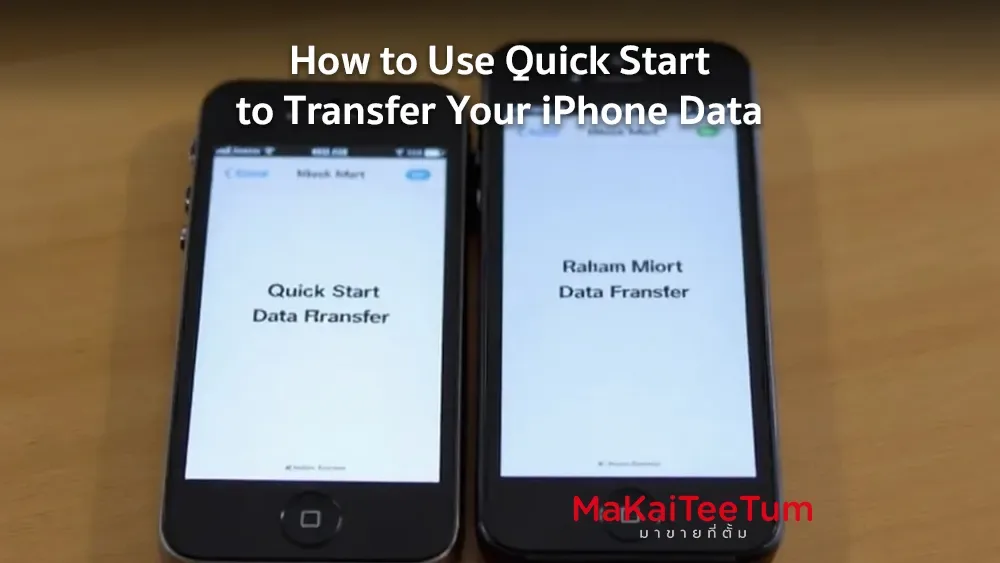
Transferring data from an old iPhone to a new one may seem complicated, but Apple’s Quick Start feature makes the process seamless and efficient. This article provides a comprehensive guide to using Quick Start for data migration with tips to ensure a smooth transition.
What is Quick Start?
Quick Start is a built-in iPhone feature that allows users to transfer data, settings, and content from an old device to a new one without needing a computer. Simply place both devices close together and follow the on-screen instructions. This feature is available for iPhones running iOS 11 or later.
How to Use Quick Start for iPhone Data Transfer
- Preparation Before Starting
- Update iOS: Ensure your old iPhone is running the latest iOS version by going to Settings > General > Software Update.
- Enable Bluetooth & Wi-Fi: Both devices must have Bluetooth and Wi-Fi turned on.
- Charge Your Devices: Ensure both iPhones have sufficient battery life or keep them plugged in during the transfer.
- Start the Transfer Process
- Turn On Your New iPhone: Place it near your old iPhone. The “Quick Start” screen will appear on the old iPhone with an option to use your Apple ID for setup.
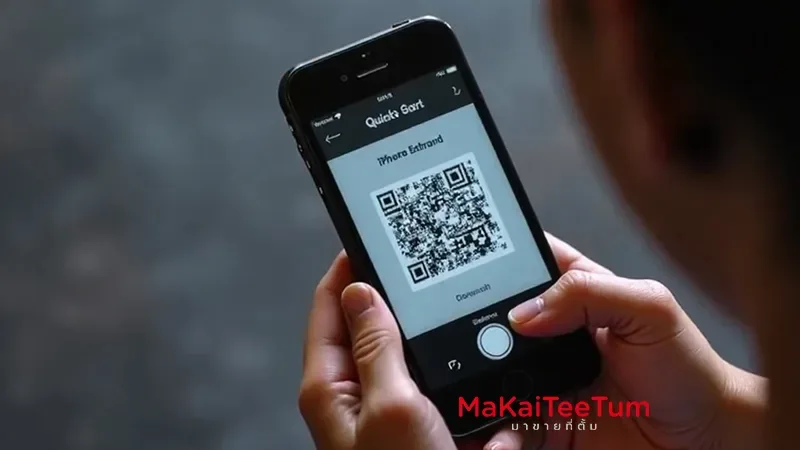
- Scan the Animated Code: Use your old iPhone’s camera to scan the animation displayed on the new iPhone’s screen to establish a connection.
- Enter Your Passcode: When prompted, enter the passcode of your old iPhone on the new device.
- Additional Setup Steps
- Set Up Face ID or Touch ID: Follow the on-screen instructions.
- Choose a Transfer Method:
- Transfer Directly from iPhone: Keep both devices close together and connected to power.
- Restore from iCloud Backup: If you prefer, you can restore data from an iCloud backup.
- Tips for a Smooth Data Transfer
- Unpair Your Apple Watch: If you have an Apple Watch paired with your old iPhone, unpair it before starting the transfer.
- Check Storage Space: Ensure your new iPhone has enough space for all the transferred data.
- Stable Wi-Fi Connection: A strong and stable Wi-Fi connection helps prevent transfer interruptions.
- Common Issues & How to Fix Them
- Transfer Fails: Restart both devices and try again.
- Missing Data: If some data is missing, check if it was backed up to iCloud and retry the transfer.
Conclusion
Using Quick Start is the easiest and most efficient way to transfer data from an old iPhone to a new one. By following these steps, you can ensure that all your settings, apps, and content are successfully migrated for a seamless experience.
References: