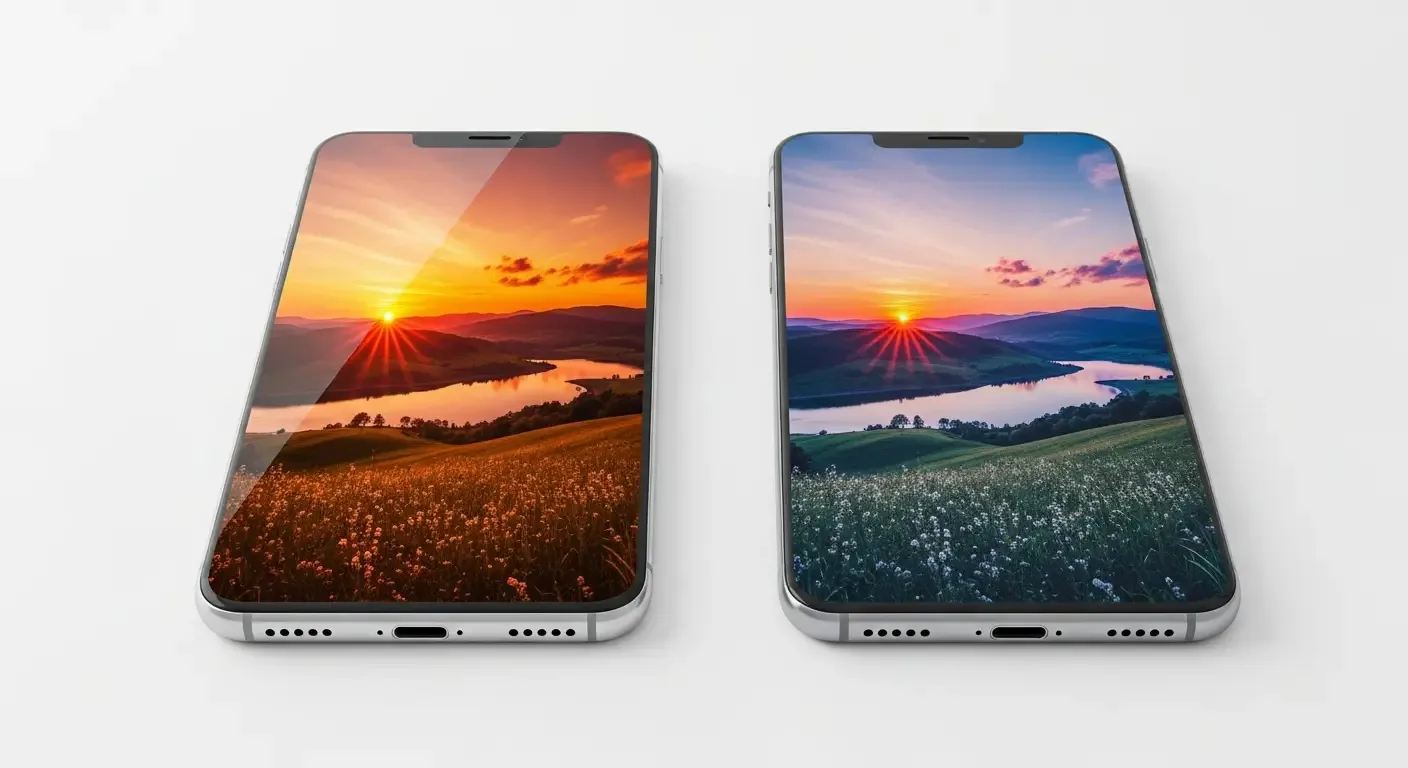
One of the most common issues smartphone users face is “color distortion.” The screen may appear too yellow, too pale, or uneven across different areas. These problems can be resolved through proper system adjustments and the use of new technologies that automatically analyze and fine-tune color accuracy. In the era of iOS 18 and Android 15, operating systems now come with advanced color-checking features that help users maintain better display health than ever before.
Smart Color Calibration System (AI-Powered Color Calibration)
Starting from 2025, display technology has undergone a major shift, especially with features like AI adaptive color and content-aware display. These capabilities detect environmental lighting and the type of content being displayed to automatically adjust tone, saturation, and contrast for optimal viewing.
For example, when users enable “Reading Mode,” the system reduces blue light and increases warmth for comfortable reading. In contrast, “Movie Mode” or “Gaming Mode” boosts contrast and saturation to enhance visual impact. This new Generative Color Engine integrates AI for real-time color management, marking a new era of user-centric display performance.
Basic Steps to Fix Screen Color Issues
- Adjust System Color Mode: On iOS 18 and Android 15, users can access Display Settings to change color profiles such as Natural, Vivid, or P3 Wide Gamut to match their preferences.
- Use Color Measurement Apps or Built-in Diagnostics: Newer operating systems include integrated Screen Health tools to detect burn-in, uneven brightness, and color sensor accuracy.
- Manually Adjust Color Temperature: If the screen appears too yellow or too cool, users can modify temperature settings manually via the display menu.
Precautions for Foldable and Curved Displays
Foldable and curved-screen smartphones are becoming increasingly popular, but their structure makes them more prone to color uniformity issues—especially around folds and curved edges where light refraction differs.
Experts recommend the following inspection methods:
- Display a full-screen light gray or white background and look for dark patches or color bands.
- Use color inspection apps or Built-in Diagnostics tools to measure brightness uniformity and color levels in different areas.
- Avoid pressing firmly along the folding line, as it may cause light leakage or inactive pixels.
Using Built-in or Third-Party Color Checking Tools
Previously, users had to download third-party apps for color checking, but beginning in 2025, operating systems have started integrating built-in diagnostic tools such as:
- Apple Screen Health Tool: Monitors average brightness, color tone, and OLED burn-in symptoms.
- Android Display Check Diagnostic: On Android 15, the Display Calibration Test mode helps assess panel consistency and color accuracy in detail.
Additional Techniques to Preserve Color Accuracy
- Avoid using “Power Saving Mode” when working with images or videos since it reduces brightness and color performance.
- Regularly update your operating system to benefit from improvements in Color Management.
- Do not use the display at maximum brightness for extended periods, as it speeds up pixel degradation.
Personalize with the Generative Color Engine
The new “Generative Color Engine” technology enables AI to learn user display habits—such as active hours and frequently viewed content—to provide customized tone, saturation, and contrast profiles. For example, photography enthusiasts may receive more color-accurate profiles, while movie lovers may get deeper blacks and more natural skin tones.
FAQ: Common Questions About Screen Color Adjustment
- Q: Does manual color adjustment affect display lifespan?
A: Not directly, as long as excessive brightness or overly vivid color modes are avoided for prolonged periods. - Q: What should I do if the screen colors differ between left and right sides?
A: Use Built-in Diagnostics or color measurement apps to identify uneven areas and recalibrate as needed. - Q: Are foldable displays more prone to color distortion than regular ones?
A: Slightly yes, especially along the folding line. Regular diagnostics are recommended, and use the calibrate foldable screen mode if available.
Summary
Modern display technology prioritizes not only sharpness and resolution but also intelligence and adaptability. Features like AI adaptive color and content-aware display create a more natural and eye-friendly experience. With built-in diagnostic tools, users can easily monitor and maintain screen health, making problems like color distortion or yellowish displays much simpler to fix than before.
References
- DisplayMate Technologies — Technical data and screen test results of the latest smartphone models.
- RTINGS.com — Comparative analysis of color accuracy and brightness across models.
- GSMArena (Phone Review Section) — In-depth display quality analysis for various models.
- Apple Developer & Android Developers (Official Documentation) — Information about system-level color management.