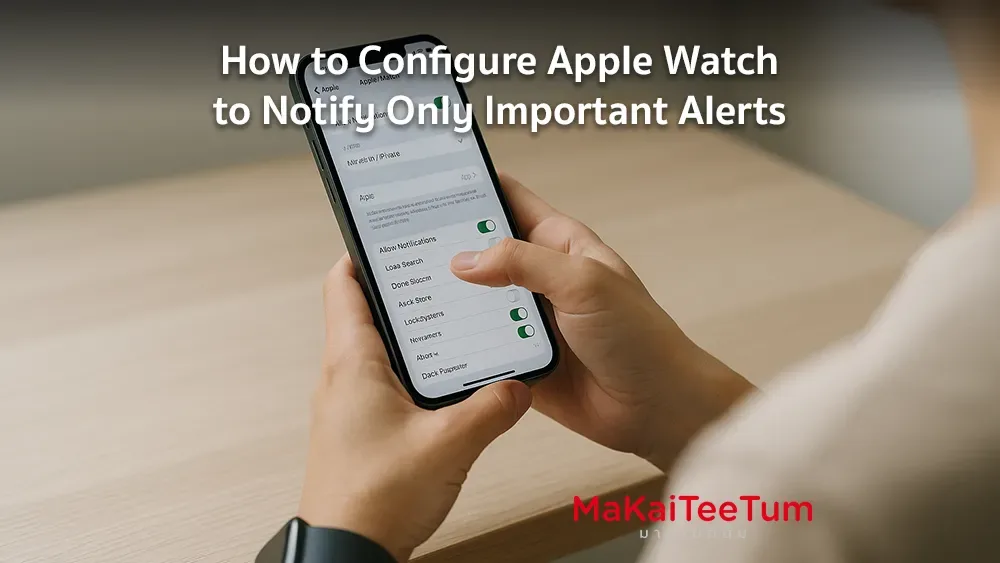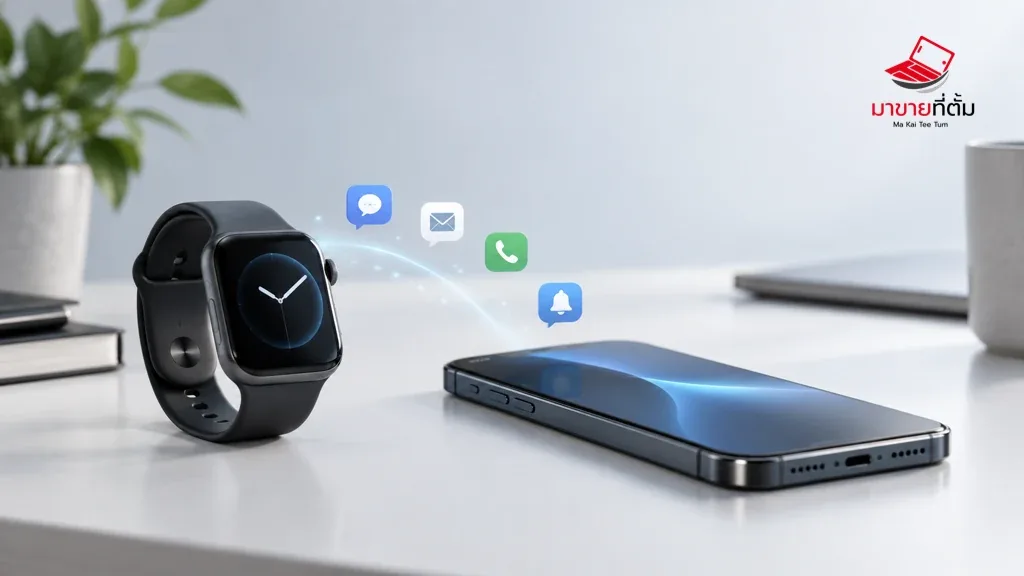
Apple Watch alerts depend on the connection to the iPhone, which device is unlocked, notification permissions, Focus, and Wrist Detection. Check those conditions before unpairing the watch.
Checks to try first
- Check the status icon on Apple Watch and confirm it can reach the iPhone or a known Wi-Fi network
- Lock the iPhone and send a test message because alerts may appear on the device currently in use
- Open the Watch app > My Watch > Notifications and review the affected apps
- Review Focus, Do Not Disturb, and Wrist Detection settings
- Restart both devices and update watchOS and iOS before considering an unpair and re-pair
When to get further help
Repeated connection loss or missing alerts after correct settings should be assessed before you erase the pairing relationship.
Bottom line
Start with reversible checks that do not erase personal data. If the symptom continues or follows impact or liquid exposure, professional assessment is safer than repeated resets.
Thinking about selling or upgrading an Apple device?
When a device issue is part of an upgrade decision, MaKaiTeeTum can assess an iPhone, iPad, Mac, or Apple Watch and discuss your selling options.
- Call: 064-564-7945
- Line ID: @KunTum