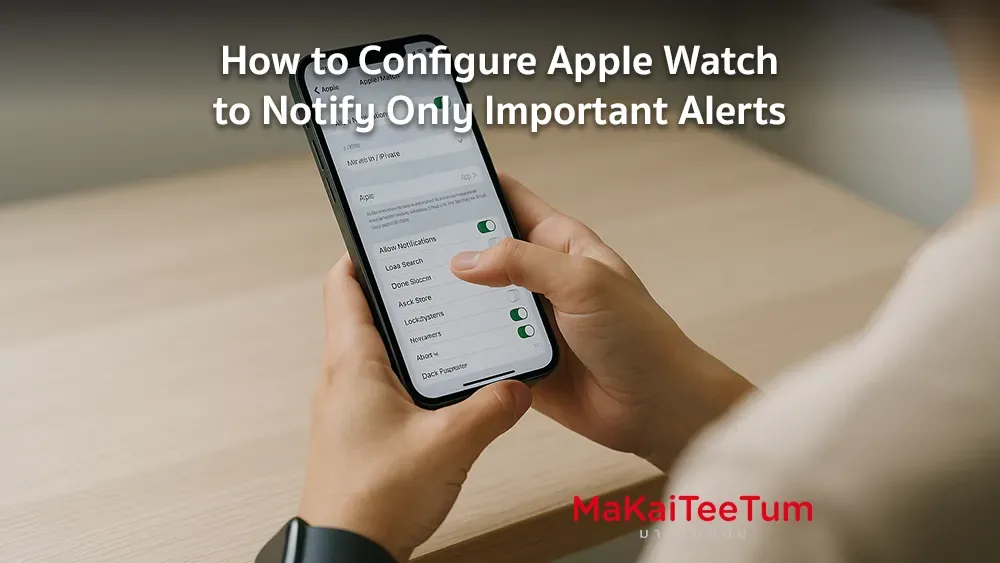
Apple Watch is a powerful tool for staying connected, but excessive notifications can be distracting. By customizing your notification settings, you can ensure that only the most important alerts reach your wrist. This guide will walk you through the steps to fine-tune your Apple Watch notifications for a more focused experience.
1. Customize Notifications for Individual Apps
Control which apps can send notifications to your Apple Watch:
- Open the Watch app on your iPhone.
- Tap the My Watch tab, then select Notifications.
- Scroll through the list of apps and tap on the one you want to customize.
- Choose from the following options:
- Allow Notifications: Alerts appear on your watch and in Notification Center.
- Send to Notification Center: Alerts go directly to Notification Center without notifying you.
- Notifications Off: No alerts from this app.
2. Utilize Focus Modes for Priority Notifications
Focus modes help you filter notifications based on your current activity:
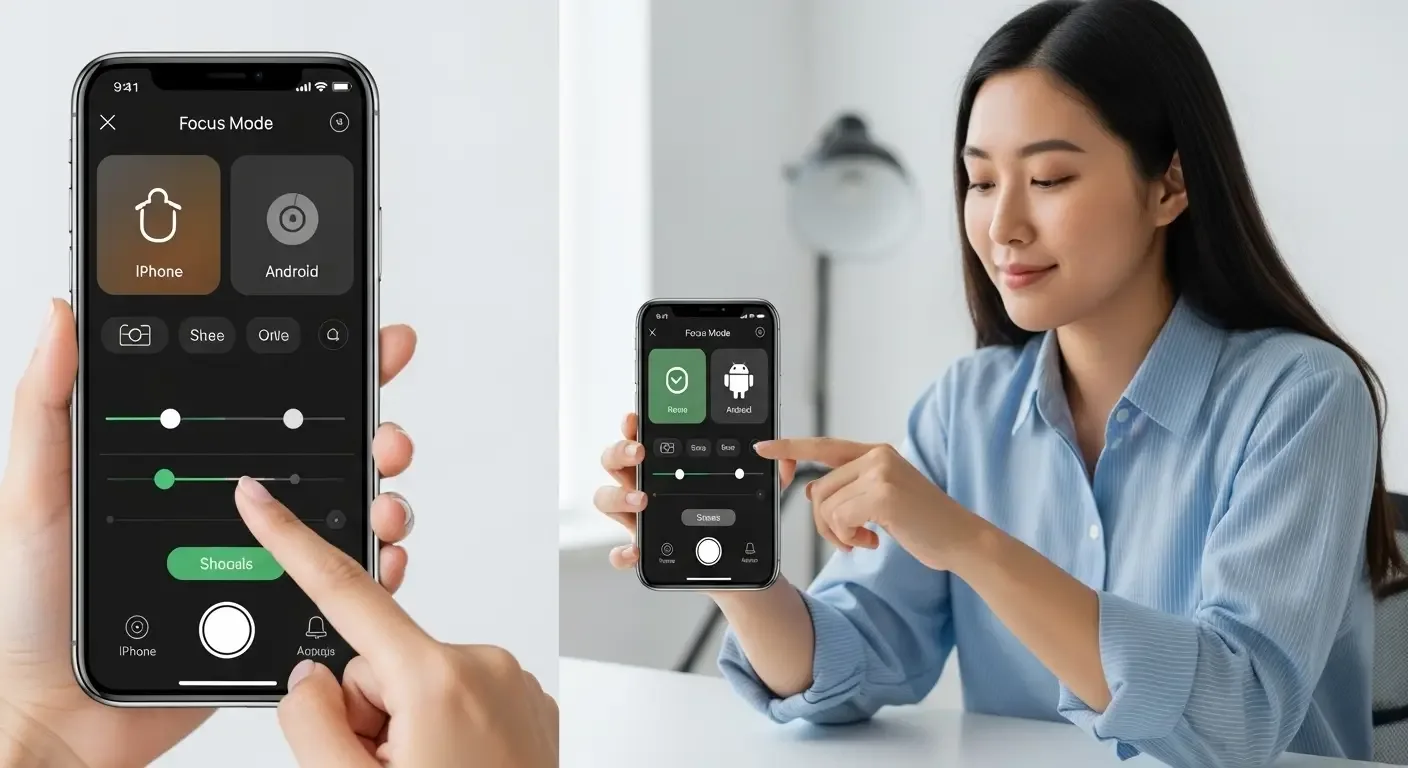
- On your iPhone, go to Settings > Focus and select a Focus mode or create a new one.
- Customize the Allowed Notifications by selecting specific people and apps.
- In the Watch app on your iPhone, go to General > Focus and disable Mirror my iPhone to manage Focus settings independently on your watch.
- Activate the Focus mode on your Apple Watch by swiping up to access Control Center and tapping the Focus icon.
3. Adjust Notification Privacy Settings
Enhance your privacy by controlling how notifications appear:
- Open the Watch app on your iPhone.
- Tap Notifications, then enable Tap to Show Full Notification to hide notification details until tapped.
- To prevent notifications from appearing when your wrist is down, disable Show Notifications on Wrist Down.
4. Manage Notification Grouping
Organize your notifications for easier navigation:
- In the Watch app on your iPhone, tap Notifications.
- Select an app and tap Notification Grouping.
- Choose from:
- Off: No grouping.
- Automatically: Grouped based on app data.
- By App: All notifications from the app are grouped together.
5. Temporarily Mute Notifications
Quickly silence notifications without changing settings:
- When a notification appears, swipe left on it.
- Tap the More button (three dots).
- Select Mute for 1 Hour or Mute for Today.
6. Turn Off Notifications for Specific Apps
Prevent certain apps from sending notifications to your watch:
- Open the Watch app on your iPhone.
- Tap Notifications.
- Scroll to the Mirror iPhone Alerts From section.
- Toggle off the switch next to the app you want to silence.
7. Set Up Time-Sensitive Notifications
Ensure critical alerts always get through:
- On your iPhone, go to Settings > Notifications.
- Select an app and enable Time Sensitive Notifications.
8. Use Notification Summary on iPhone
Receive a summary of non-urgent notifications at scheduled times:
- On your iPhone, go to Settings > Notifications > Scheduled Summary.
- Enable Scheduled Summary and set your preferred times.
- Select the apps you want to include in the summary.
9. Review and Adjust Notification Settings Regularly
Periodically check your settings to ensure they align with your preferences and lifestyle changes.
Need Assistance or Looking to Upgrade?
If you’re experiencing issues with your Apple Watch or considering an upgrade, MaKaiTeeTum offers expert advice and competitive buyback options.
- Call: 064-564-7945
- Line ID: @KunTum