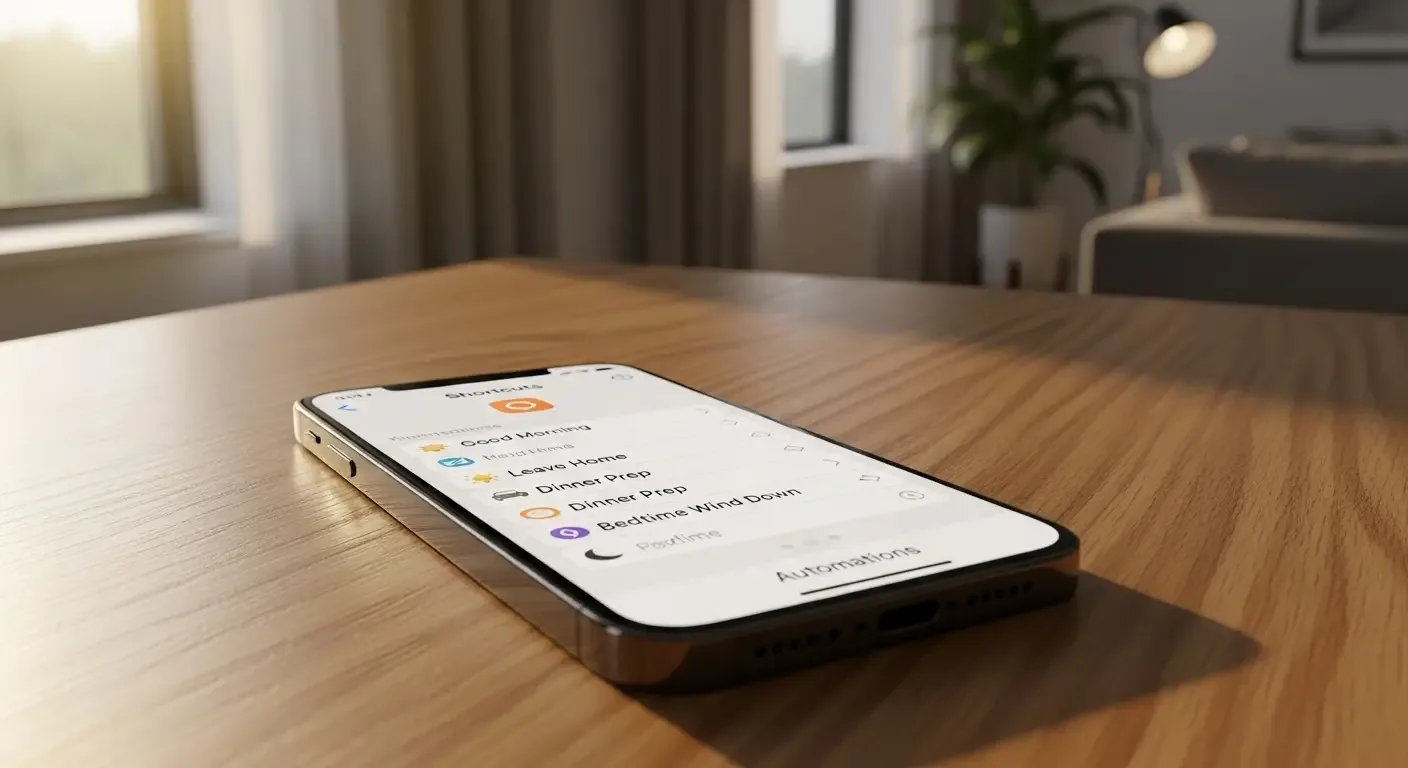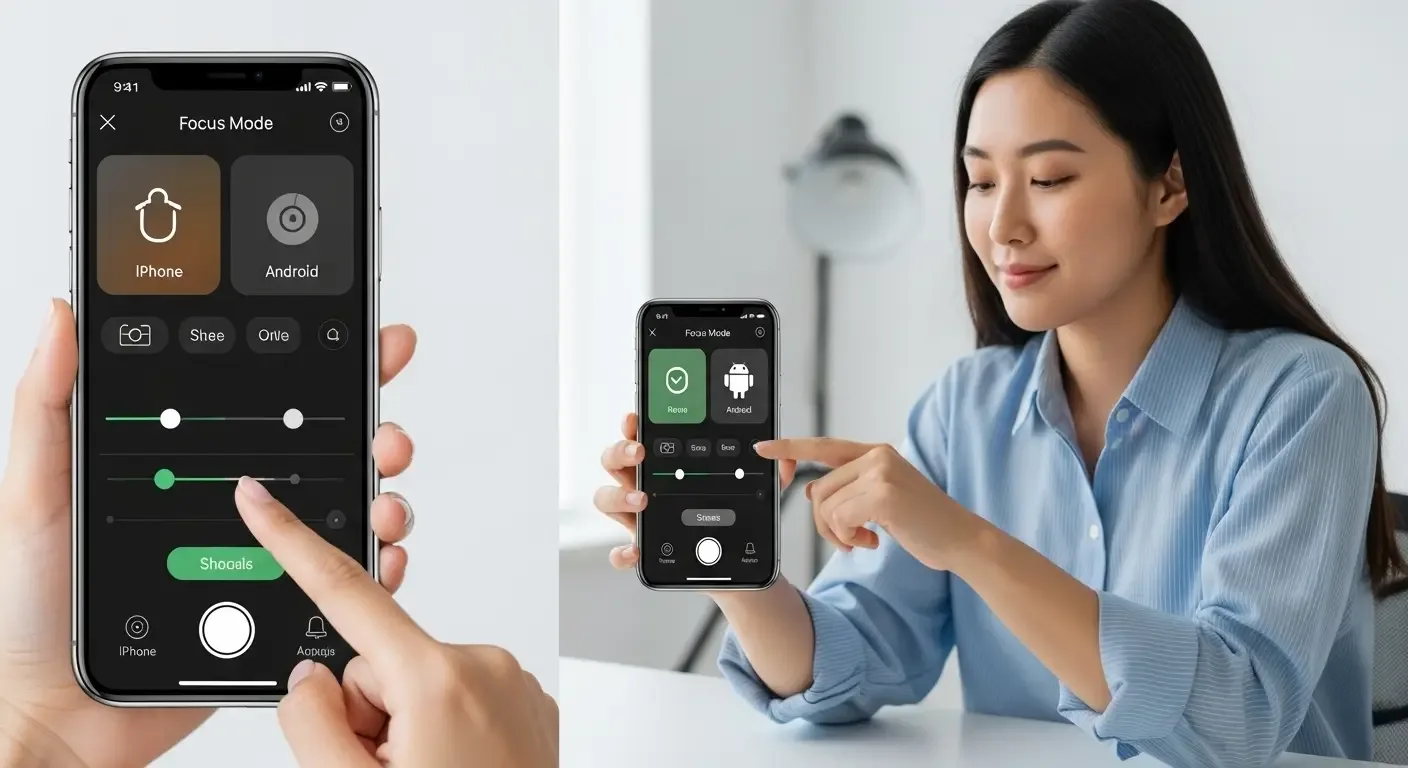
In today’s digital age, constant notifications from apps can quickly become overwhelming. They interrupt concentration during important moments—whether you’re in a meeting, studying, or resting. Fortunately, Focus Mode helps filter out unnecessary alerts so you can stay in control and concentrate on what matters most.
What Is Focus Mode?
Focus Mode is a feature that lets you control which apps and people can notify you at specific times. You can customize it for different scenarios, such as work, rest, exercise, or study sessions.
Benefits of Using Focus Mode
- Enhances concentration and focus during tasks
- Reduces distractions from non-essential apps
- Lets you allow only selected contacts and apps to notify you
- Customizable for different lifestyles and activities
How to Set Up Focus Mode on iPhone (iOS)
1. Access Focus Settings
Go to Settings > Focus
2. Choose or Create a Focus
Apple provides built-in modes like Work, Sleep, and Personal, but you can also create a custom Focus (e.g., “Study” or “Writing”).
3. Select Allowed People
Under People, choose who can contact you while Focus is on:
- Select specific contacts who can bypass Focus
- Choose whether phone calls are allowed
4. Select Allowed Apps
Under Apps, select which apps can send notifications—such as calendar, health, or work apps.
5. Enable Smart Activation or Schedule
Set Focus to turn on automatically based on time, location, or when opening certain apps.
6. Sync Focus Across Devices
If you use multiple Apple devices (Mac, iPad, Apple Watch), Focus will activate across all of them simultaneously.
How to Set Up Focus Mode on Android
Steps may vary slightly depending on the brand, but most Android devices include Focus Mode under Digital Wellbeing.
1. Open Digital Wellbeing
Go to Settings > Digital Wellbeing & parental controls
2. Select Focus Mode
Choose an existing mode or create a new one (e.g., “Do Not Disturb While Working”).
3. Choose Apps to Block
Apps selected will not send notifications until Focus Mode is turned off.
4. Set Start and End Times
Schedule Focus Mode—for example, Monday to Friday from 9 AM to 5 PM.
5. Enable Quick Access
Add Focus Mode to Quick Settings for faster on/off toggling.
Extra Tips for Effective Use
- Give each Focus a meaningful name (e.g., “Deep Work,” “Meditation”).
- Combine with Screen Time or App Timers to manage usage further.
- Customize each Focus differently for specific tasks.
- Enable Auto-Reply to inform people you’re unavailable.
FAQ
How is Focus Mode different from Do Not Disturb?
Do Not Disturb blocks all notifications, while Focus Mode lets you choose which apps and people can get through.
Can I use multiple Focus Modes at once?
No, only one Focus can be active at a time. You can switch depending on your needs.
Will I lose notifications when Focus Mode is on?
No, notifications are still saved in the Notification Center and will appear once Focus Mode is off.
Conclusion
When set up properly, Focus Mode is a powerful way to control your digital environment. It helps you reduce distractions, improve productivity, and protect your downtime. Start with a simple Focus today, and you’ll immediately notice how much calmer and more efficient your daily routine becomes.