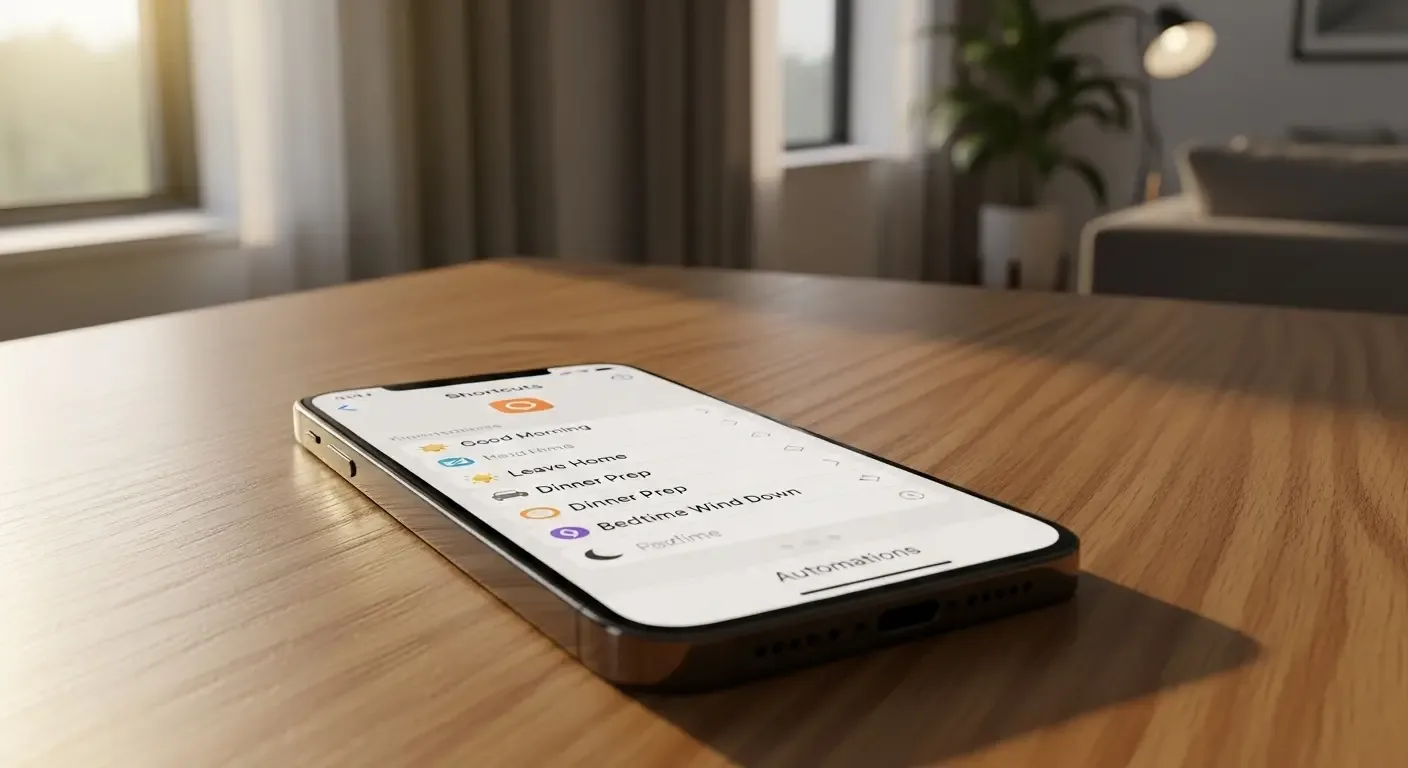
In today’s fast-evolving tech world, iPhone users are always looking for smarter ways to simplify everyday tasks. One of Apple’s most powerful tools is the Shortcuts app, which allows you to create automations that make your iPhone work for you—automatically.
What are Shortcuts and How Do They Work?
Shortcuts let you combine multiple actions into a single tap or trigger. These actions can include opening apps, sending messages, playing music, or controlling your Smart Home. Automations can run based on time, location, or activity, making your iPhone truly adaptive.
Benefits of Using Shortcuts Automation
- Save time – perform multi-step tasks with one tap
- Avoid opening multiple apps – consolidate commands into one shortcut
- Behavior-based triggers – run automatically by time, place, or activity
- Everyday convenience – from waking up to bedtime routines
10 Must-Have Shortcuts Automation in 2025
1. Good Morning Routine
Shortcut: Play your favorite song, launch Podcasts for news, turn off Do Not Disturb, and display your calendar events.
Tip: Schedule to run daily at 6:30 AM.
2. Leave Home Automation
When leaving home, it automatically turns off Wi-Fi, sends an SMS to family, and adjusts your thermostat via HomeKit.
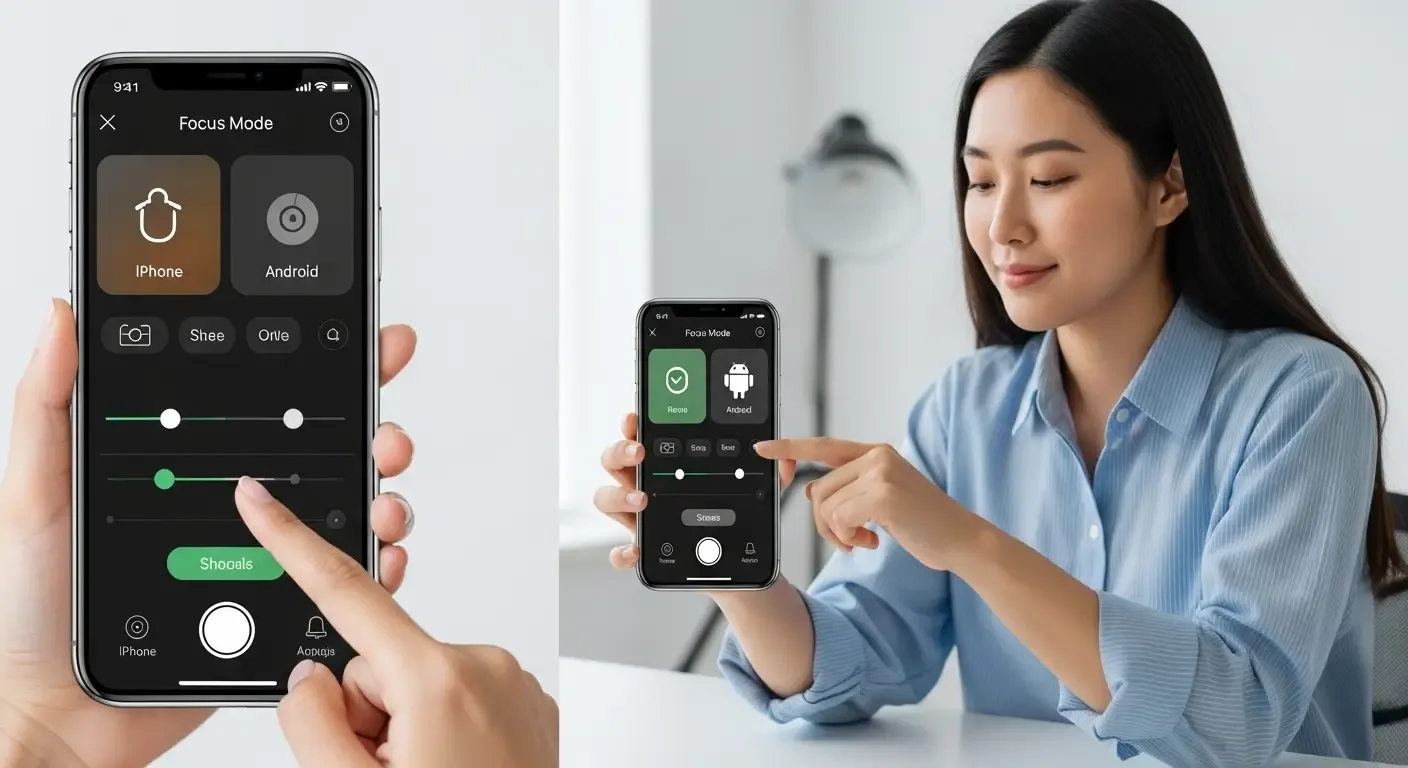
3. Focus Mode Switcher
When activating Focus Mode (e.g., Work Focus), it limits notifications and opens Calendar + productivity music.
4. Location-Based Reminders
Get smart reminders like “Check email” when you arrive at work, or “Send report” when entering the office.
5. Auto Do Not Disturb While Charging
When charging at night, iPhone switches to Do Not Disturb and turns off smart lights.
6. Meeting Preparation
At meeting time, automatically open Notes, launch Zoom or MS Teams, and silence non-essential notifications.
7. Quick Scan & Save
Shortcut to scan documents with the camera, convert to PDF, and save to iCloud with auto-generated filenames.
8. Gym Time Automation
When arriving at the gym, start your workout playlist, activate Do Not Disturb, and log a workout in Apple Health.
9. Voice Note to Task
Use Siri to record a quick voice note, which automatically converts to text and saves as a Reminder.
10. Battery Saver Mode
When battery drops below 25%, activate Low Power Mode, turn off Background App Refresh, and dim the display.
How to Set Up Shortcuts Automation
- Open the Shortcuts app > go to the Automation tab
- Tap + and choose Create Personal Automation
- Select a trigger (time, location, app launch, charging, etc.)
- Add Actions like sending a message, opening apps, or controlling devices
- Choose whether it runs automatically or asks before running
Tips for Designing Powerful Shortcuts
- Use simple, clear names for Siri commands
- Test your shortcuts under different scenarios
- Utilize If/Else logic for flexible workflows
- Integrate with popular apps like Notion, Calendar, and Apple Maps
FAQ
Q: Do Shortcuts Automations drain battery?
A: No, they’re designed to run efficiently in the background with minimal power usage.
Q: Can older iPhones use Automations?
A: Yes, starting from iOS 13. However, the best performance is on iOS 17 and iOS 18 (on 2025 iPhones).
Q: Is creating custom Shortcuts difficult?
A: Not at all. Apple provides templates, and you can also download community shortcuts from sites like ShortcutsGallery.com.
Conclusion
Whether you’re new to iPhone or a long-time Apple fan, adopting Shortcuts Automation in 2025 will transform how you use your device. From saving time to boosting productivity, these automations can redefine your daily routine. Try them out—you won’t want to go back to manual steps again!