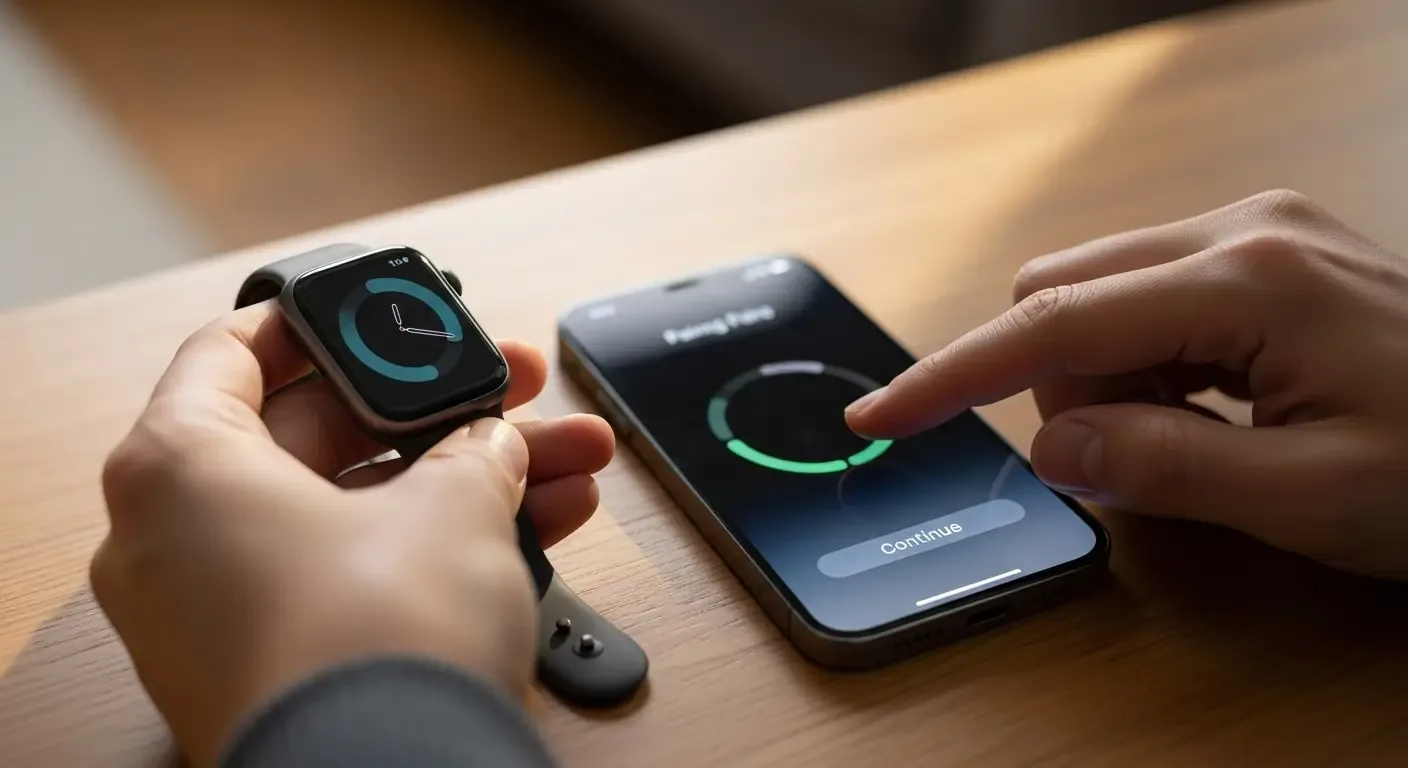
If you own both a MacBook and an Apple Watch, you can make your workflow smoother by enabling the feature that lets your watch automatically unlock your Mac. As long as you’re wearing your Apple Watch and it’s unlocked, your Mac will grant access instantly—no password required. This feature not only saves time but also enhances security and convenience.
Requirements Before You Begin
- A MacBook (mid-2013 or later) running macOS Sierra or newer
- An Apple Watch running watchOS 3 or later
- Both devices must use the same Apple ID with Two-Factor Authentication enabled
- Wi-Fi and Bluetooth must be turned on for the Mac
- Your Apple Watch must have a passcode enabled and be unlocked when near your Mac
How to Enable Apple Watch Unlock on Your Mac
1. Turn On Two-Factor Authentication
Go to your Apple ID settings on Mac or iPhone and enable Two-Factor Authentication to secure your account.
2. Verify Apple ID is the Same
On Mac: System Settings > Apple ID
On Apple Watch: Open the Watch app on iPhone and check the Apple ID in use.
3. Keep Wi-Fi and Bluetooth Enabled
Ensure Wi-Fi and Bluetooth are always on, since this feature relies on both for proximity detection.
4. Enable Unlock with Apple Watch
On your Mac, go to System Settings > Touch ID & Password (or Security & Privacy in older macOS versions).
Check the option: “Allow your Apple Watch to unlock your Mac”.
How It Works
When you wake or open your MacBook, if your unlocked Apple Watch is nearby, your Mac will unlock instantly. You’ll feel a gentle haptic tap on your watch with a message saying “Your Mac has been unlocked.”
Benefits of Unlocking Mac with Apple Watch
- Convenience: Skip typing your password every time
- Time-saving: Access your Mac instantly when you’re near
- Security: Works only if you’re wearing and unlocked Apple Watch
- Seamless workflow: Ideal for multitaskers who move around frequently
Limitations to Know
- You must enter your password once after restarting the Mac
- Mac must support Bluetooth LE (Low Energy)
- Feature doesn’t work with Fast User Switching between accounts
Troubleshooting If Unlock Doesn’t Work
- Ensure your Apple Watch is unlocked and close to your Mac
- Restart both the Mac and Apple Watch
- Toggle Wi-Fi and Bluetooth off and back on
- Confirm the same Apple ID and that Two-Factor Authentication is enabled
FAQ
Q: Do I need internet for this feature to work?
A: No. You just need Bluetooth and Wi-Fi enabled, internet is not required.
Q: Can I use one Apple Watch to unlock multiple Macs?
A: Yes, as long as all Macs are signed in with the same Apple ID and meet the requirements.
Q: What happens if my Apple Watch is out of range?
A: Your Mac will ask for the password as usual until your watch is nearby again.
Conclusion
Setting up Apple Watch to unlock your MacBook automatically is a simple but powerful feature that makes your daily workflow faster and more secure. If you haven’t enabled it yet, try it today—you’ll enjoy the effortless integration of Apple’s ecosystem with every unlock.