Preparing your MacBook before selling or passing it on is an important step in protecting your privacy. Wiping data the correct way not only makes the device look as fresh as new but also prevents others from accessing your Apple ID or personal information.
The Easiest Method for New Macs: Use Erase All Content and Settings
For Macs running macOS Monterey or later, especially those with Apple Silicon chips (such as M1, M2, M3), you can easily use the Erase All Content and Settings feature in just a few clicks. This feature will:
- Automatically sign out of Apple ID
- Disable Find My Mac
- Remove Activation Lock
- Erase all data and settings from the Mac
This process is secure because it destroys the encryption keys stored in the SSD. There’s no need to manually reformat or reinstall macOS. It is highly recommended for those who want to prepare their MacBook for sale in 2025 quickly and confidently.
For Older macOS Versions or When Reinstalling macOS
If you are using an older Mac that does not support Erase All Content and Settings, you can use Recovery Mode to erase the disk and reinstall macOS from scratch. The steps include:
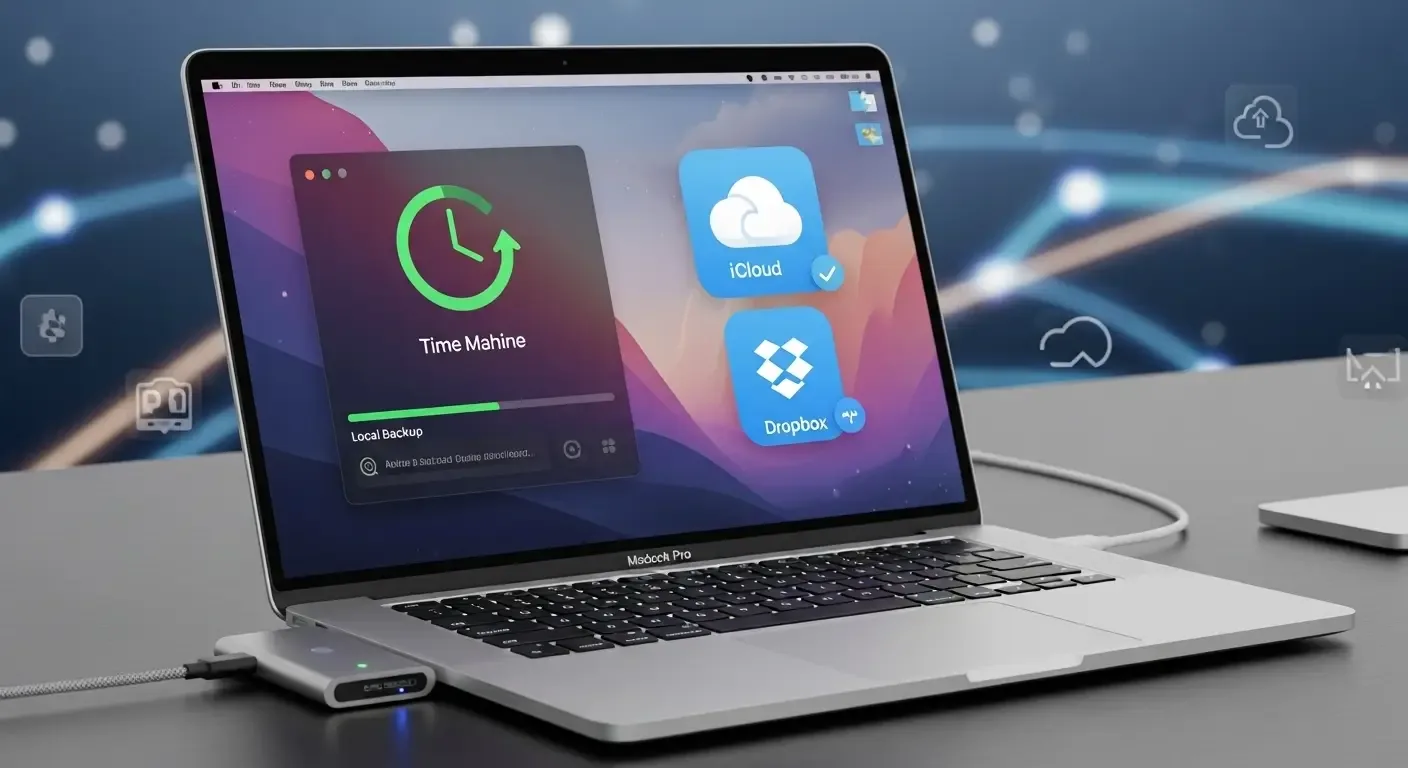
- Backup data using Time Machine or an external drive
- Restart the Mac while holding Command + R to enter Recovery Mode
- Use Disk Utility to erase the disk
- Reinstall a clean version of macOS from Recovery
Disconnecting Accounts
Sign Out of Apple ID and iCloud
Go to System Settings > Apple ID, then select Sign Out to disconnect iCloud, Find My Mac, and related services.
Deauthorize Computer
Some apps and services such as Adobe Creative Cloud, Microsoft 365, or even iTunes Store (if still in use) limit the number of devices authorized. You should Deauthorize this Mac to free up licenses.
The Importance of FileVault on New Macs
Modern MacBooks with Apple Silicon or the T2 chip feature built-in hardware-level encryption. Enabling FileVault further enhances security by tying the encryption key to your user password. When you erase data with Erase All Content and Settings, the keys are destroyed, making recovery of any data impossible.
Extra Tips Before Selling Your MacBook
- Make sure to back up all important files
- Write down the serial number or keep photo proof for verification later
- Clean your MacBook to make it look new and increase resale value
Frequently Asked Questions (FAQ)
Do I need to reinstall macOS?
If you use Erase All Content and Settings, reinstalling macOS is not necessary—the Mac will be ready for setup like new. If using Recovery Mode, a fresh installation of macOS will be required.
What if I forgot to sign out of Apple ID before erasing?
The device will be locked with Activation Lock and will require the original Apple ID to use. Always sign out first.
How is FileVault different in terms of data protection?
FileVault adds another layer of security because data encryption is tied to the user password. When erased, the encryption key is permanently destroyed, making recovery impossible.
Conclusion
Properly erasing all data and settings from a MacBook is not just a factory reset (factory reset macOS 2025), but an essential step in securing your private data before selling. The method depends on the Mac model and macOS version: on newer Macs, Erase All Content and Settings is the easiest and safest, while older Macs may require Recovery Mode.
References