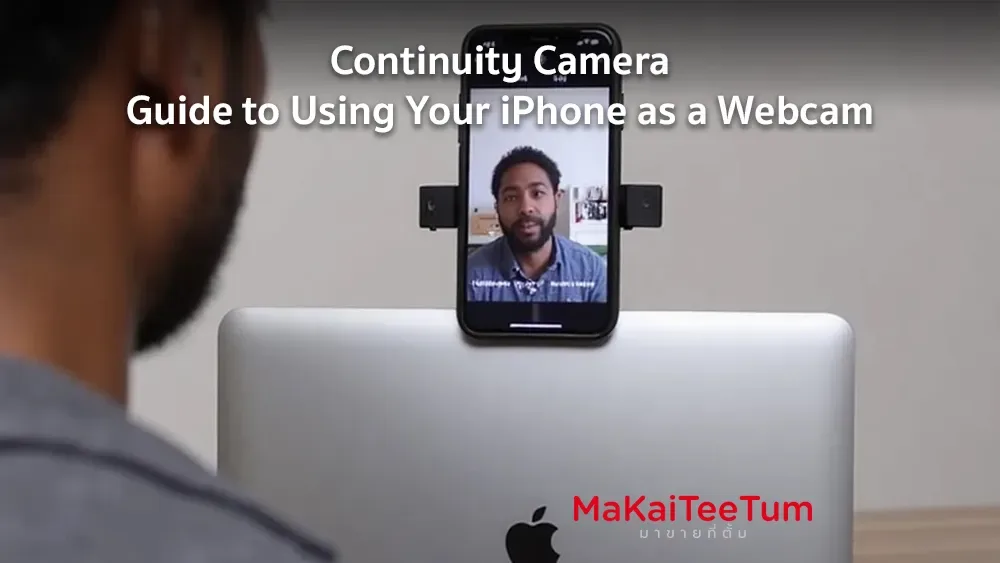
In today’s digital age, producing high-quality video content is essential for both professionals and everyday users. Apple’s Continuity Camera feature allows you to utilize your iPhone as a webcam for your Mac, enhancing video recording quality and convenience.
What is Continuity Camera?
Continuity Camera, introduced in macOS Mojave and iOS 12, initially enabled users to scan documents or take photos with their iPhone or iPad and have them appear instantly on their Mac. With macOS Ventura and iOS 16, this feature has been expanded to allow using your iPhone as a webcam for your Mac.
System Requirements
To use Continuity Camera, ensure your devices meet the following criteria:
- Mac: Running macOS Ventura or later; compatible models include MacBook (2017 or later), MacBook Pro (2017 or later), MacBook Air (2018 or later), Mac mini (2018 or later), iMac (2017 or later), iMac Pro (2017 or later), Mac Pro (2019 or later), and Mac Studio (2022 or later).
- iPhone: Running iOS 16 or later; models include iPhone XR or later.
- Additional Requirements: Both devices must be signed into the same Apple ID with two-factor authentication enabled, and have Wi-Fi and Bluetooth turned on.
Setting Up Continuity Camera
Enable on iPhone:
- Go to Settings > General > AirPlay & Handoff.
- Toggle on Continuity Camera.
Connect iPhone to Mac:
- Bring your iPhone close to your Mac.
- Open a compatible application on your Mac (e.g., FaceTime, Zoom).
- Select your iPhone as the camera and microphone source within the application’s settings
Using Continuity Camera for Video Recording
Once connected, your iPhone can serve as the webcam for various Mac applications, including:
- FaceTime: For high-quality video calls.
- Zoom: For online meetings.
- Microsoft Teams: For collaborative work sessions.
- Google Meet: For web-based conferences.
Additional Features
Continuity Camera offers several enhancements:
- Center Stage: Keeps you centered in the frame as you move. Requires iPhone 11 or later.
- Portrait Mode: Blurs the background to emphasize the subject. Requires iPhone XR or later.
- Studio Light: Illuminates your face while dimming the background. Requires iPhone 12 or later.
- Desk View: Provides an overhead view of your workspace using the iPhone’s ultra-wide camera. Requires iPhone 11 or later (excluding iPhone SE models).
Using Desk View
To activate Desk View:
- Open a video-supported app on your Mac.
- In the app’s menu bar, click the Video button and select Desk View.
Considerations and Limitations
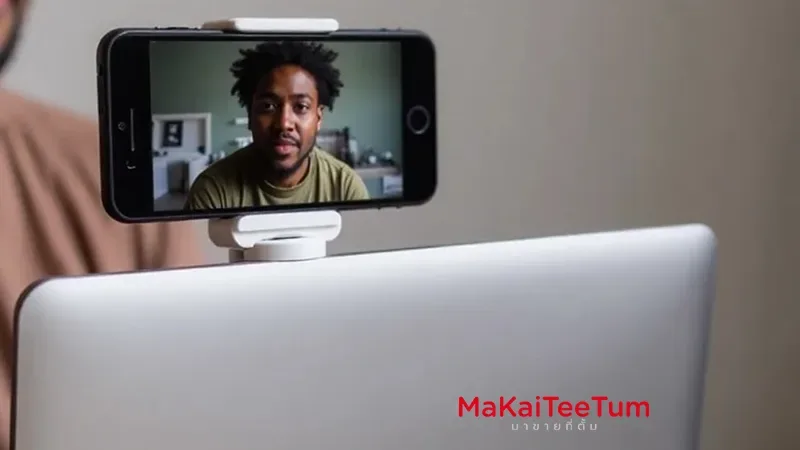
- Mounting the iPhone: Use a stable mount or stand to position your iPhone securely
- Battery Usage: For extended use, keep your iPhone connected to a charger.
- App Compatibility: Most applications support Continuity Camera, but verify compatibility beforehand.
Conclusion
Continuity Camera transforms your iPhone into a high-quality webcam for your Mac, enhancing video recording and conferencing experiences. With features like Center Stage, Portrait Mode, Studio Light, and Desk View, you can customize your video output to suit various needs.
References: