In today’s digital age, achieving efficient and flexible workflows is crucial. Apple’s MacBook and iPad are designed to work together seamlessly, offering features that enhance productivity. This guide explores various methods to optimize the integration between your MacBook and iPad for a smooth working experience.
Sidecar: Extend Your Workspace with iPad
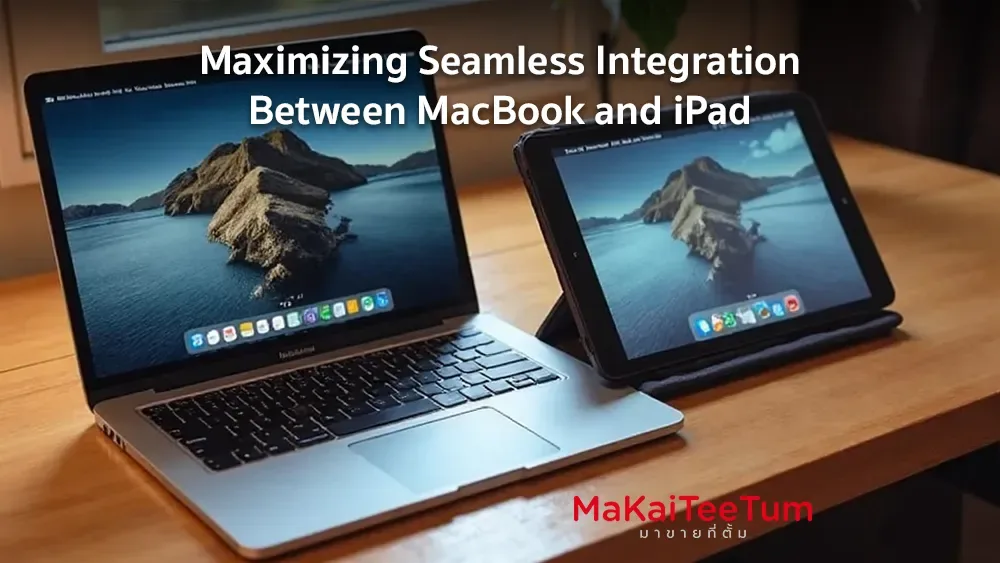
Sidecar allows you to use your iPad as a second display for your MacBook, providing additional screen real estate or mirroring your MacBook’s display.
How to Use:
- Check Compatibility: Ensure both devices meet Sidecar’s system requirements and are signed in with the same Apple ID.
- Connect Devices: Enable Wi-Fi, Bluetooth, and Handoff on both devices. For a wired connection, use a USB cable.
- Enable Sidecar: On your MacBook, go to Apple menu > System Settings > Displays. Click the add display button and select your iPad.
Benefits:
- Extended Workspace: Enhance multitasking capabilities.
- Creative Applications: Use Apple Pencil with iPad for precise input in Mac apps.
Universal Control: Single Input for Multiple Devices
Universal Control lets you use a single keyboard, mouse, or trackpad to control both your MacBook and iPad, facilitating effortless interaction between devices.
How to Use:
- Enable on MacBook: Go to Apple menu > System Settings > Displays > Advanced, and enable “Allow your pointer and keyboard to move between any nearby Mac or iPad.”
- Enable on iPad: Navigate to Settings > General > AirPlay & Handoff, and turn on “Cursor and Keyboard.”
Benefits:
- Unified Control: Manage both devices with a single set of input devices.
- Seamless File Transfer: Drag and drop files between devices effortlessly.
Universal Clipboard: Copy and Paste Across Devices
Universal Clipboard allows you to copy content on one device and paste it on another, streamlining content transfer.
How to Use:
- Ensure Devices Are Nearby: Keep both devices close with Wi-Fi and Bluetooth enabled.
- Copy and Paste: Copy content on one device and paste it on the other as you normally would.
Benefits:
- Efficiency: Quickly transfer text, images, and more without additional steps.
Continuity Camera: Utilize iPad as a Scanner for MacBook
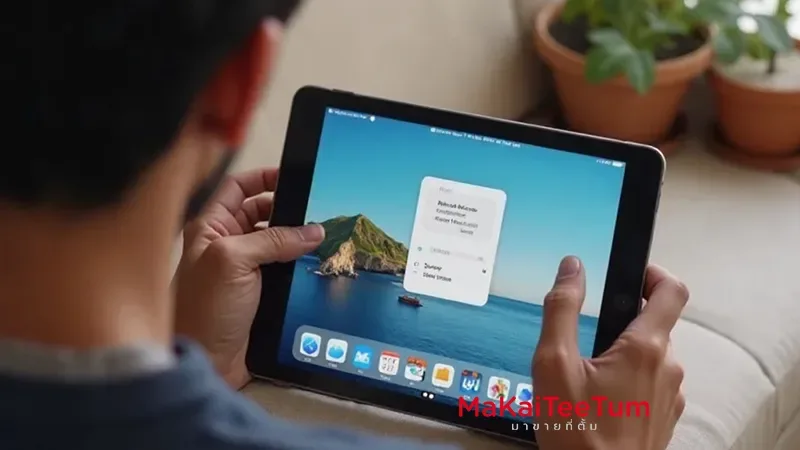
Continuity Camera enables using your iPad to capture photos or scan documents directly into your MacBook.
How to Use:
- Open Supported App on MacBook: Control-click within the app and choose “Import from iPad or iPhone” > “Scan Documents.”
- Capture on iPad: The camera will activate; capture the desired document or photo.
Benefits:
- Direct Integration: Seamlessly insert images or documents into MacBook applications.
Handoff: Continue Tasks Between Devices
Handoff allows starting an activity on one device and picking it up on another without interruption.
How to Use:
- Enable Handoff: On MacBook, go to Apple menu > System Settings > General > AirDrop & Handoff, and enable “Allow Handoff between this Mac and your iCloud devices.” On iPad, go to Settings > General > AirPlay & Handoff, and turn on Handoff.
- Use Handoff: Start a task on one device; the Handoff icon will appear on the other device’s Dock or App Switcher.
Benefits:
- Seamless Transition: Move between devices without losing progress.
Conclusion
By leveraging features like Sidecar, Universal Control, Universal Clipboard, Continuity Camera, and Handoff, you can create a cohesive and efficient workflow between your MacBook and iPad. These tools enhance productivity, allowing for a more integrated and flexible working experience.
References: