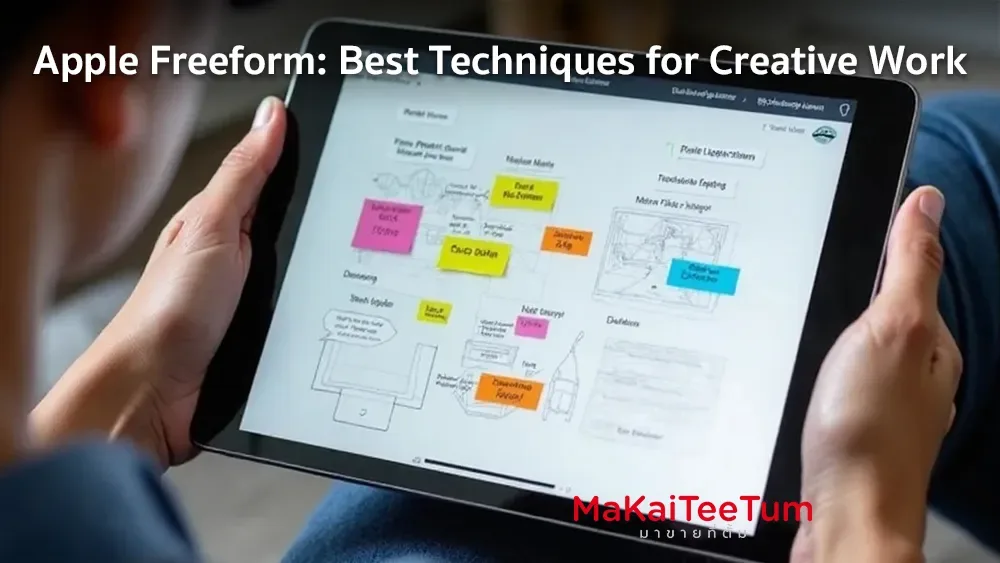
Apple has introduced Freeform, a new application designed to support collaboration and creativity for iPhone, iPad, and Mac users (apple.com). This app provides an infinite canvas where users can collect ideas, inspiration, and content in one place. In this article, we will explore the best techniques for using Freeform in creative work, helping you maximize its potential.
Getting Started with Freeform
Installation and Setup
Freeform is available with iOS 16.2, iPadOS 16.2, and macOS Ventura 13.1 or later. If your device is not yet updated to these versions, go to Settings > General > Software Update to install the latest software. Once updated, you will find the Freeform app on your device.
Creating a New Board
- Open the Freeform app.
- Tap the Create Board icon at the top right to start a new board.
- Rename your board by tapping Untitled Board and entering a custom name.
Adding and Managing Content
Adding Elements to Your Board
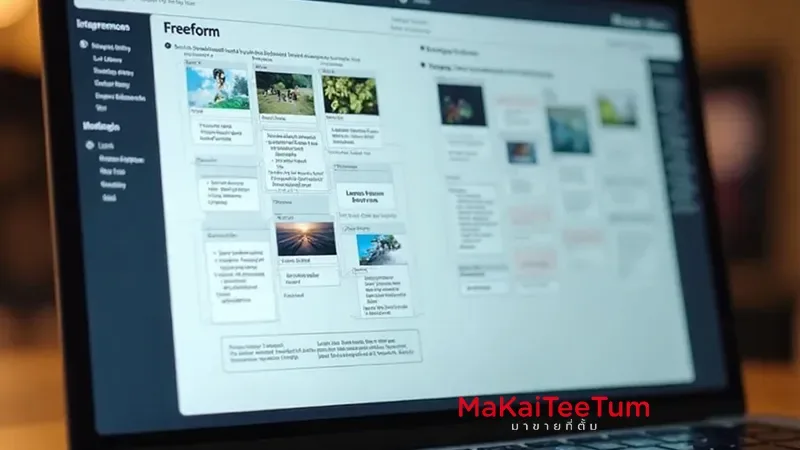
Freeform supports a variety of content types, including images, videos, audio files, PDFs, website links, and more. You can drag and drop content from other apps or use the built-in tools to add elements.
- Adding Images or Videos: Tap the Image icon in the toolbar and select from your library.
- Adding Documents: Tap the Files icon to choose documents from the Files app or other sources.
- Adding Links: Tap the Link icon and enter the URL.
Using Shapes and Sticky Notes
Freeform includes a library of over 700 customizable shapes and sticky notes for taking notes or adding comments.
- Adding Shapes: Tap the Shapes icon and choose from different categories.
- Adding Sticky Notes: Tap the Sticky Note icon and enter your text.
Drawing with Apple Pencil
For iPad users with an Apple Pencil, Freeform allows you to sketch, write, or annotate freely. The app offers various brush styles and colors for more creative flexibility.
- Start Drawing: Tap the Pen icon in the toolbar, select a brush style and color, and begin sketching on the board.
Collaboration Features
Inviting Others to a Board
Freeform is designed for seamless collaboration, allowing up to 100 people to work on the same board.
- Open the board you want to share.
- Tap the Share icon at the top right.
- Choose how to invite collaborators—via Messages, Email, or by copying a link.
- Send the invitation link to your team.
Once invited, team members can view and edit the board in real-time.
Communicating via FaceTime
You can start a FaceTime call directly from Freeform to discuss ideas with collaborators.
- Start a FaceTime Call: While on a board, tap the FaceTime icon at the top right to initiate a call with team members.
Best Techniques for Using Freeform in Creative Work
Creating a Storyboard
Freeform is ideal for creating storyboards for video projects or films.
- Create a new board and name your project.
- Add frames or sections for each scene using rectangle shapes.
- Insert images or sketches to visualize each scene.
- Use sticky notes or text boxes to add details or dialogue.
Project Planning
Use Freeform to organize and visualize your project workflow with diagrams and charts.
- Create a project structure – Use circles, arrows, and flowcharts to outline the process.
- Attach relevant documents – Include PDFs, images, or important files for quick access.
- Use sticky notes for brainstorming – Categorize ideas and prioritize tasks.
Using Freeform for UI/UX Design
Designers can use Freeform to sketch UI/UX concepts and gather feedback from the team.
- Create wireframes – Draw the layout of an app or website using drawing tools.
- Add color samples and design elements – Drag and drop images, logos, or style guides.
- Use FaceTime or comments for feedback – Collaborate with the design team in real-time.
Additional Tips for Maximizing Freeform
- Adjust sharing permissions – If you want to limit editing rights, select “View Only” when sharing.
- Use Freeform’s search function – Quickly find text, shapes, or files within your board.
- Back up your boards – Sync with iCloud to ensure your work is saved and accessible across devices.
Conclusion
Apple Freeform is a powerful tool for collaboration and creative idea generation. Whether you’re a designer, creative professional, or part of a team managing projects, Freeform provides a virtual workspace to brainstorm and develop ideas. By using Freeform effectively, you can streamline your workflow and enhance the creative process.
📌 Want to master Freeform for creative work? Update your device and start using it today! Learn more from Apple’s official guide here or start collaborating with your team now! 🚀
References: