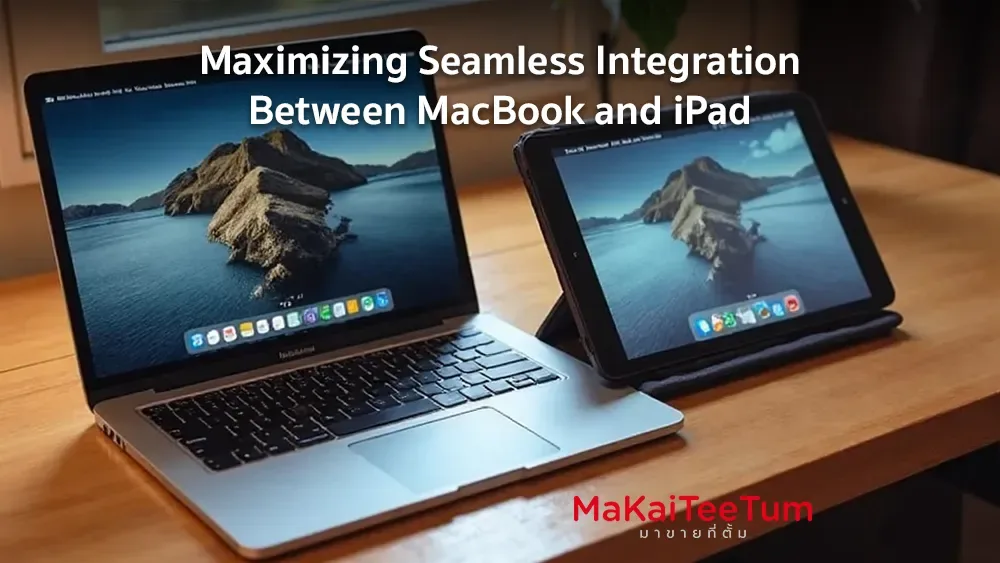
Mission Control is a vital macOS feature that helps users manage open windows quickly and organize their workspace using Spaces efficiently. This article will guide you through using Mission Control to its full potential, along with various techniques to enhance your workflow.
What is Mission Control?
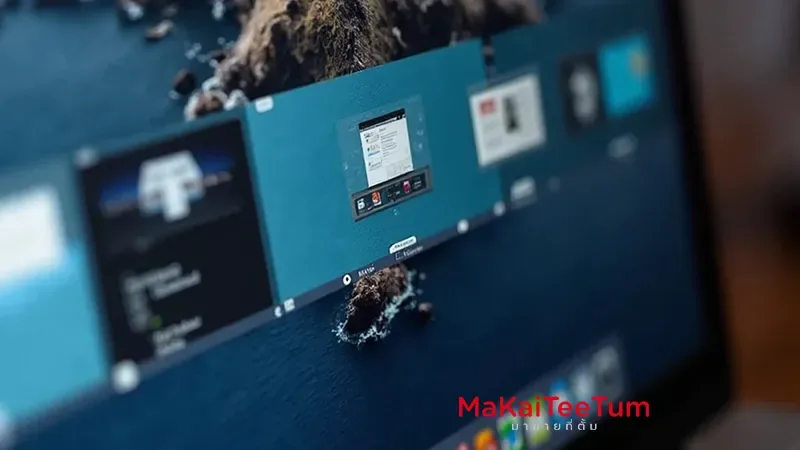
Mission Control is a macOS feature that allows you to see all open windows at a glance, manage Spaces (Virtual Desktops), and easily switch between applications or windows. It enhances multitasking and improves overall productivity.
How to Activate Mission Control
You can activate Mission Control in several ways:
- Using Keyboard Shortcuts: Press the F3 key (Mission Control) or Control + Up Arrow.
- Using Trackpad Gestures: Swipe up with three or four fingers on the trackpad.
- Using the Dock Icon: Click on the Mission Control icon in the Dock.
How to Use Mission Control Efficiently
1. Managing Open Windows
Mission Control lets you view all open windows and switch between them effortlessly by clicking on the desired window.
Additional Tips:
- To quickly close a window, press Command + W.
- To move a window to another Space, drag it to the Spaces bar at the top of Mission Control.
2. Creating and Using Spaces
Spaces help you separate different workflows, such as one Space for documents and another for design work.
How to Create Spaces:
- Open Mission Control and click the + button at the top right to add a new Space.
Additional Tips:
- To remove unused Spaces, open Mission Control and click the X on the Space you want to delete.
- Use Control + Left/Right Arrow to switch between Spaces quickly.
3. Managing Full-Screen Applications
Using full-screen apps allows you to focus better on your tasks.
How to Use:
- Click the green button at the top left of a window to enter full-screen mode.
- Use Mission Control to switch between full-screen apps and other Spaces.
Configuring Mission Control for Better Usability
You can adjust Mission Control settings via System Settings > Mission Control
Recommended Settings:
- Enable Automatically rearrange Spaces based on most recent use to keep frequently used Spaces accessible.
- Adjust Displays have separate Spaces if using multiple monitors to ensure independent Spaces per display.
Useful Keyboard Shortcuts for Mission Control
- Open Mission Control: Control + Up Arrow
- Switch Spaces Left/Right: Control + Left/Right Arrow
- Close a Window: Command + W
Common Issues and Fixes
- Mission Control Not Responding: Restart your Mac or reset Mission Control settings in System Settings.
- Cannot Add New Spaces: Check if you have reached the maximum limit of Spaces in your macOS version.
Conclusion
Mission Control enhances macOS workspace management by improving window organization and productivity. Mastering these techniques will make your workflow smoother and more efficient. Try implementing these tips to optimize your Mac experience.
Discover more Mac tips and tricks at MarKaiTeeTum.com. Also, get the best offers for selling or exchanging your Mac with us. Click now!
References: