Smart Playlists in Apple Music allow you to automatically organize your music based on specific criteria such as genre, artist, play count, release year, and more. These playlists update themselves whenever you add new songs that match the set conditions. In this guide, you’ll learn how to create, edit, and manage Smart Playlists effectively in Apple Music.
What Are Smart Playlists?
A Smart Playlist is an automated playlist that updates dynamically based on user-defined rules and filters. Instead of manually adding songs, you set conditions (e.g., “Songs played more than 10 times”) and Apple Music will update the playlist automatically as your library changes.
How to Create a Smart Playlist in Apple Music (Windows)
- Open Apple Music on your Windows device.
- Create a New Smart Playlist:
- Click the Add (+) button next to “Playlists” in the sidebar.
- Select “New Smart Playlist”.
- Set Up Your Criteria:
- Choose a filter category (e.g., genre, artist, year).
- Set a specific condition (e.g., “Genre is Classical”).
- Click the “+” button to add more rules, or the “-” button to remove rules.
- To nest conditions, hold Alt while clicking “+”.
- Adjust Additional Options:
- Limit playlist size (e.g., 25 most played songs).
- Match only checked items (for better control).
- Enable “Live updating” to allow automatic updates.
- Save the Playlist: Click OK, then name your playlist.
How to Edit a Smart Playlist
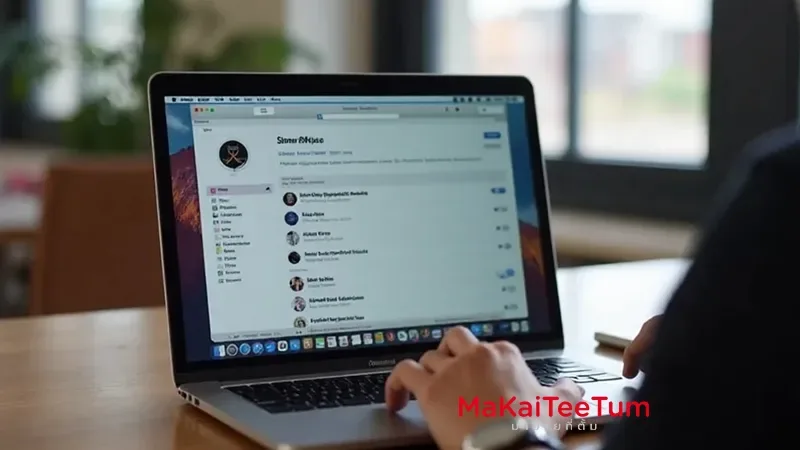
- Select Your Smart Playlist from the sidebar.
- Modify Rules: Click “Edit Rules”, adjust the criteria, and apply changes.
- Save Changes: Click OK, and the playlist will refresh based on the new settings.
How to Delete a Smart Playlist
- Find the Playlist in the sidebar.
- Delete the Playlist: Click the “More Options” (…) button and select “Delete from Library”.
Note: Deleting a Smart Playlist will not remove songs from your library, just the playlist itself.
Best Practices for Creating Smart Playlists
- Use Multiple Conditions: Combine different filters for highly customized playlists.
- Enable Live Updates: Keep your playlist refreshed with newly added songs.
- Limit Playlist Size: Control the number of songs based on play count, rating, or recency.
Conclusion
Using Smart Playlists in Apple Music is an efficient way to manage your music automatically. With customizable rules, your playlists will always stay up to date, ensuring that your favorite music is always ready to play.
References: