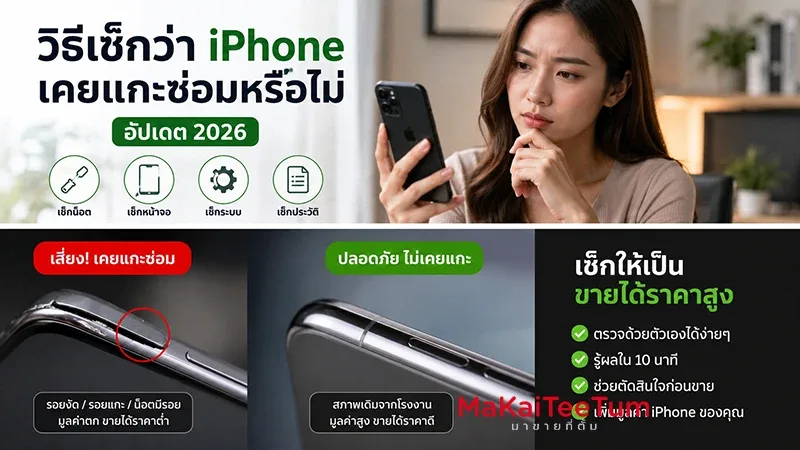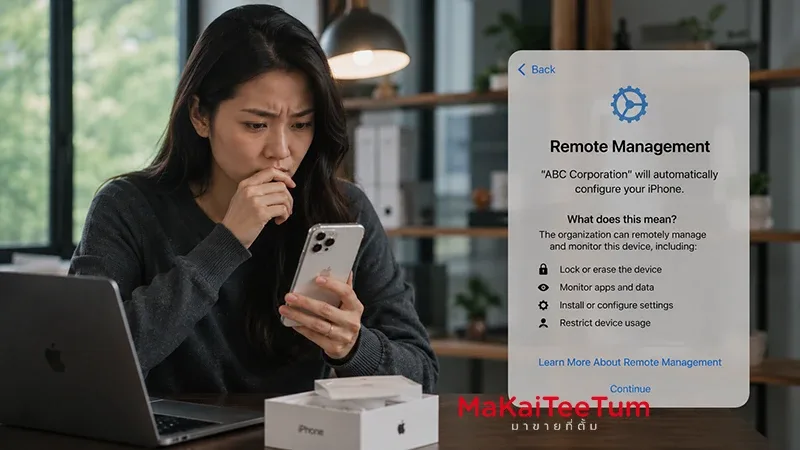
Planning to buy a secondhand iPhone? Don’t get fooled! This guide shows you how to check if the iPhone screen is original, has never been replaced, and is free from system alerts—so you can buy with confidence, safety, and value.
1. Check via Settings & Display Warnings
On iPhones from iPhone 11 and later with iOS ≥15.2, go to Settings > General > About and look for Parts & Service History:
- If it’s a genuine Apple screen, you’ll see “Genuine Apple Part”.
- If the screen was replaced with a used or non‑genuine part, you’ll see “Unknown Part ⚠️”, which may indicate a counterfeit or mismatched component.
If this section doesn’t appear, your iOS may be older or the device has never been repaired.
2. Feature Malfunctions That Reveal a Replaced Screen
- True Tone / Night Shift: Counterfeit screens often cause these features to malfunction or disappear entirely.
- Face ID: On iPhone X to 13, replacing the screen may disable Face ID or cause errors.
- Brightness, Color Accuracy: Genuine screens deliver vivid, consistent color and brightness. Replaced or fake ones show washed‑out colors, grid lines, or uneven brightness at max levels.
3. Simple Visual Tricks to Detect Fakes
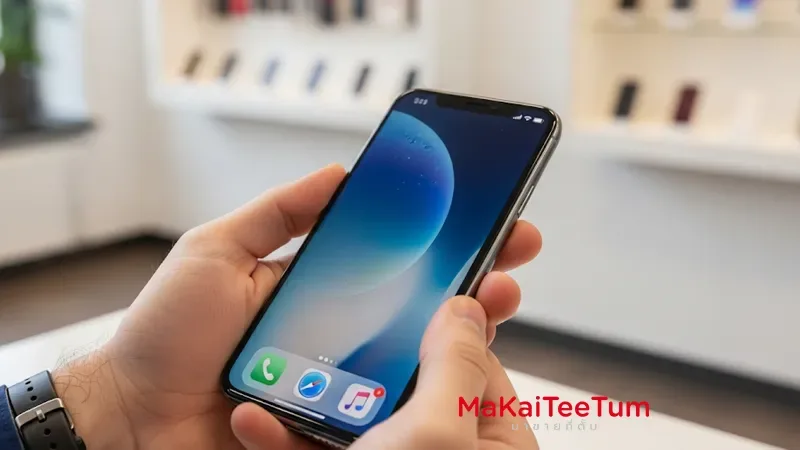
- Use a flashlight: With a black screen, shine light at an angle. Grid lines or grey dots often suggest non‑genuine screens.
- Max out brightness: Authentic displays stay deep black. Fakes may show grey or white glow around edges.
- Touch sensitivity: Poor touch response or lag on certain areas may indicate a low-quality replacement screen.
4. Risks of a Fake or Previously Repaired Screen
Using a non‑genuine or reused screen can result in:
- Loss of features like True Tone and Face ID
- Inaccurate colors, poor contrast, and display flicker
- Faster battery drain, slow or glitchy touch response
- Lower resale value or rejection by professional buyers
5. Pro Steps to Check Screen Authenticity
- Update the device to iOS 15.2 or later
- Go to Settings > General > About and view “Parts & Service History”
- Check for “Genuine Apple Part” vs “Unknown Part ⚠️” under display
- Test True Tone, Face ID, and multi-touch functionality
- Use a flashlight on a black screen to detect any irregularities
- Swipe across the screen to confirm consistent touch response
6. Consider a Professional Inspection
If you’re unsure, get your secondhand iPhone checked by professionals. MaKaiTeeTum offers expert device evaluations to ensure your screen is original and fully functional before purchase or resale.
Need Help Checking a Used iPhone?
Call: 064‑564‑7945 or LINE: @KunTum — we’ll help you assess the condition, fast and professionally.
Summary: Don’t risk buying a fake screen. Use Settings, visual checks, and feature tests—or visit a professional—to ensure your secondhand iPhone is original, safe, and worth every baht.