In today’s digital age, losing electronic devices or valuables can be distressing. Apple’s Find My app offers a reliable solution to locate and protect your belongings. This comprehensive guide will walk you through setting up and using Find My to safeguard your devices and valuables.
Understanding the Find My App
Find My is an integrated app by Apple that combines the functionalities of Find My iPhone and Find My Friends. It allows you to:
- Locate Apple Devices: Track devices like iPhone, iPad, Mac, Apple Watch, and AirPods linked to your Apple ID.
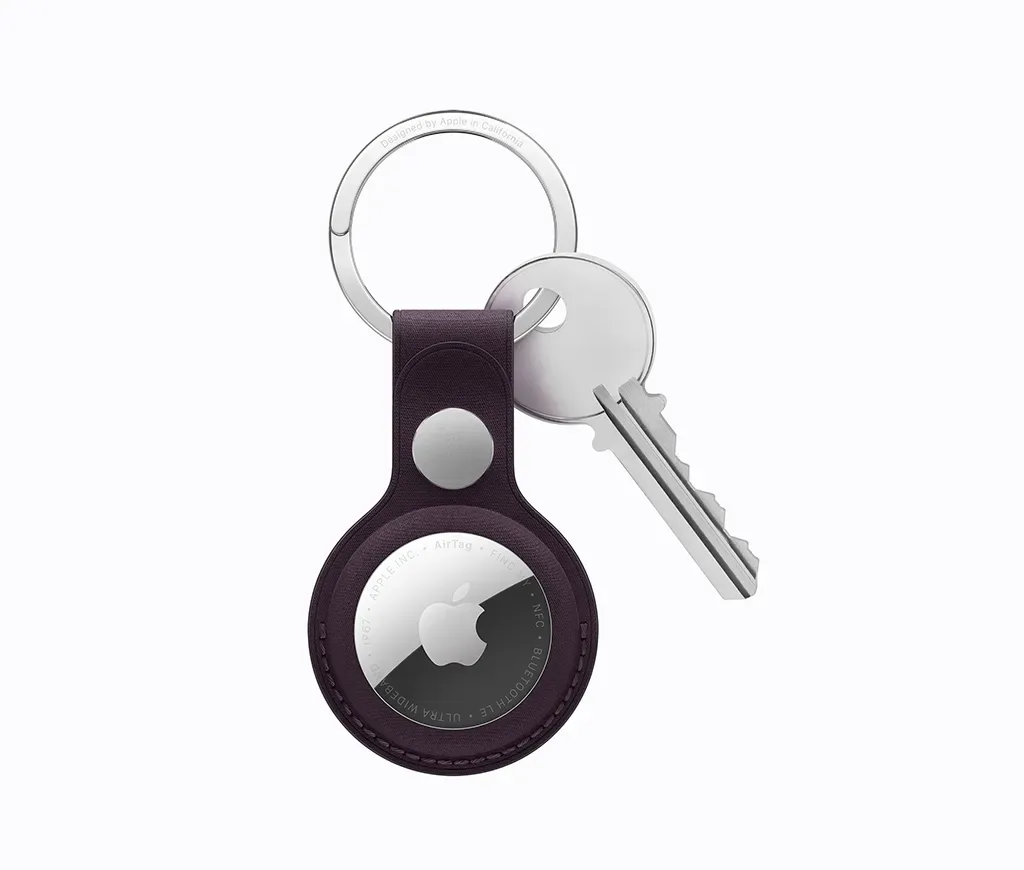
- Track Personal Items: Use AirTag to monitor items such as keys, bags, or bicycles.
Setting Up Find My on Apple Devices
To utilize Find My, ensure it’s enabled on your devices:
On iPhone, iPad, or iPod touch
- Open Settings.
- Tap your name, then select Find My.
- Activate Find My [device].
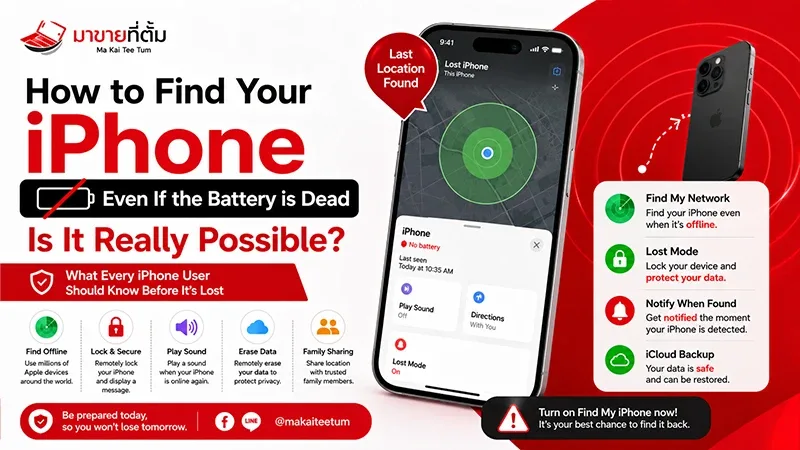
- Enable Find My network to locate the device even when it’s offline.
- Turn on Send Last Location to send the device’s location to Apple when the battery is low.
On Mac
- Click the Apple menu and choose System Preferences.
- Click Apple ID, then select iCloud.
- Check Find My Mac and ensure Location Services is enabled.
Using Find My to Locate a Lost Device
If you misplace a device:
- Open the Find My app on another Apple device or visit iCloud.com.
- Select the Devices tab.
- Choose the lost device to view its location on the map.
- Use options like Play Sound to help locate it nearby or Directions to navigate to its location.

Activating Lost Mode
Lost Mode helps secure your device:
- In the Find My app, select the lost device.
- Scroll down and tap Activate under Mark As Lost.
- Follow prompts to display contact information on the device’s lock screen.
Activating Lost Mode locks the device and suspends Apple Pay to protect your information.
Utilizing AirTag for Valuables
AirTag is a small tracking device that helps locate personal items:
Setting Up AirTag:
- Hold the AirTag near your iPhone or iPad.
- Tap Connect when prompted.
- Name your AirTag based on the item it will track.
- Register the AirTag with your Apple ID.
Locating Items with AirTag:
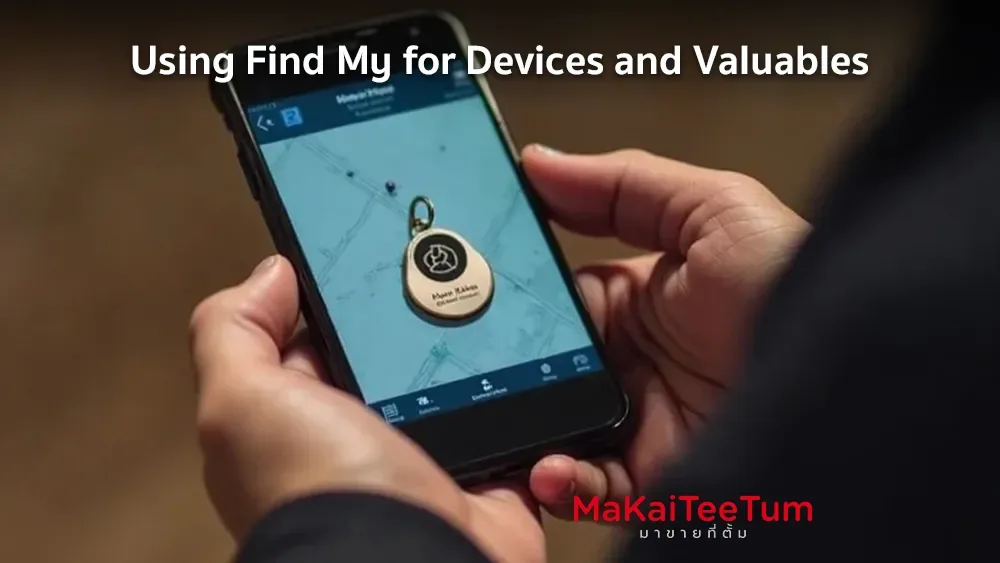
- Open the Find My app and tap the Items tab.
- Select the AirTag-attached item.
- Tap Find to use Precision Finding (on supported devices) or Play Sound to help locate it.
Privacy and Security Considerations
Apple prioritizes user privacy in Find My:
- End-to-End Encryption: Ensures only you can access your device’s location.
- Anonymized Network: Devices in the Find My network relay location information anonymously.
- Unwanted Tracking Alerts: If an unknown AirTag is detected moving with you, your iPhone will alert you.
Conclusion
The Find My app is a powerful tool for locating and securing your Apple devices and personal items. By properly setting up and understanding its features, you can ensure your valuables are protected and easily retrievable.
References:
- ค้นหา iPhone หรือ iPad ที่สูญหาย – Apple การสนับสนุน
- ใช้ AirTag เพื่อติดตามและค้นหาสิ่งของของคุณ – Apple การสนับสนุน
- การใช้โหมดสูญหายในแอป Find My – Apple การสนับสนุน
- ความเป็นส่วนตัวและการแจ้งเตือน AirTag ที่ไม่พึงประสงค์ – Apple
Looking to upgrade your Apple devices? MarKaiTeeTum offers competitive prices for your used Apple products. Contact us at
- 📱💰 Call: 064-564-7945
- Line ID: @KunTum