Losing an iPhone can be stressful, especially if the battery has already died. Many people assume that once the battery reaches zero, the device becomes impossible to locate. Fortunately, that’s no longer entirely true.
Apple has significantly improved its Find My ecosystem over the past few years. Modern iPhones can continue helping users locate a lost device—even after it appears to be powered off—thanks to Apple’s encrypted Find My network.
In this guide, you’ll learn how Find My works, which iPhone models support locating a device after the battery dies, what settings must be enabled beforehand, and what you should do immediately if your iPhone goes missing.
Can You Really Find an iPhone After the Battery Dies?
Yes—but only under specific conditions.
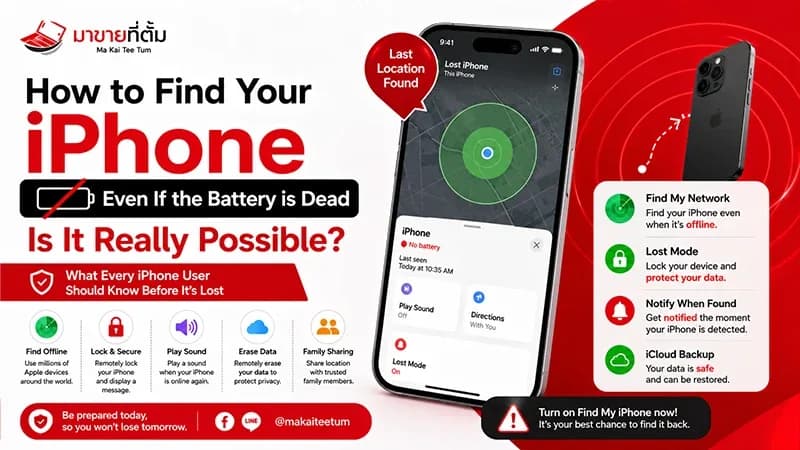
Recent iPhone models include hardware that allows the device to reserve a small amount of power for Find My. Combined with Apple’s Find My network, your iPhone may continue broadcasting encrypted location signals for a period of time even after the battery appears completely drained.
This capability is available only if several requirements were already configured before the phone was lost.
- Find My iPhone must be enabled.
- Find My Network must be turned on.
- Location Services must remain enabled.
- The device must still be linked to your Apple Account.
- Your iPhone model must support this feature.
How Apple’s Find My Network Works
Instead of relying only on GPS or a mobile data connection, Apple’s Find My network uses hundreds of millions of Apple devices worldwide to help locate lost products.
When another nearby iPhone, iPad, or Mac detects your missing device through Bluetooth, it anonymously and securely relays its location back to your Apple Account. The process is fully encrypted, meaning neither Apple nor nearby device owners can identify your device or access its location.
This crowdsourced network dramatically increases the chances of recovering a lost iPhone—even when it has no active internet connection.
Which iPhone Models Support Finding a Dead iPhone?
Not every iPhone supports this capability. Apple introduced the hardware required for post-shutdown and post-battery-depletion tracking beginning with the iPhone 11 lineup.
Supported Models
- iPhone 11
- iPhone 11 Pro
- iPhone 11 Pro Max
- iPhone 12 Series
- iPhone 13 Series
- iPhone 14 Series
- iPhone 15 Series
- iPhone 16 Series and newer
If you own an older model, Find My can still report the device’s last known location before it powered off, but it cannot continue participating in the Find My network after the battery has completely drained.
Essential Settings You Should Enable Today
Many users only discover these settings after losing their phone—which is unfortunately too late. Taking just a few minutes to configure Find My properly can make a significant difference if your device ever disappears.
Recommended Settings
- Enable Find My iPhone.
- Turn on Find My Network.
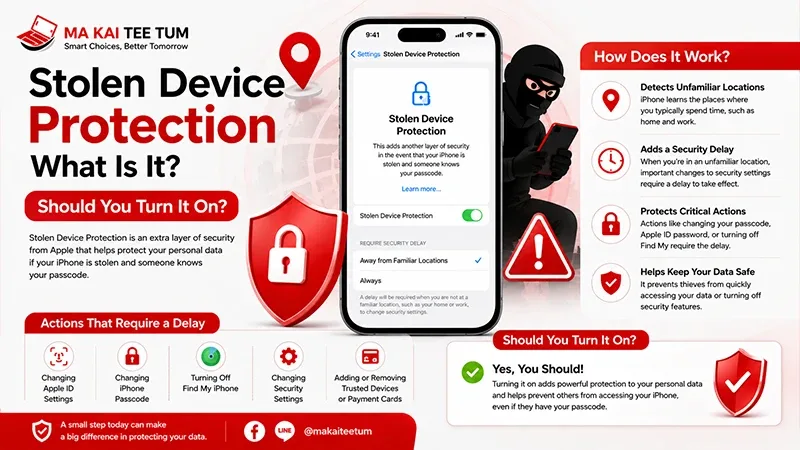
- Enable Send Last Location.
- Keep Location Services enabled.
- Protect your Apple Account with Two-Factor Authentication.
The Send Last Location feature automatically uploads your iPhone’s final known location just before the battery runs out, giving you one additional clue even if the device can no longer communicate afterward.
What Should You Do Immediately After Losing Your iPhone?
The first few minutes are often the most important. Acting quickly can improve your chances of recovering your device while also protecting your personal information.
- Open the Find My app on another Apple device.
- Or sign in to iCloud Find Devices using a web browser.
- Check the most recent reported location.
- Enable Lost Mode immediately.
- Add a recovery phone number and custom message.
- Avoid removing the device from your Apple Account.
One of the biggest mistakes users make is removing the device from their Apple Account too early. Doing so disables Activation Lock, making the phone easier for someone else to activate if it has been stolen.
Can You Find an iPhone That Is Offline?
Yes, in many situations you can.
An iPhone doesn’t always need an active internet connection to be located. If Find My Network has been enabled beforehand, nearby Apple devices can anonymously detect your iPhone using encrypted Bluetooth signals and securely relay its approximate location to your Apple Account.
This means your iPhone may still appear in the Find My app even when it has no Wi-Fi or cellular connection.
When It Can Still Be Located
- The device is offline but within Bluetooth range of another Apple device.
- The battery recently ran out on supported iPhone models.
- The device was turned off but still supports Apple’s power reserve for Find My.
- The last known location was uploaded before losing power.
While recovery is never guaranteed, Apple’s crowdsourced Find My network significantly improves the chances compared to traditional GPS-only tracking.
Find My vs Activation Lock
Although these features work together, they serve very different purposes.
Find My
- Locate your iPhone on a map.
- Play a sound remotely.
- Enable Lost Mode.
- Erase your device remotely.
Activation Lock
- Prevents unauthorized activation.
- Requires your Apple Account credentials after a factory reset.
- Helps reduce the resale value of stolen devices.
Because Activation Lock remains active while your device stays connected to your Apple Account, you should never remove a lost iPhone from your account unless you are absolutely certain you won’t recover it.
What If You Can’t Recover Your iPhone?
If your iPhone remains missing after checking Find My, there are several important steps you should take to protect both your personal information and your mobile service.
- Keep Lost Mode enabled.
- Monitor the Find My app for updated locations.
- Contact your mobile carrier to suspend your SIM or eSIM if necessary.
- Report the theft to local authorities and provide the device’s IMEI.
- Change important passwords if you believe your accounts may be at risk.
Only consider remotely erasing your iPhone after evaluating the likelihood of recovering it, as deleting the device removes most of your personal information while limiting future tracking opportunities until it reconnects.
Should You Erase Your iPhone Remotely?
Remote erase is designed primarily to protect your privacy rather than recover your device.
If you believe your iPhone has been stolen and contains sensitive personal or business information, remotely erasing it through Find My is usually the safest option.
Fortunately, Activation Lock remains enabled even after a remote erase, meaning someone else still cannot activate the device without your Apple Account credentials.
Does Find My Affect iPhone Resale Value?
Indirectly, yes.
Buyers and professional trade-in companies almost always verify that Find My has been disabled before completing a purchase. A device still protected by Activation Lock is effectively unusable for the next owner.
Before Selling Your iPhone
- Sign out of your Apple Account.
- Turn off Find My.
- Erase all content and settings.
- Confirm Activation Lock has been removed.
Completing these steps properly helps preserve your iPhone’s resale value while making the transaction smoother for both buyer and seller.
Quick Decision Guide
- Yes, some modern iPhones can still help you locate the device after the battery dies.
- Always enable Find My Network and Send Last Location before you ever lose your phone.
- If your iPhone disappears, activate Lost Mode immediately.
- Do not remove the device from your Apple Account while there’s still a chance of recovery.
- Before selling your iPhone, disable Find My to avoid Activation Lock issues that can reduce resale value.
Know Your iPhone’s Value Before You Upgrade
If your current iPhone is getting older or its battery health has declined, upgrading before Apple’s next product launch may help you retain more of its resale value.
MaKaiTeeTum purchases pre-owned Apple devices including iPhone, iPad, MacBook, iMac, and Apple Watch. Simply share your model, storage capacity, and condition to receive a fast price estimate. Most evaluations are completed within approximately 10 minutes, with immediate payment, secure data handling, and convenient pickup services.
LINE:
@KunTum
Phone:
+66 81 154 5496
Website:
makaiteetum.com
References
Apple Support – Find My on iPhone
Apple Support – Find My Network
Apple Support – Activation Lock
Apple – Find My
Apple iCloud Support