Many iPhone users have experienced situations where the device suddenly freezes or the screen becomes unresponsive. Taps don’t register, the screen seems stuck, or apps won’t close. These issues can stem from software glitches, storage limits, or even hardware problems. This guide walks you through step-by-step solutions—from simple quick fixes to advanced resets—so you can restore your iPhone’s performance.
Common Causes of iPhone Freezing or Unresponsive Screen
- App glitches: Some apps may crash or overuse resources, causing the device to freeze.
- Low storage: Insufficient storage can slow down performance and lead to freezing.
- iOS bugs: Certain iOS versions may contain software issues affecting responsiveness.
- Overheating: Excessive heat can cause the iPhone to slow down or lock up temporarily.
- Hardware issues: Touchscreen, battery, or logic board malfunctions may be involved.
Basic Fixes for iPhone Freezing
1. Restart the iPhone
Force restarting is often the quickest solution:
- iPhone X and later: Press and quickly release Volume Up, then Volume Down, then press and hold the Side button until the Apple logo appears.
- iPhone with Home button: Hold both the Power and Home buttons for ~10 seconds until the Apple logo appears.
2. Check Storage Space
Go to Settings > General > iPhone Storage. If storage is nearly full, delete unused apps, old photos, or clear caches to free space.
3. Close Background Apps
- No Home button: Swipe up from the bottom and pause, then swipe away apps.
- With Home button: Double-click the Home button and swipe away apps you don’t need.
4. Update iOS
Go to Settings > General > Software Update. Installing the latest iOS often fixes freezing bugs.
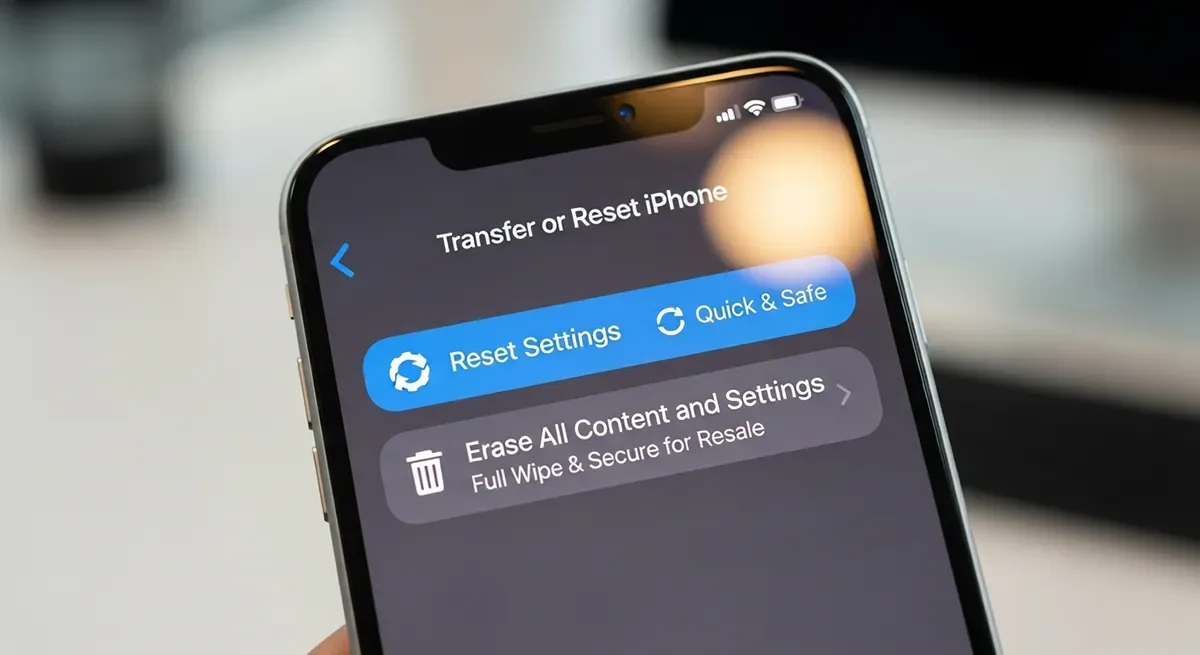
5. Reset All Settings
If freezing persists, reset system settings (without deleting data):
Settings > General > Transfer or Reset iPhone > Reset > Reset All Settings
Advanced Fixes if the Problem Persists
1. DFU Mode Restore
DFU (Device Firmware Update) mode allows a deep restore when the device won’t respond. Connect your iPhone to a computer with iTunes or Finder, enter DFU mode (varies by model), and restore iOS.
2. Third-Party Repair Tools
Software like ReiBoot or iMyFone Fixppo can repair iOS without wiping your data.
3. Contact Apple Support
If hardware issues are suspected (e.g., touchscreen failure, overheating, frequent restarts), bring your iPhone to Apple Support or an Authorized Service Provider.
Extra Tips for Prevention
- Avoid installing apps from untrusted sources.
- Regularly back up data with iCloud or iTunes.
- Keep iOS updated for improved stability and security.
- Clear junk files periodically to free resources.
FAQs
Q: My iPhone is frozen but still showing the screen. What should I do?
A: Try a force restart. If the issue persists, update iOS or reset all settings.
Q: The touchscreen doesn’t respond at all, but the phone is on?
A: This may be a hardware issue. Restart first; if it doesn’t help, visit Apple Support for repair.
Q: Does resetting my iPhone erase all data?
A: Choosing “Reset All Settings” keeps your data. But “Erase All Content and Settings” will wipe everything—so back up first.
Conclusion
An iPhone freezing or becoming unresponsive can be frustrating, but most cases are fixable with simple steps like restarting, updating iOS, or freeing storage. If these don’t work, advanced resets or professional service may be needed. By maintaining your device properly and staying updated, you can keep your iPhone running smoothly and avoid future freezing problems.