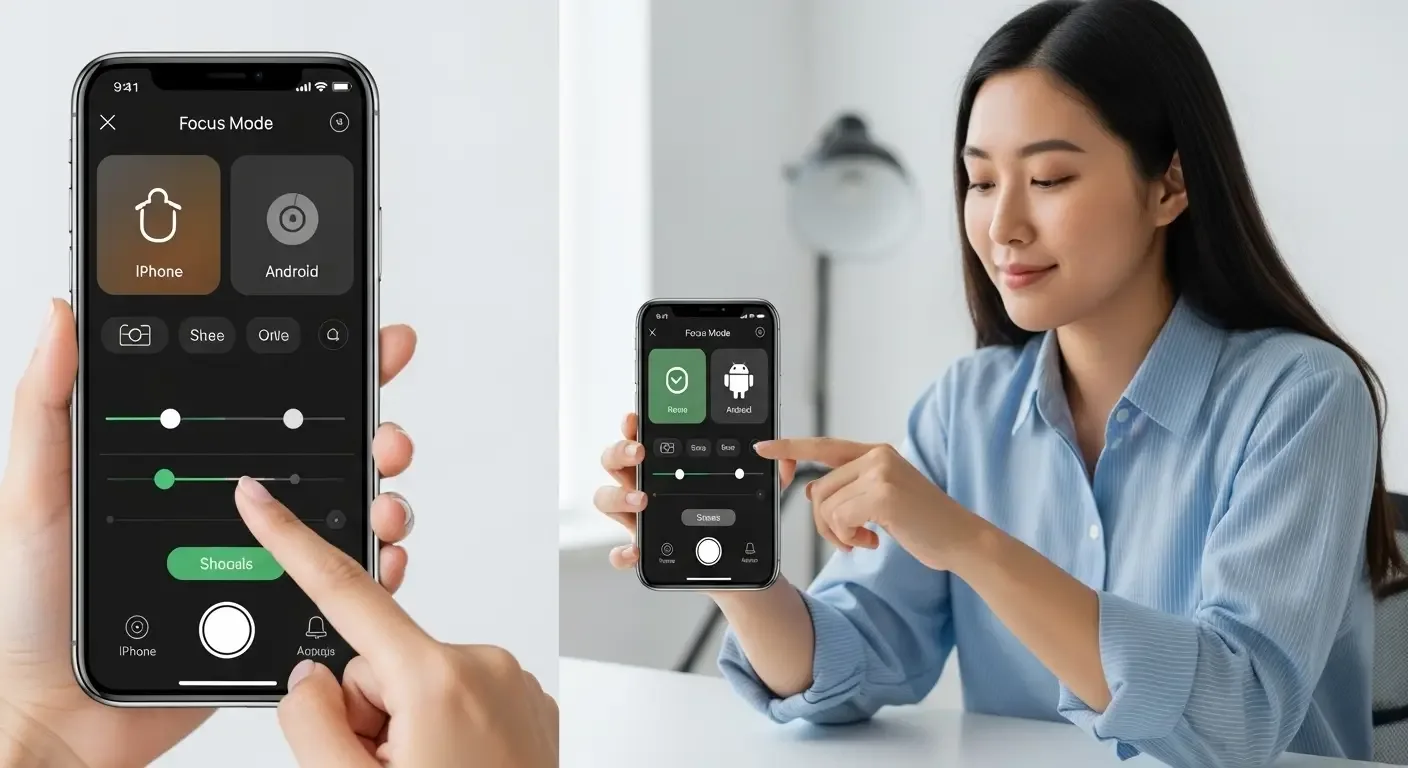
Face ID is one of the standout features of the iPhone, providing a convenient and secure way to unlock your device and verify your identity. If you’re looking to optimize Face ID for smoother usage, this guide will walk you through the setup process, customization options, and troubleshooting tips to ensure a seamless experience.
What is Face ID and How Does It Work?
Face ID is Apple’s facial recognition technology designed for effortless unlocking and authentication. Using the TrueDepth camera system, Face ID maps your face in various angles and adapts to changes, such as wearing glasses or altering your hairstyle.
How to Set Up Face ID on iPhone
Follow these steps to enable Face ID:
Initial Setup
- Open Settings > Face ID & Passcode
- Enter your passcode
- Tap Set Up Face ID
- Follow the on-screen instructions:
- Hold your iPhone in portrait mode
- Align your face within the on-screen frame
- Slowly move your head in a circular motion to complete facial scanning
- Tap Done once the setup is complete
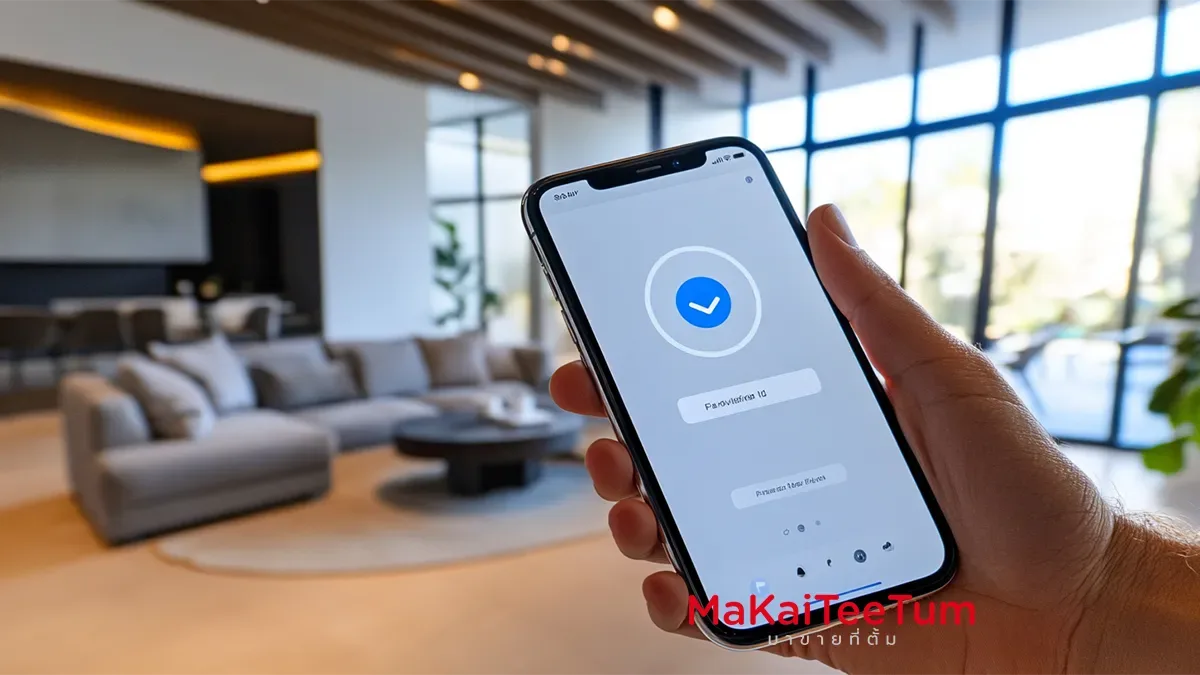
Tips to Make Face ID Work Better
Add an Alternate Appearance
If your facial appearance frequently changes (e.g., wearing hats or sunglasses), add an additional face profile:
- Go to Settings > Face ID & Passcode
- Tap Set Up an Alternate Appearance
- Follow the same setup steps as the initial scan
Customize Face ID for Specific Uses
You can enable Face ID for multiple functions:
- Unlock iPhone
- iTunes & App Store purchases
- Apple Pay transactions
- Auto-fill passwords in Safari
To enable these, navigate to Settings > Face ID & Passcode, then toggle the relevant options.
Optimize Face ID in Low Light
Face ID uses infrared light to function in dark environments, but for optimal results:
- Use Face ID in well-lit surroundings
- Avoid direct glare or strong backlight
Troubleshooting Face ID Issues
- Clean the TrueDepth Camera
Dirt or smudges on the Face ID sensor can affect recognition. Use a microfiber cloth to gently clean the camera area. - Reset Face ID
If Face ID frequently fails, reset and reconfigure it:- Go to Settings > Face ID & Passcode
- Tap Reset Face ID
- Follow the setup steps again
- Update iOS
Ensure you’re running the latest iOS version:- Open Settings > General > Software Update
- Install any available updates
- Adjust Your Viewing Angle
Face ID may not work if your iPhone is held too high or too low. Hold your device at eye level for the best results.
Face ID Security and Privacy
Face ID data is securely stored in the Secure Enclave on your iPhone, ensuring that your facial data is never uploaded to iCloud or Apple’s servers. This guarantees maximum privacy and security.
Conclusion
Setting up Face ID correctly can significantly enhance your daily iPhone experience. By following these setup steps and optimization tips, you can ensure fast, secure, and reliable facial recognition. If you encounter issues, the troubleshooting guide will help resolve them quickly.
References: Apple Support: Set up Face ID on your iPhone, Tips to Optimize Face ID – MacRumors, Troubleshooting Face ID Issues – Digital Trends, Face ID Privacy Features – Apple Official