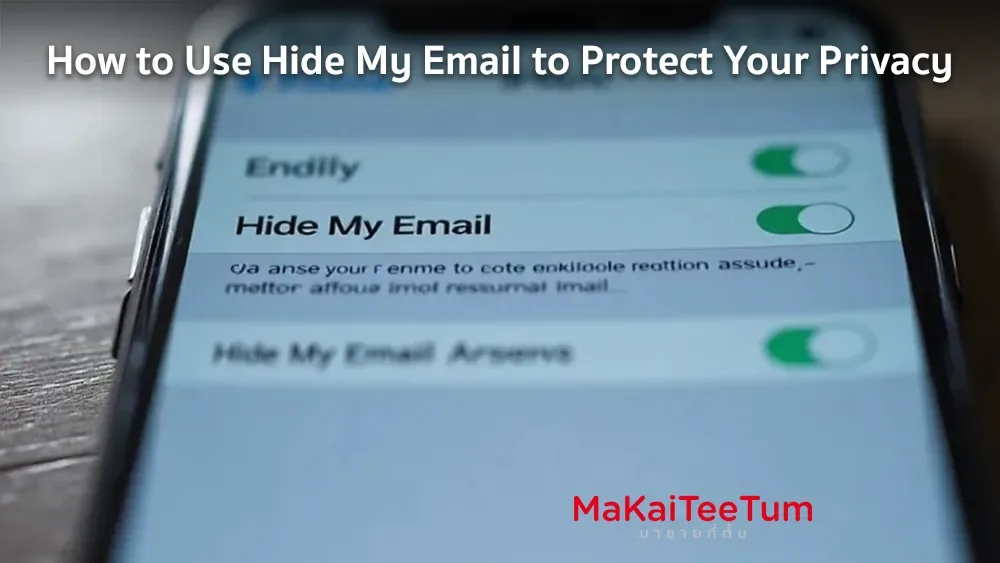
Hide My Email is a feature introduced by Apple to help users safeguard their privacy by generating unique, randomized email addresses for use with apps, websites, or online services. This feature allows you to avoid sharing your real email address, reducing the risk of spam and data breaches.
What is Hide My Email?
Hide My Email is part of the iCloud+ service, allowing users to create randomly generated email addresses that forward messages to their actual inbox. Instead of using your primary email when signing up for online services or filling out forms, you can generate a temporary email address using this feature.
How Does Hide My Email Work?
When you use Hide My Email, the system creates a randomly generated email address ending in @privaterelay.appleid.com. Emails sent to this address are automatically forwarded to your real inbox, allowing you to read and reply as usual without revealing your actual email.
Apple ensures that it does not read or process the content of emails passing through Hide My Email, except for spam filtering. All emails are deleted from Apple’s servers within seconds after being forwarded.
How to Set Up and Use Hide My Email
Enabling Hide My Email on iPhone or iPad
- Open the Settings app.
- Tap [Your Name] to access your Apple ID settings.
- Select iCloud.
- Tap Hide My Email.
- Tap Create New Address to generate a random email address.
You can assign a label to the generated address for easy identification and add notes for reference. Once created, the email address is ready to use.
Using Hide My Email with Sign in with Apple
When signing up for a new account on an app or website, you can choose to hide your email by following these steps:
- Select “Sign in with Apple” when creating an account.
- When prompted, choose “Hide My Email” instead of sharing your real email.
The system will generate a random email address for the account, and all emails sent to it will be forwarded to your inbox.
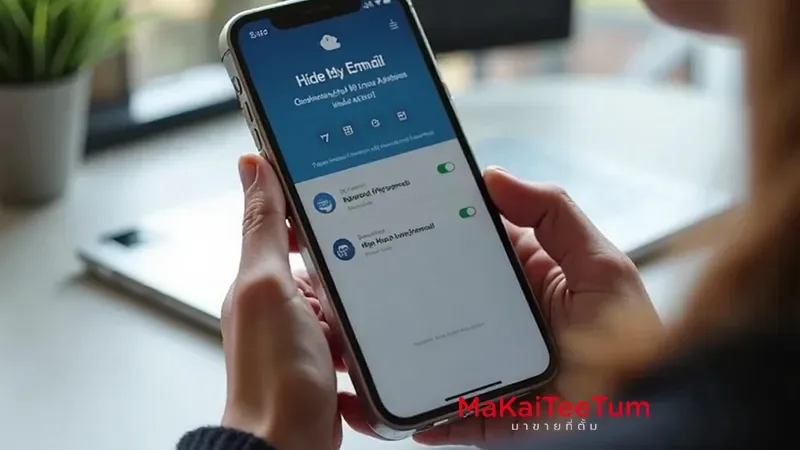
Managing Email Addresses Created with Hide My Email
To view, edit, or deactivate any email address you created with Hide My Email:
- Go to Settings > [Your Name] > iCloud > Hide My Email.
- A list of generated email addresses will appear.
- Tap on an address to view details.
- You can modify notes, deactivate forwarding, or copy the email address for use elsewhere.
Benefits of Using Hide My Email
- Protects Your Privacy – Prevents you from sharing your real email address, reducing spam and data breaches.
- Gives You More Control – You can deactivate any email alias when you no longer wish to receive messages from a particular service.
- Easy to Use – Quickly generate and manage email aliases directly from your Apple device.
Things to Keep in Mind
- Hide My Email requires an iCloud+ subscription.
- Ensure your device is updated to the latest version of iOS or iPadOS for optimal performance.
Conclusion
Hide My Email is an essential tool for users who want to maintain online privacy. By generating random email addresses, you can control communication and reduce exposure to spam. It is easy to set up and use, making it a must-have feature for all Apple users.
References: