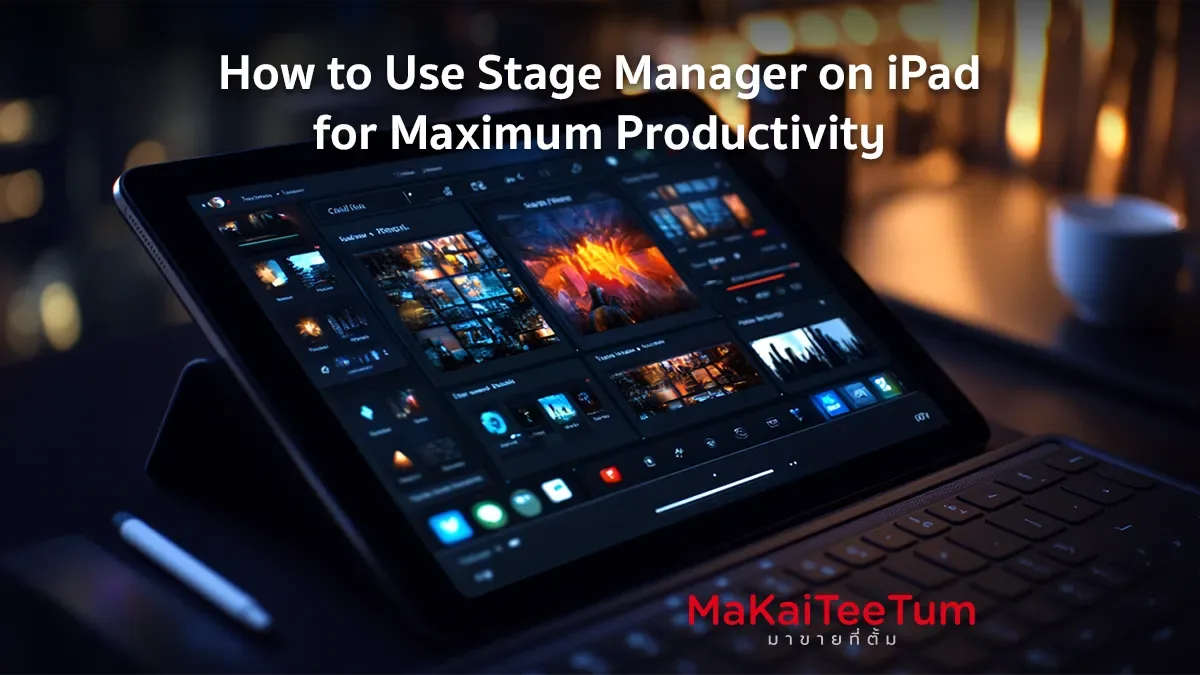
Stage Manager is a powerful new feature in iPadOS designed to enhance productivity, especially for multitasking. It allows users to organize and manage multiple app windows, making it easier to work on different tasks simultaneously. In this article, we’ll explore how to set up and use Stage Manager on your iPad, along with expert tips to maximize efficiency.
What is Stage Manager?
Stage Manager is a feature introduced in iPadOS 16 that enables users to arrange and resize app windows dynamically. It is ideal for users who need to work with multiple apps at once, whether for project management, research, or creative workflows.
Supported Devices for Stage Manager
Stage Manager is available on the following iPad models:
- iPad Pro (M1 and M2 chip models)
- iPad Air (M1 chip model)
How to Enable Stage Manager on iPad
To activate Stage Manager, follow these steps:
- Open Settings on your iPad.
- Go to Home Screen & Multitasking.
- Tap Stage Manager and enable Use Stage Manager on iPad.
- Your open apps will automatically be arranged in a floating window layout.
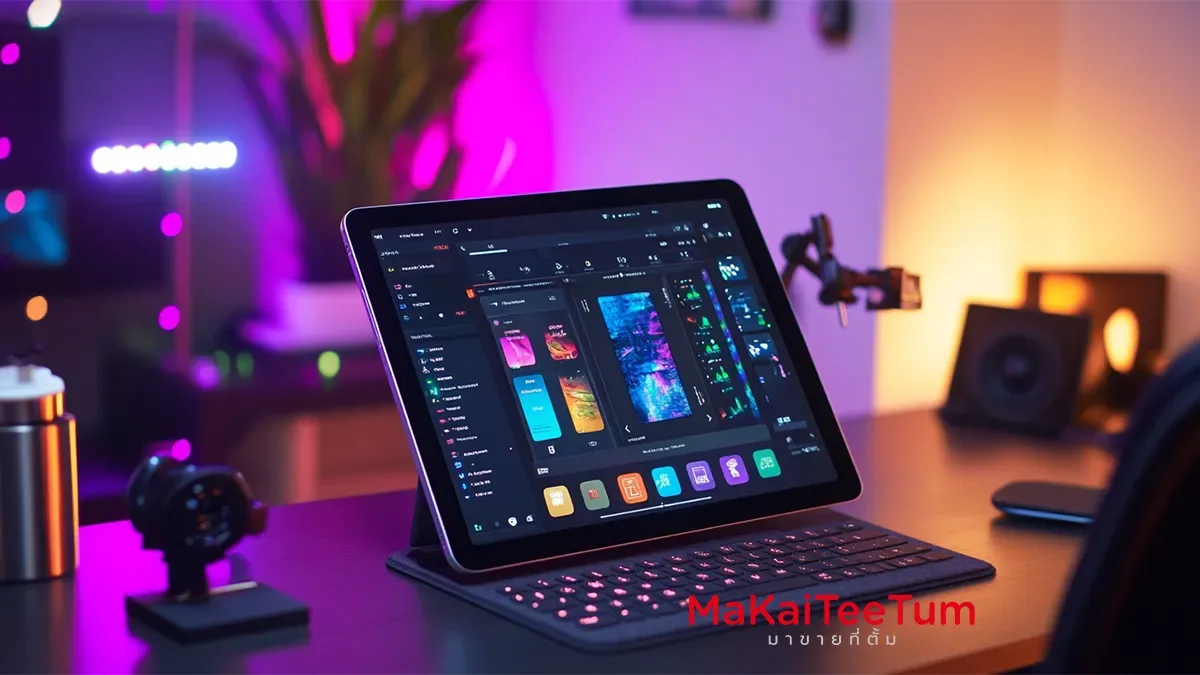
How to Use Stage Manager
Once activated, you can use Stage Manager as follows:
- Open and Arrange Apps: Drag apps from the Dock or App Library to place them in floating windows.
- Group Apps Together: Drag multiple apps into the same window space to switch between them easily.
- Resize Windows: Tap and drag the edges of a window to resize it according to your needs.
- Switch Between Apps: Use the Stage Manager sidebar to quickly select and navigate between apps or app groups.
Pro Tips for Using Stage Manager Efficiently
- Use an External Display: If you connect your iPad to an external monitor, Stage Manager allows you to manage apps across both screens.
- Create Custom Workflows: Group apps related to the same task, such as email, notes, and browser windows, to streamline your workflow.
- Optimize Screen Space: Arrange and resize app windows effectively to maximize screen real estate.
Pros and Cons of Stage Manager
Pros:
- Enhances multitasking capabilities.
- Provides easy app window management.
- Supports external display usage.
Cons:
- Only available on iPads with M1 or newer chips.
- May require an adjustment period for new users.
Troubleshooting Common Stage Manager Issues
If you encounter issues using Stage Manager, try the following:
- Restart your iPad if the feature is not functioning smoothly.
- Update to the latest iPadOS to ensure optimal performance.
- Check device compatibility as Stage Manager is only supported on M1 and newer iPads.
References: Apple Official Website, MacRumors, iMore, The Verge