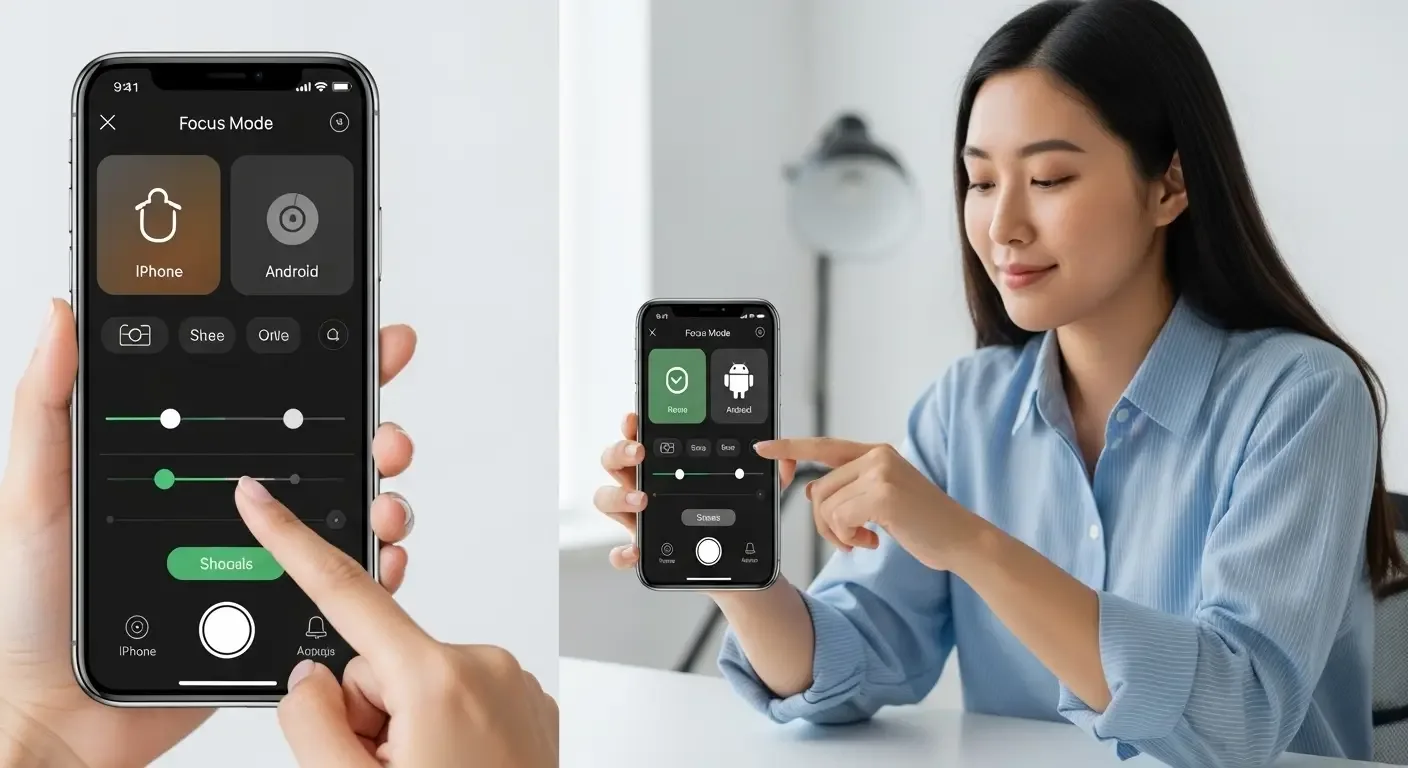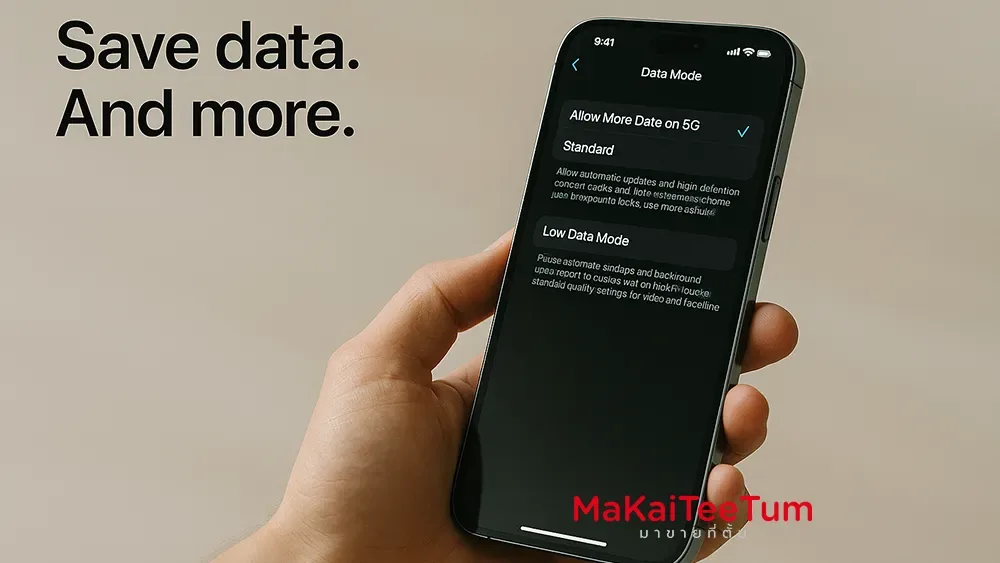
If you’re on a limited mobile data plan, optimizing your iPhone settings can help you save significant data and avoid unexpected charges. This guide covers all the essential iPhone settings to help you reduce data usage effectively—without affecting functionality.
1. Enable Low Data Mode
This mode pauses automatic updates, limits background app activity, and reduces media quality to conserve data.
- How to enable: Go to Settings > Cellular > Cellular Data Options and toggle on Low Data Mode
2. Turn Off Background App Refresh
Disabling background app refresh stops apps from using data when you’re not actively using them.
- How to disable: Settings > General > Background App Refresh > Off
3. Disable Automatic Downloads and Updates
Apps and updates may consume a lot of data when auto-downloading over cellular.
- How to disable: Settings > App Store > Turn off Automatic Downloads and Updates
4. Turn Off Wi-Fi Assist
Wi-Fi Assist automatically uses cellular data when Wi-Fi signals are weak—leading to unintentional usage.
- How to disable: Settings > Cellular, scroll down and turn off Wi-Fi Assist
5. Monitor and Limit App Data Usage
Some apps use more data than you realize. Monitor usage and restrict access where unnecessary.
- How to monitor: Settings > Cellular, scroll to see data usage per app and toggle off unwanted apps
6. Lower Streaming Quality
Streaming in HD or 4K can burn through data fast. Lower the quality to save bandwidth.
- YouTube: Tap gear icon > Video Quality > Select “Data Saver”
- Spotify: Settings > Audio Quality > Select “Low” or “Automatic”
7. Prioritize Wi-Fi When Available
Connect to trusted Wi-Fi networks automatically to save on cellular usage.
- Go to Settings > Wi-Fi and enable auto-connect for saved networks
8. Disable Autoplay Videos on Social Media
Autoplay videos in apps like Facebook or Instagram use up unnecessary data.
- Facebook: Settings > Videos > Turn off autoplay
- Instagram: Enable Data Saver in app settings
9. Limit Cloud Backups to Wi-Fi
Apps like iCloud Photos or Google Photos may back up media using cellular if not restricted.
- Ensure backups are set to upload only over Wi-Fi
Need More iPhone Tips or Looking to Sell?
If your iPhone consumes too much data or you’re planning to upgrade, MaKaiTeeTum can help. We buy used iPhones at competitive prices and offer personalized advice.
- Call: 064-564-7945
- Line ID: @KunTum