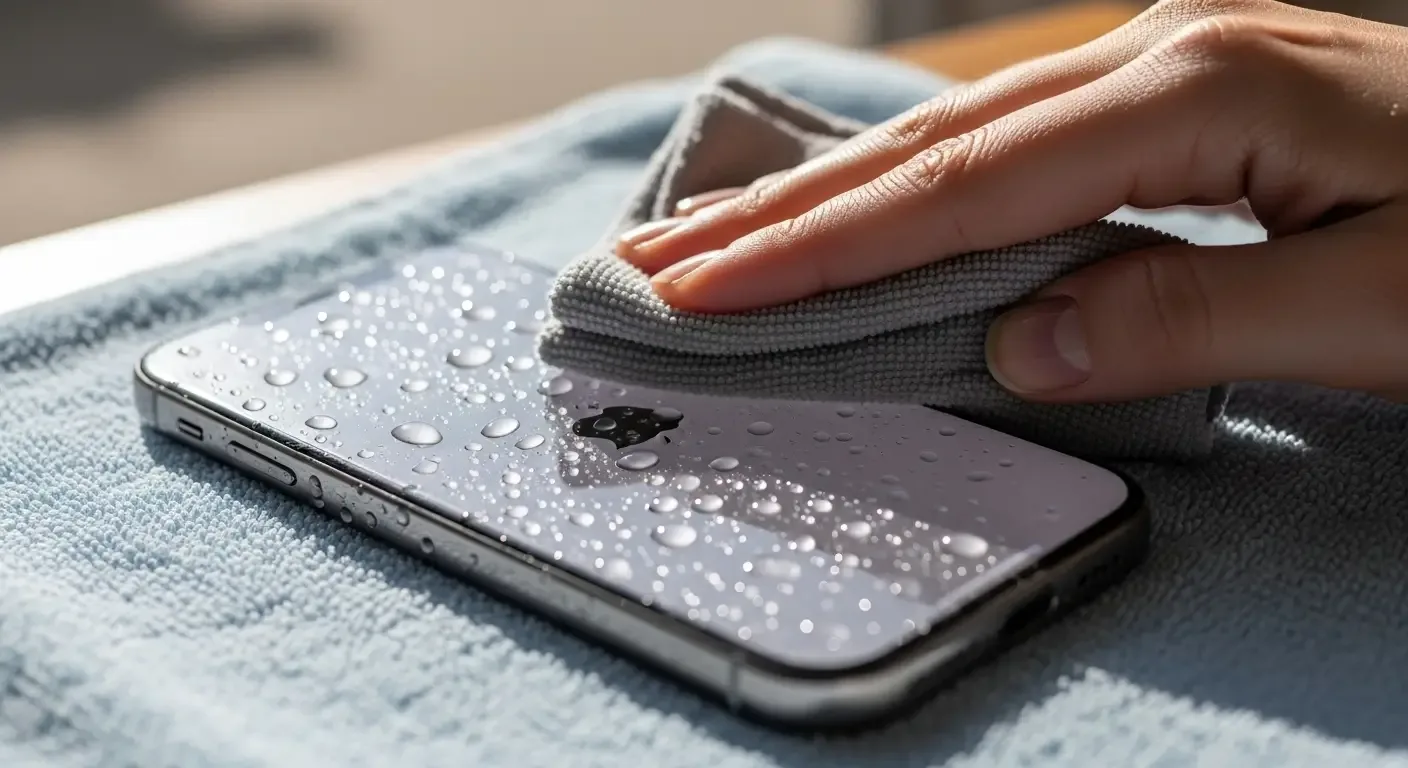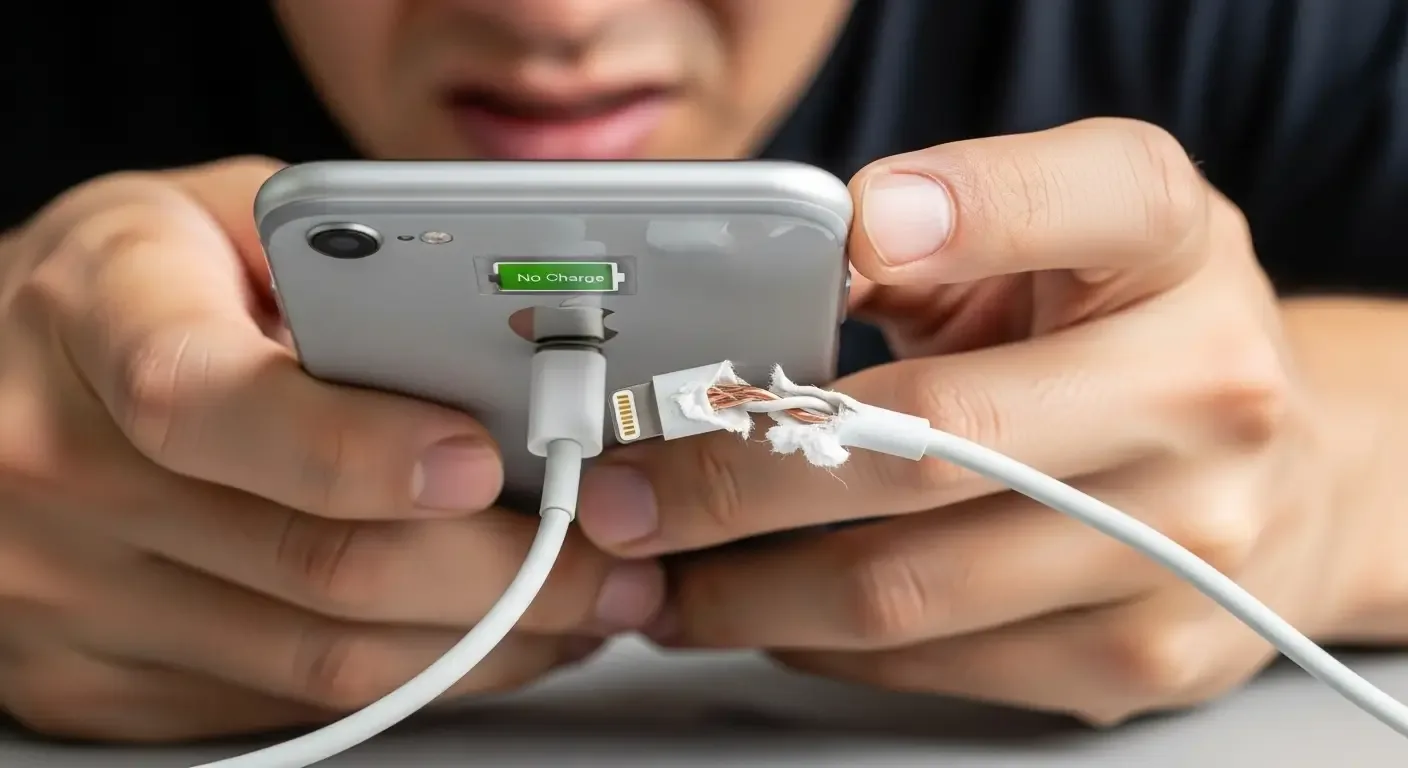
When your iPhone won’t charge, it’s a frustrating issue whether the device is old or brand new. This problem can keep you from using your phone to its full potential. This article explains the likely causes and walks you through proper DIY fixes for an iPhone that isn’t charging.
Common Causes of an iPhone Not Charging
Charging failures can stem from many factors, ranging from external issues like damaged cables or loose connections to internal hardware or software problems.
1. Cable or Power Adapter Problems
- Frayed or internally broken cable, or a loose internal connection
- Power adapter not supplying power or malfunctioning
- Non-genuine or non-MFi-certified cable/charger
2. Dirty or Obstructed Lightning/USB-C Port
- Lint or dust buildup inside the charging port
- Oxidation on contacts causing poor electrical connection
3. Battery Wear or Internal Hardware Issues
- Battery health degraded to the point it cannot accept charge
- Power management IC or other internal circuitry faults
4. Software or iOS Issues
- System hang or bugs interfering with charging
- Optimized Battery Charging behavior causing confusion (appears to pause charging)
Initial Troubleshooting Steps When an iPhone Won’t Charge
If your iPhone is having charging issues, try the following steps first.
1. Check the Cable and Power Adapter
- Test with another genuine, Apple-certified cable and adapter.
- Plug the same cable into a different device to verify the cable works.
2. Carefully Clean the Charging Port
- Power off the iPhone before cleaning.
- Gently remove debris with a wooden or plastic pick or a soft brush.
- Avoid liquids or harsh cleaning agents.
3. Restart or Force Restart
- Hold the Power button to turn the device off, then turn it back on.
- If that doesn’t help, try a Force Restart (method varies by iPhone model).
4. Temporarily Disable Optimized Battery Charging
Go to Settings > Battery > Battery Health & Charging and turn off Optimized Battery Charging temporarily to see if normal charging resumes.
5. Update iOS to the Latest Version
Some charging issues are caused by software bugs. Update via Settings > General > Software Update.
When to Visit an Authorized Service Provider
If the steps above don’t resolve the issue, you may be dealing with a hardware fault—such as a failed port, battery, or power circuitry. Visit an Apple Authorized Service Provider for a full diagnostics check.
Extra Tips to Keep Your iPhone Charging Normally
- Avoid cheap, uncertified charging accessories.
- Clean the charging port every 1–2 months.
- Avoid heavy usage while charging to reduce heat buildup.
- Use chargers that meet Apple’s recommended voltage/current specs.
FAQ: iPhone Not Charging
Q: Can frequently using counterfeit cables damage my iPhone?
A: Yes. Poorly built cables can deliver unstable power, potentially damaging the port or internal power circuitry.
Q: If my iPhone’s charging port is loose, do I need a whole-device replacement?
A: No. The port can be replaced on its own, but it should be done by a qualified technician.
Q: If wireless charging still works, is the phone considered faulty?
A: If wireless charging works, the issue is likely with the Lightning/USB-C port. Have the port repaired or replaced.
Conclusion
The iPhone not charging problem can be as simple as a bad cable or a software hiccup—or as complex as a hardware failure. Understanding the causes helps you try correct, safe fixes before paying for service.
Consistent care and using quality accessories are key to extending your iPhone’s lifespan and avoiding future charging issues.