The iPhone’s touch screen is beloved for its smooth, accurate responsiveness and excellent user experience. But when your iPhone gets wet—even though it’s water-resistant—you may run into touch issues such as inaccurate taps, ghost touches, or total unresponsiveness right after exposure.
This article covers how to check the symptoms and the right, safe ways to fix them so you can extend your iPhone’s lifespan and avoid further damage.
Why an iPhone Touch Screen Glitches After Water Exposure
- Water droplets interfere with touch: Moisture on the glass can conduct electricity, making the phone think you’re touching the screen when you aren’t.
- Internal moisture: Even with IP67/IP68 ratings, heavy exposure can let moisture in, causing the digitizer to misbehave.
- Residue or debris: After drying, mineral or salt deposits and grime can remain on the glass and affect touch accuracy.
How to Tell If Water Is Causing Your Touch Issues
1. Observe the screen’s behavior
- Screen moves or taps on its own (ghost touches)
- Touches don’t register or feel delayed
- Multi-touch inputs respond at the wrong locations
2. Test with Notes or a sketching app
Open Notes (new note) or any sketch app and draw continuous lines across the whole display. If certain areas don’t draw or the line breaks, those regions may be unresponsive.
3. Use AssistiveTouch
If AssistiveTouch is enabled and you notice the on-screen menu moving or selecting items on its own, the touch panel is likely misreading input.
Fixes for iPhone Touch Screen Glitches After Getting Wet
1. Power off immediately
If it got significantly wet and starts acting up, turn the phone off right away to reduce the chance of short circuits due to moisture.
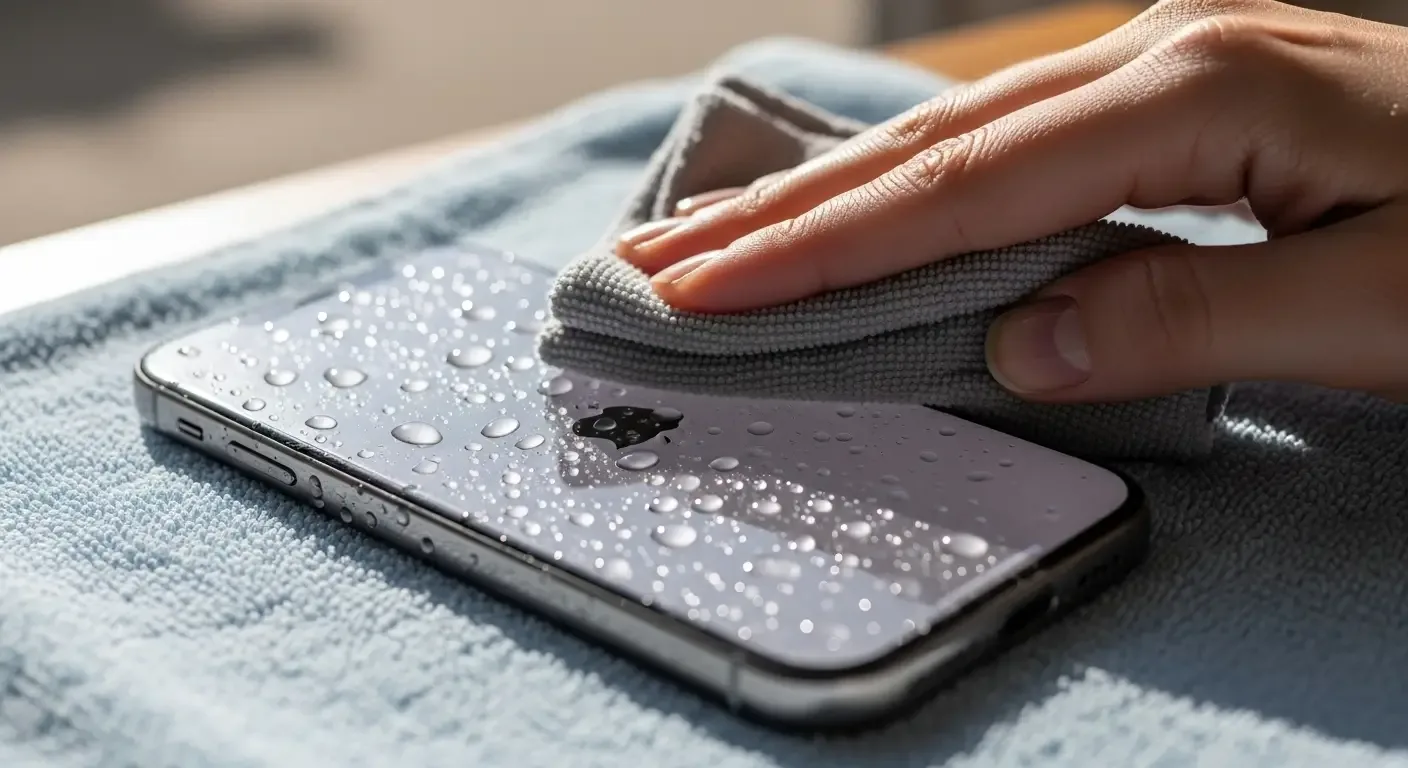
2. Dry the exterior with a microfiber cloth
Use a lint-free microfiber cloth to gently wipe the screen and edges, removing water and skin oils that can affect touch.
3. Let it dry completely
- Leave it in a well-ventilated, dry area.
- Don’t use a hot hair dryer—excess heat can damage the display and seals.
- You may place it in a zip bag with uncooked rice or silica gel for 24–48 hours.
4. Soft reset
If the phone is dry but still glitchy, try a soft reset (e.g., hold Power + Volume Down until the Apple logo appears).
5. Update iOS
Some touch issues may be software-related. Install the latest iOS to apply stability and touch calibration fixes.
6. Back up and factory reset
If problems persist, back up via iCloud or a computer, then erase all content and settings (factory reset) to rule out software conflicts.
7. Contact Apple Support or a trusted repair shop
If the screen remains unresponsive or severely erratic after these steps, have the hardware inspected by Apple or a reputable technician.
Water-Use Precautions
- Avoid using the screen while it’s wet.
- Wipe it dry and wait until fully dry before use.
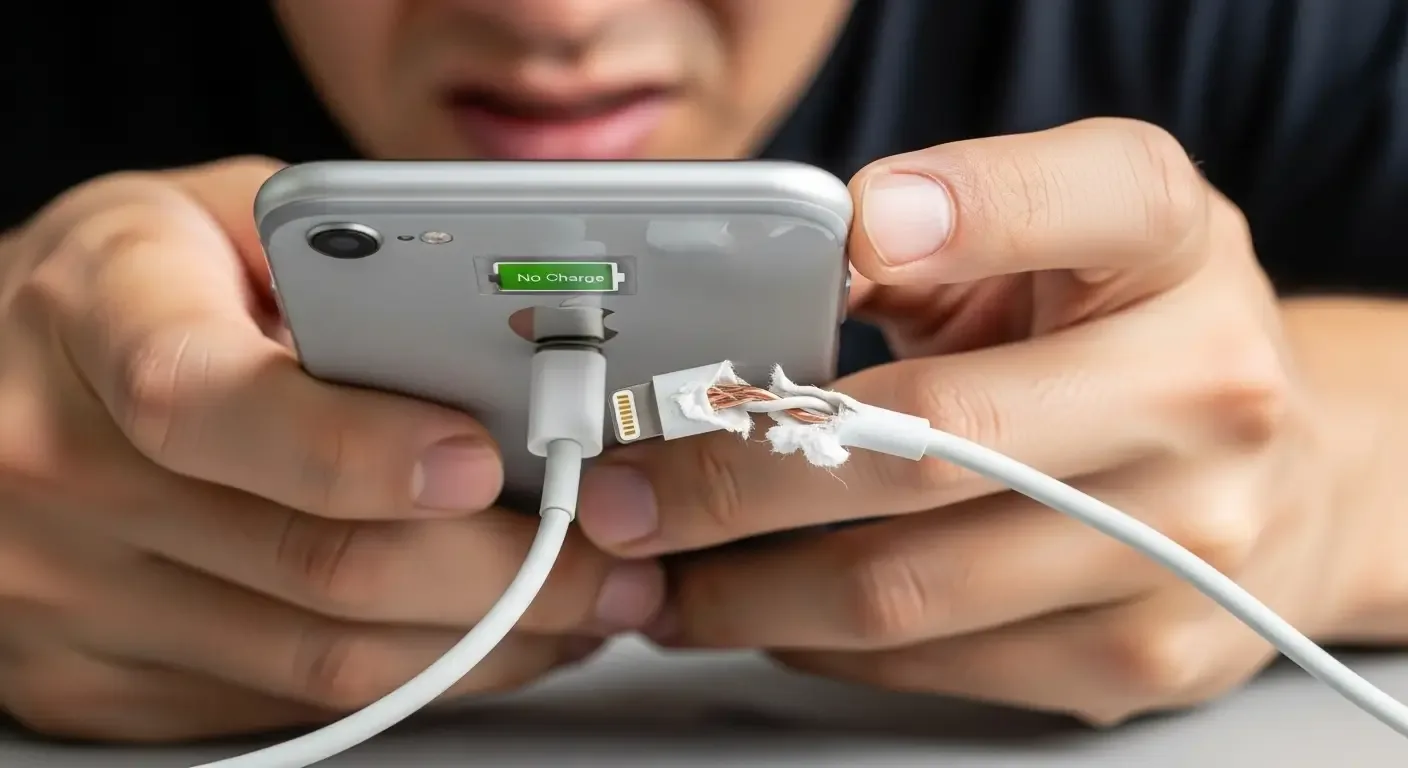
- Do not charge the phone while wet to prevent short circuits.
- Even with water resistance, avoid submersion—Apple’s warranty doesn’t cover liquid damage.
FAQ
Q: Do I need a screen replacement if touch goes crazy after water?
A: Not necessarily. Clean and dry it thoroughly first. If issues remain, then seek a professional assessment.
Q: Does uncooked rice really help?
A: It can absorb some moisture, but if water ingress is significant, professional inspection is recommended.
Q: Can I use my iPhone underwater?
A: Despite water resistance, Apple doesn’t recommend submersion, and liquid damage isn’t covered under warranty.
Summary
Water can cause temporary or persistent touch glitches—especially on the display surface and digitizer. Don’t panic: power off, dry thoroughly, try a soft reset and software steps, and if problems persist, consult a professional. Acting calmly and correctly can save your device from further damage.