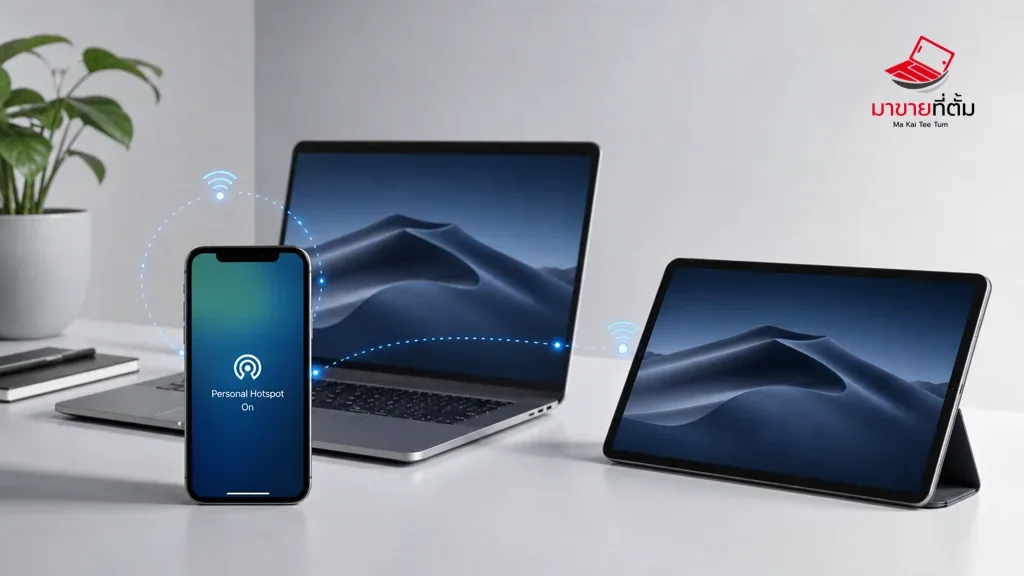
Personal Hotspot is useful when a MacBook or iPad needs a temporary internet connection, but it can fail in several different ways: the setting may be unavailable, other devices may not see the network, or they may connect without usable data. Check the carrier side and the device connection separately.
Checks to try first
- Confirm that Cellular Data is on and that your mobile plan allows tethering
- Turn on Allow Others to Join, then wait briefly for the hotspot name to appear
- Toggle Wi‑Fi and Bluetooth on the receiving device and select the iPhone again
- Keep the devices close together and leave the iPhone unlocked while testing Instant Hotspot
- Restart both devices; use Reset Network Settings only as a later step because it removes saved Wi‑Fi networks and passwords
When the device needs further help
If the carrier has disabled tethering or mobile data itself is not working, the carrier must resolve the account or plan issue. If other devices can share normally but this iPhone still cannot create a hotspot after updates and a network reset, arrange a device inspection.
Bottom line
Start with reversible checks that do not erase personal data, then isolate the accessory, setting, network, or hardware involved. If the symptom survives the basic steps or follows impact or liquid exposure, professional assessment is safer than repeated resets.
Thinking about selling or upgrading an Apple device?
If the problem is part of an upgrade decision, MaKaiTeeTum can help assess an iPhone, iPad, Mac, or Apple Watch and discuss your selling options. Describe the real condition and repair history for a more useful valuation.
- Call: 064-564-7945
- Line ID: @KunTum