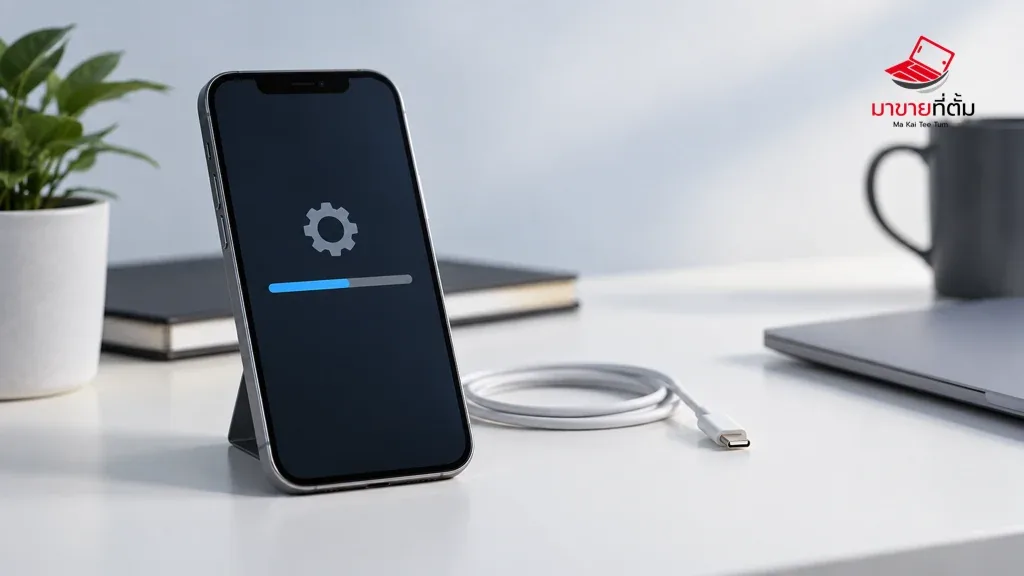
An iOS update may fail because of unstable Wi-Fi, low battery, insufficient storage, a busy update service, or a damaged downloaded update file. Do not interrupt an update while its progress is still moving.
Checks to try first
- Back up the iPhone, connect it to power, and use a stable Wi-Fi network
- Check Settings > General > iPhone Storage and remove or offload unneeded apps
- Restart the iPhone and try Settings > General > Software Update again
- Remove a partially downloaded update from storage and download it again when space is available
- If an on-device update fails, use a Mac or PC and choose Update rather than Restore when you need to preserve data
When to get further help
If the phone stays on the Apple logo or the progress bar stops for a long time, stop repeating the attempt and use Apple’s recovery guidance after protecting your data.
Bottom line
Start with reversible checks that do not erase personal data. If the symptom continues or follows impact or liquid exposure, professional assessment is safer than repeated resets.
Thinking about selling or upgrading an Apple device?
When a device issue is part of an upgrade decision, MaKaiTeeTum can assess an iPhone, iPad, Mac, or Apple Watch and discuss your selling options.
- Call: 064-564-7945
- Line ID: @KunTum