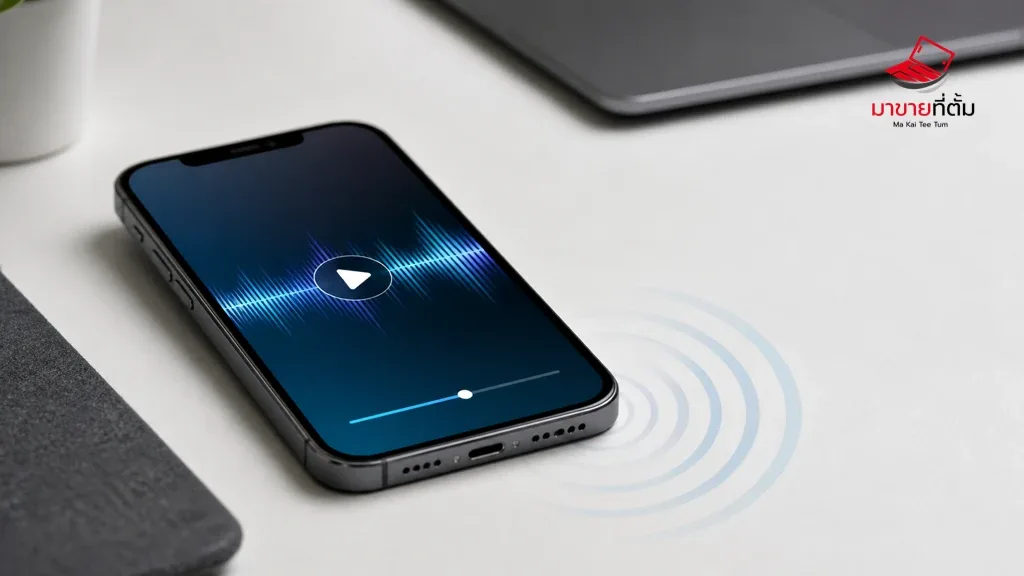
No sound or unusually quiet audio from an iPhone can come from a mute setting, an active Bluetooth route, a blocked speaker opening, or a hardware fault. Test more than one type of audio before deciding that the speaker itself is damaged.
Checks to try first
- Raise the volume while audio is playing and check Silent Mode or the Action button
- Open Control Centre and confirm that sound is not being routed to AirPods or another Bluetooth device
- Remove a case that may cover the speaker and gently brush away dry debris with a soft brush
- Compare a ringtone, a video, music, and speakerphone audio to narrow down the symptom
- Restart the iPhone and install available updates before considering a settings reset
When the device needs further help
Crackling at moderate volume, complete silence across apps, or a problem that began after water or impact should be assessed professionally. Do not force liquid or compressed air into the speaker openings.
Bottom line
Start with reversible checks that do not erase personal data, then isolate the accessory, setting, network, or hardware involved. If the symptom survives the basic steps or follows impact or liquid exposure, professional assessment is safer than repeated resets.
Thinking about selling or upgrading an Apple device?
If the problem is part of an upgrade decision, MaKaiTeeTum can help assess an iPhone, iPad, Mac, or Apple Watch and discuss your selling options. Describe the real condition and repair history for a more useful valuation.
- Call: 064-564-7945
- Line ID: @KunTum