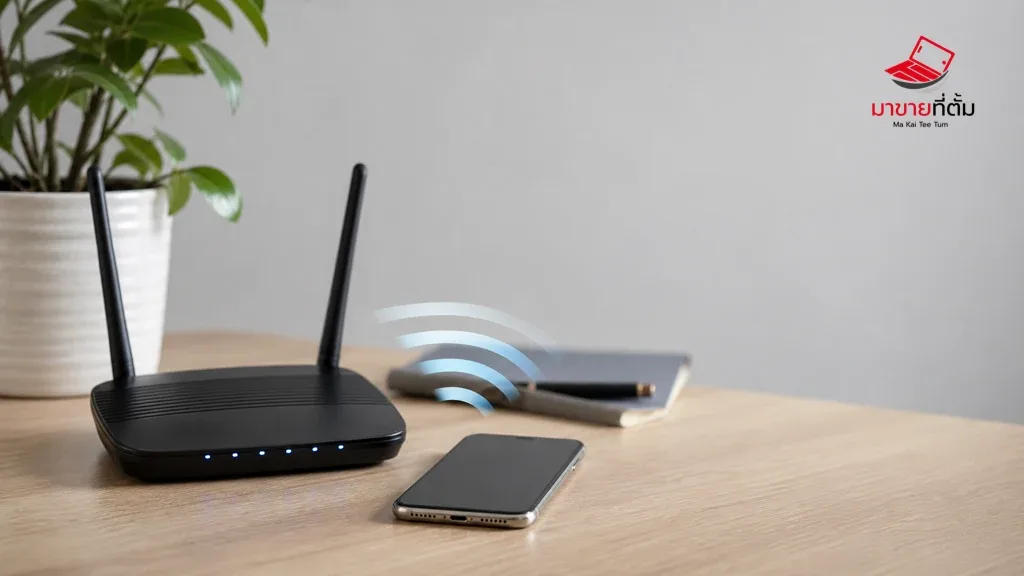
When an iPhone refuses to join Wi‑Fi even with the correct password, first determine whether the fault belongs to one router or to the phone everywhere. That distinction prevents you from changing network settings unnecessarily.
Checks to try first
- Move closer to the router and check whether another device can use the same network
- Turn Wi‑Fi off and on from Settings, then select the network again
- Forget the network and rejoin it only after confirming the correct password
- Restart the iPhone and, if the problem is limited to your home network, restart the router
- Temporarily remove an unnecessary VPN or network profile; use Reset Network Settings only after recording important network details
When the device needs further help
If the iPhone cannot see or join any Wi‑Fi network while other devices work, the issue may be on the phone rather than the router. Persistent failures after an update or physical damage justify a device inspection.
Bottom line
Start with reversible checks that do not erase personal data, then isolate the accessory, setting, network, or hardware involved. If the symptom survives the basic steps or follows impact or liquid exposure, professional assessment is safer than repeated resets.
Thinking about selling or upgrading an Apple device?
If the problem is part of an upgrade decision, MaKaiTeeTum can help assess an iPhone, iPad, Mac, or Apple Watch and discuss your selling options. Describe the real condition and repair history for a more useful valuation.
- Call: 064-564-7945
- Line ID: @KunTum