Using a MacBook and finding that it won’t charge or the battery drains quickly is a common frustration. Causes may include the charger, battery, hardware, or even software issues. This guide walks you through easy troubleshooting steps you can try yourself before going to a repair shop.
Common Causes of MacBook Not Charging
Check these first before contacting Apple Support:
1. Charger or Cable Issues
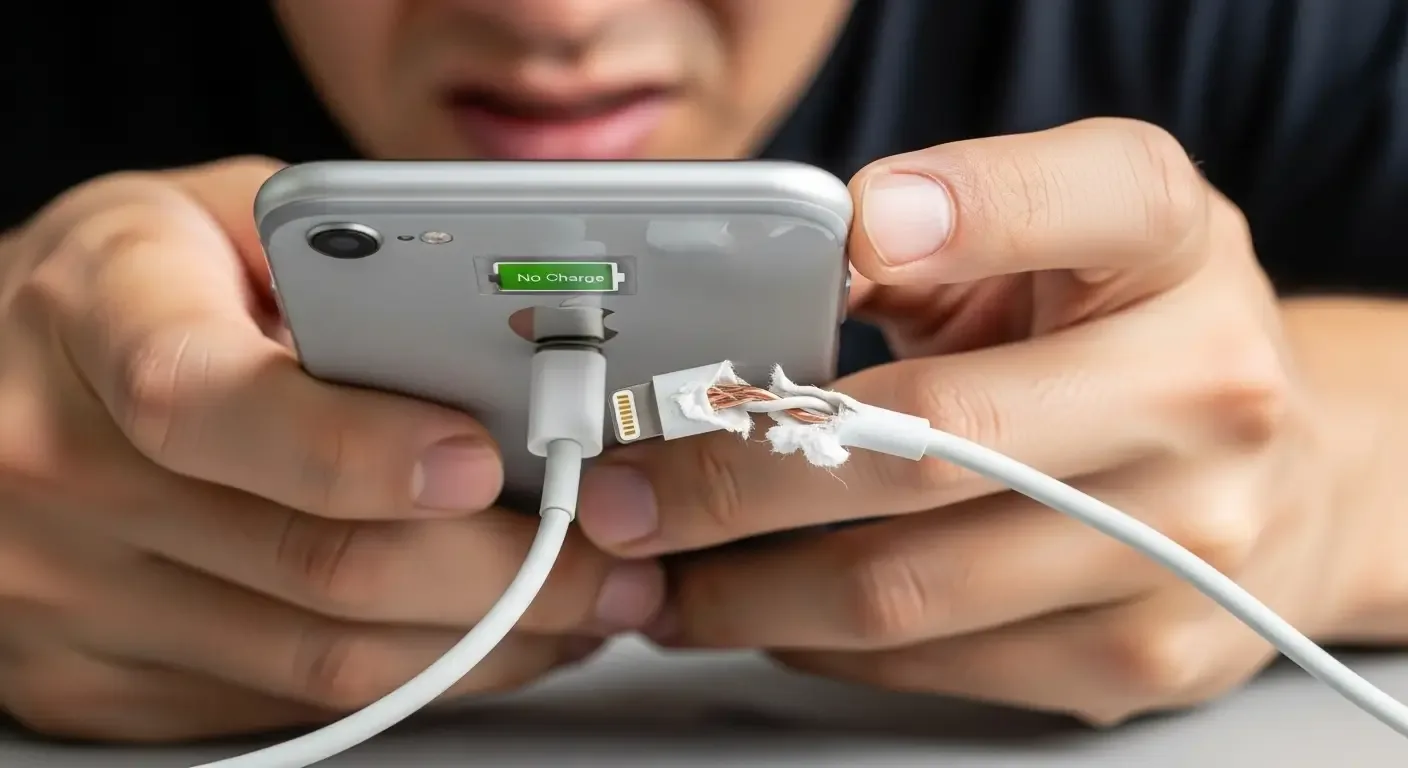
- Damaged or bent USB-C/Apple charging cable
- Incompatible or underpowered adapter
- Dirt or debris inside the USB-C port
2. Charging Port Problems
- Dust or blockage inside the port
- Loose connection causing intermittent charging
3. Battery Health Decline
- Check battery health via > About This Mac > System Report > Power
- Cycle count over 800–1000 indicates wear
- Status shows “Service Recommended”
4. Software or System Issues
- Bugs in macOS versions
- Battery Health Management limiting charge to 80%
DIY Fixes for MacBook Not Charging
1. Check Cable and Adapter
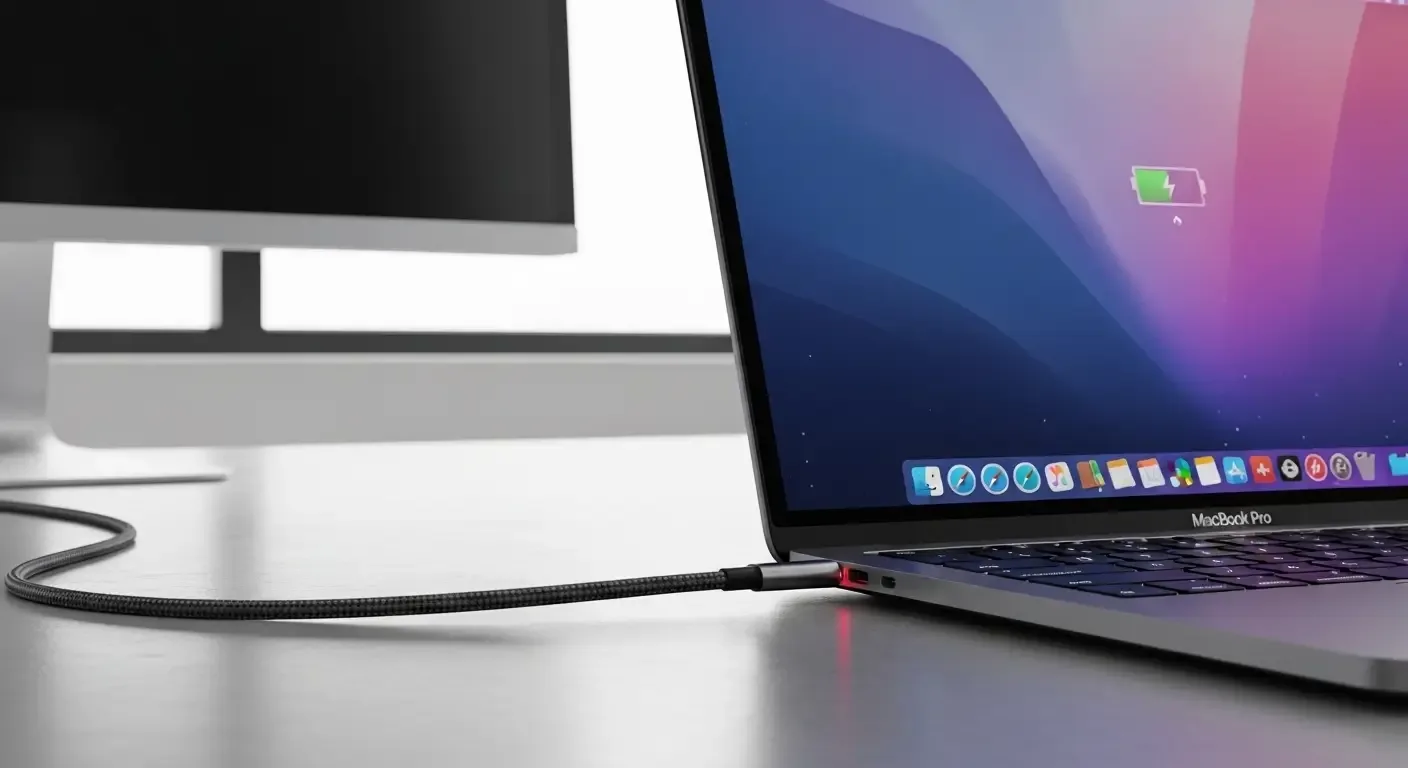
- Always use genuine Apple charger and cable
- Try a different USB-C port
- Test with another adapter if available
2. Clean the Charging Port
- Use a soft brush (e.g., makeup brush) to gently remove dust
- Avoid liquids or harsh cleaners
3. Reset SMC (System Management Controller)
- Intel Macs without T2 chip: Shut down > hold Shift + Control + Option + Power for 10 seconds > release and restart
- Apple Silicon (M1, M2) & T2 Macs: Shut down > wait briefly > restart (SMC reset is built-in)
4. Adjust Battery Settings
Go to > System Settings > Battery and temporarily disable Battery Health Management to test charging beyond 80%.
5. Update macOS
Ensure your MacBook runs the latest macOS version for optimized charging and power management.
If Battery Drains Too Quickly
1. Check Energy-Heavy Apps
Use Activity Monitor > Energy tab to see apps consuming high CPU or power.
2. Lower Screen Brightness
Reducing brightness extends battery life significantly.
3. Close Unused Apps
- Too many Safari tabs open
- Google Chrome known for heavy battery use
4. Turn Off Wi-Fi & Bluetooth When Idle
Extra wireless connections can shorten battery life.
5. Enable Low Power Mode
Available in macOS Monterey and later for extended battery runtime.
FAQ
How often should MacBook batteries be replaced?
Apple designs batteries for ~1000 charge cycles or about 3–5 years depending on usage.
Can I charge MacBook with an iPhone adapter?
Not recommended. iPhone chargers lack sufficient power and may cause overheating or no charge.
What if the charging cable fails under AppleCare?
If it’s an official Apple cable within warranty, Apple may replace it free of charge.
Conclusion
If your MacBook isn’t charging or drains battery too fast, don’t panic. Many fixes are simple—like swapping cables, cleaning the port, or resetting system settings. If issues persist after these steps, visit an Apple Authorized Service Provider to avoid long-term damage.