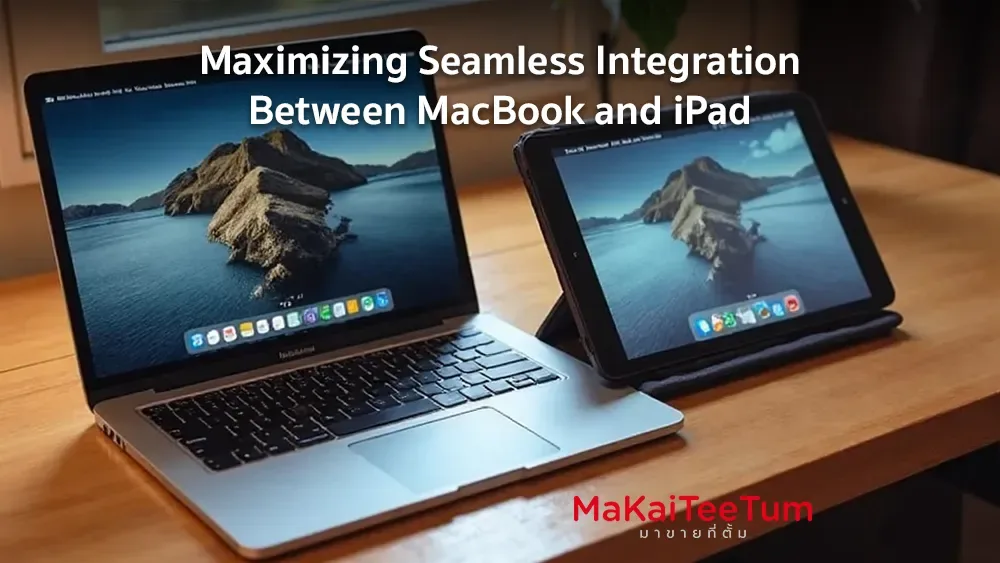
Universal Control is a game-changing feature introduced by Apple that enables seamless interaction between iPad and Mac. With a single keyboard and mouse, users can control both devices, drag and drop files, and switch between applications effortlessly. In this guide, we’ll walk you through setting up Universal Control and optimizing it for maximum productivity.
What is Universal Control?
Universal Control, introduced in macOS Monterey and iPadOS 15.4, allows users to control both their Mac and iPad using a single keyboard and mouse. It’s ideal for multitasking, working with multiple displays, and easily transferring files between devices.
Supported Devices for Universal Control
Before setting up Universal Control, ensure your devices are compatible:
Supported Mac models:
- MacBook Pro (2016 and later)
- MacBook Air (2018 and later)
- iMac (2017 and later)
- Mac mini (2018 and later)
- Mac Pro (2019 and later)
Supported iPad models:
- iPad Pro (all models)
- iPad Air (3rd generation and later)
- iPad (6th generation and later)
- iPad mini (5th generation and later)

How to Set Up Universal Control Between iPad and Mac
Follow these steps to activate Universal Control:
- Update Your Software:
Ensure your Mac is running macOS Monterey or later and your iPad is on iPadOS 15.4 or later. - Enable Wi-Fi and Bluetooth:
Make sure both devices have Wi-Fi and Bluetooth enabled and are signed in with the same Apple ID. - Configure Universal Control on Mac:
- Go to System Preferences > Displays
- Click Universal Control and enable all three options:
- Allow your pointer and keyboard to move between any nearby Mac or iPad
- Push through the edge of a display to connect to a nearby Mac or iPad
- Automatically reconnect to any nearby Mac or iPad
- Enable Handoff on iPad:
- Go to Settings > General > AirPlay & Handoff
- Enable Handoff
- Start Using Universal Control:
Position your iPad next to your Mac and move your mouse to the edge of the screen. It should transition seamlessly to the iPad.
How to Use Universal Control Effectively
- Drag and Drop Files Between Devices:
Easily transfer files by dragging them between Mac and iPad. - Use Multiple Displays Efficiently:
Mac can be your primary workspace while the iPad serves as an additional screen. - Sync Apps Across Devices:
Apps like Notes, Safari, and iCloud-integrated tools work seamlessly across Mac and iPad. - Adjust Display Position:
Go to System Preferences > Displays to align screens for a smoother mouse transition.
Security and Stable Connectivity
Universal Control uses encrypted connections to ensure data security. If you experience connectivity issues, try:
- Restarting both devices
- Ensuring both devices are on the same Wi-Fi network
- Toggling Bluetooth off and on
Productivity Tips for Universal Control
- Use Mac Keyboard Shortcuts to navigate your iPad faster
- Set iPad to Landscape Mode for a better multitasking experience
- Leverage Universal Control for projects requiring multi-device collaboration
Sources & References: Apple Official Website, MacRumors, 9to5Mac, The Verge