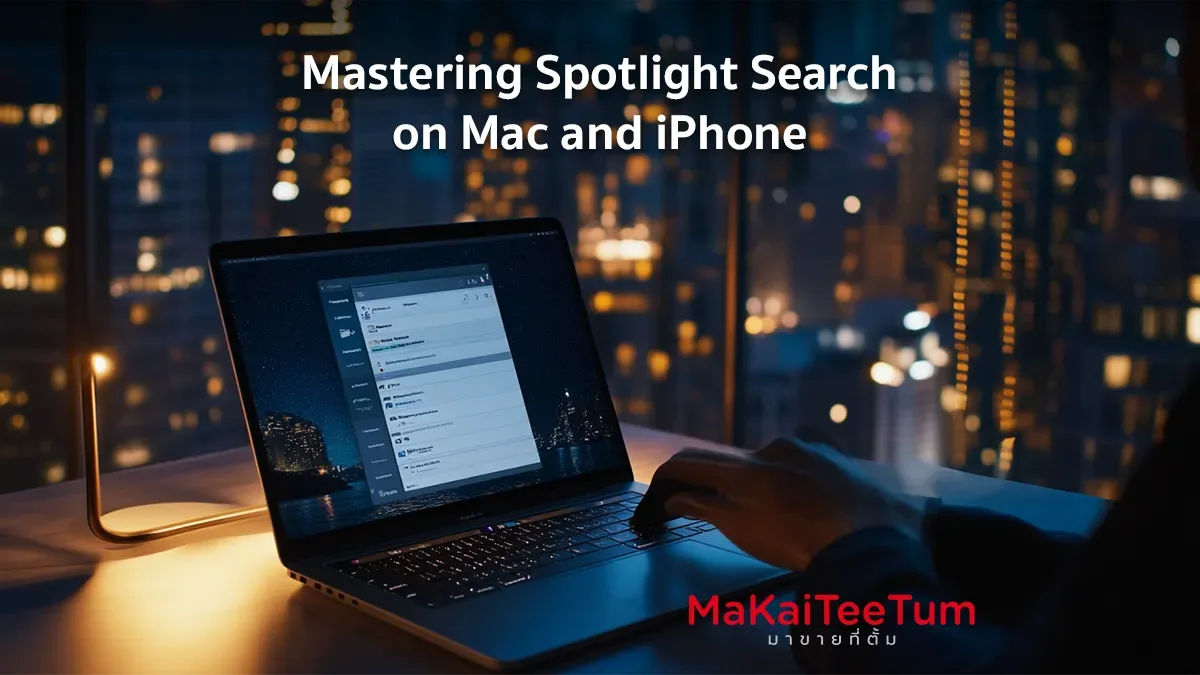
Spotlight Search is one of the most powerful yet underutilized features on Mac and iPhone. With its ability to search for files, apps, settings, and even web content, Spotlight makes navigating your device faster and more efficient. This guide will walk you through advanced techniques to maximize Spotlight Search’s potential.
What is Spotlight Search?
Spotlight Search is a built-in search tool in macOS and iOS that allows users to find content on their device, such as files, apps, settings, and even information from the web. Its intuitive interface makes it easy to locate anything quickly and efficiently.
How to Access Spotlight Search
- On Mac: Press Command (⌘) + Spacebar or click the magnifying glass icon in the top-right corner.
- On iPhone: Swipe down on the Home Screen to bring up the search bar.
Advanced Spotlight Search Techniques on Mac
Spotlight on Mac offers powerful search capabilities. Here are some key techniques:- Searching for Files and Folders
- Type the file or folder name to locate it instantly.
- Enter partial file names, such as “Report,” and Spotlight will list all related files.
- Opening Apps Instantly
- Simply type an app’s name, such as “Safari” or “Notes,” and press Enter to open it immediately.
- Performing Calculations and Unit Conversions
- Use Spotlight as a calculator: Type “100+50/2” for an instant result.
- Convert currency and measurements: Type “50 USD to THB” or “5 km to miles.”
- Searching Emails and Messages
- Enter the sender’s name or a keyword from an email to locate relevant messages quickly.
- Online Information Retrieval
- Spotlight can pull data directly from Google, Wikipedia, and other sources. Try searching “Weather Bangkok” or “Who is Steve Jobs?”

Advanced Spotlight Search Techniques on iPhone
Spotlight Search on iPhone shares many of the same features as Mac, optimized for mobile use:
- Finding Apps and Settings
- Search and launch apps instantly without scrolling through multiple pages.
- Type “Wi-Fi” to access Wi-Fi settings directly.
- Searching Photos and iCloud Files
- Use keywords like “beach photo” or “PDF file” to retrieve relevant images and documents stored in iCloud.
- Smart Suggestions
- Spotlight on iPhone learns from usage patterns and suggests apps or actions, such as frequently used apps at specific times.
- Instant Online Searches
- Search queries like “best coffee shops near me” or “latest football scores” fetch real-time information from Safari.
Customizing Spotlight Search for a Personalized Experience
You can tailor Spotlight Search to display only relevant results:
- On Mac: Go to System Preferences > Spotlight and select specific categories like Documents, Apps, or Messages.
- On iPhone: Navigate to Settings > Siri & Search to adjust search preferences for apps and content.
Advantages and Limitations of Spotlight Search
Advantages:
- Fast and efficient searching
- Simple and intuitive interface
- Supports a wide range of search types
Limitations:
- Some search results may be incomplete if the device is not updated
- Spotlight Search on iPhone has more limited access to internal files compared to Mac
Sources & References: Apple Official Website, MacRumors, iMore, 9to5Mac