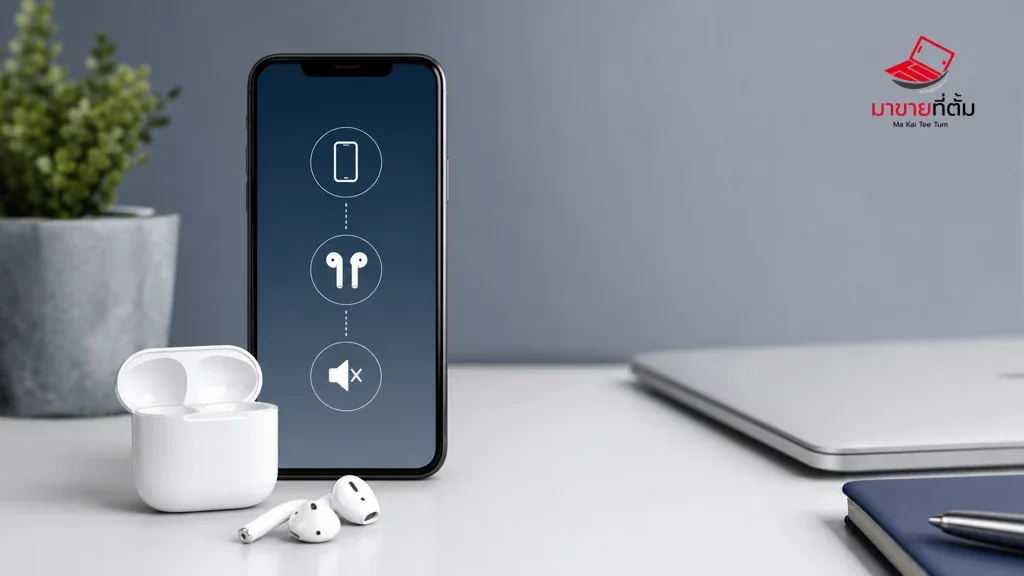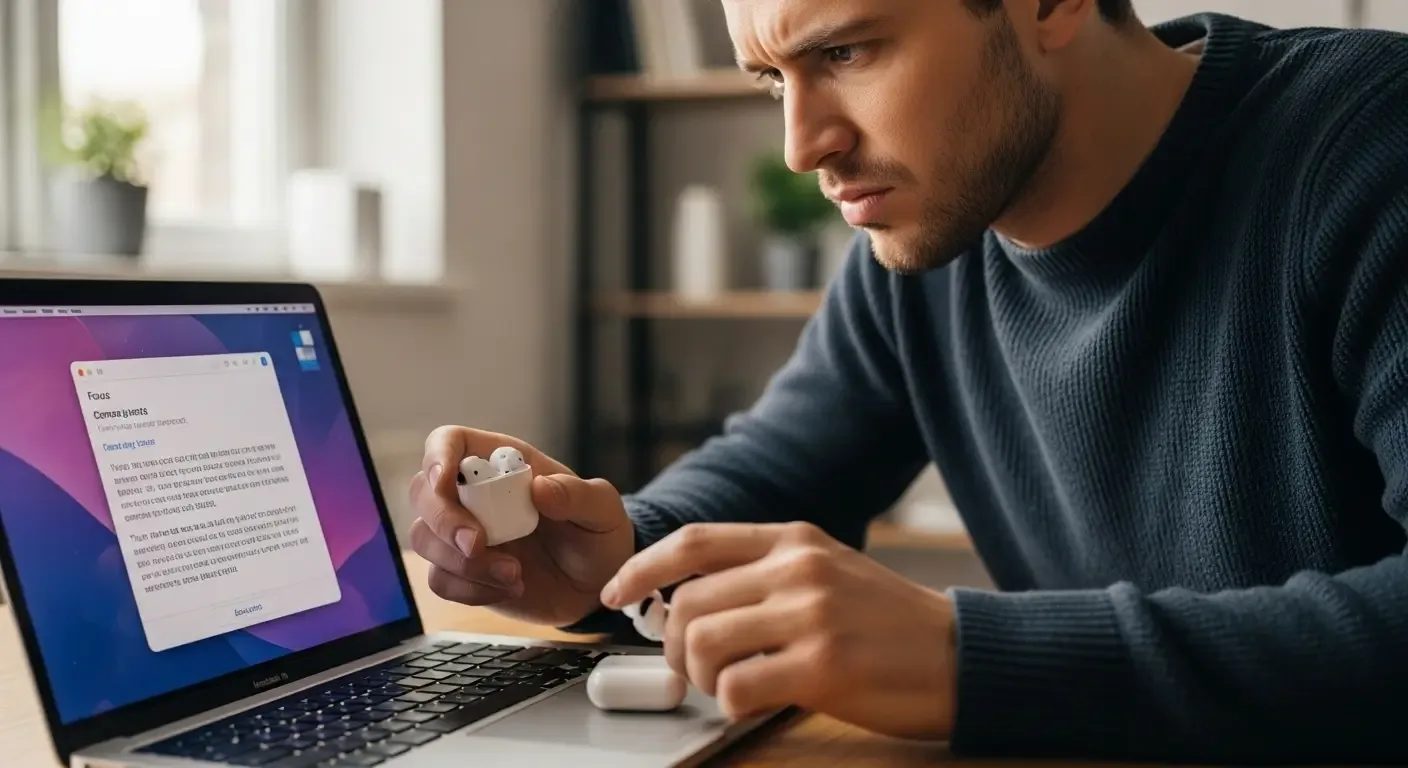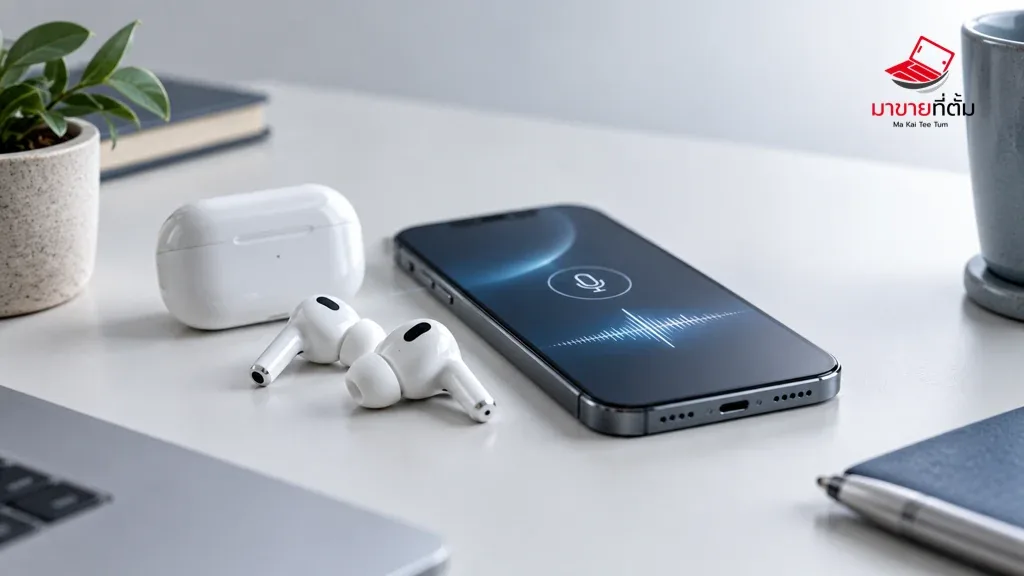
A failed AirPods microphone can be caused by the selected microphone, blocked mesh, low charge, app permissions, or a stale pairing. Test both earbuds and more than one app before assuming hardware failure.
Checks to try first
- Confirm the AirPods are connected and set Microphone to Automatically Switch AirPods in Bluetooth settings
- Clean the microphone mesh gently using a safe dry method; never use liquid or a needle
- Test a Voice Memo and a call in another app to separate an app permission problem
- Charge both earbuds and the case, then return them to the case before reconnecting
- Forget This Device, pair again, and update the iPhone if the symptom remains
When to get further help
One-sided failure, very low input, or a microphone that fails with several source devices after re-pairing should be assessed as a possible hardware fault.
Bottom line
Start with reversible checks that do not erase personal data. If the symptom continues or follows impact or liquid exposure, professional assessment is safer than repeated resets.
Thinking about selling or upgrading an Apple device?
When a device issue is part of an upgrade decision, MaKaiTeeTum can assess an iPhone, iPad, Mac, or Apple Watch and discuss your selling options.
- Call: 064-564-7945
- Line ID: @KunTum