Buying a used iPhone remains a popular choice for users who want high-quality devices at a lower cost. However, in 2025, Apple introduced new features such as Stolen Device Protection and the Parts and Service History section, which means buyers now need to perform more thorough checks to avoid problems after purchase.
1. Initial inspection before starting
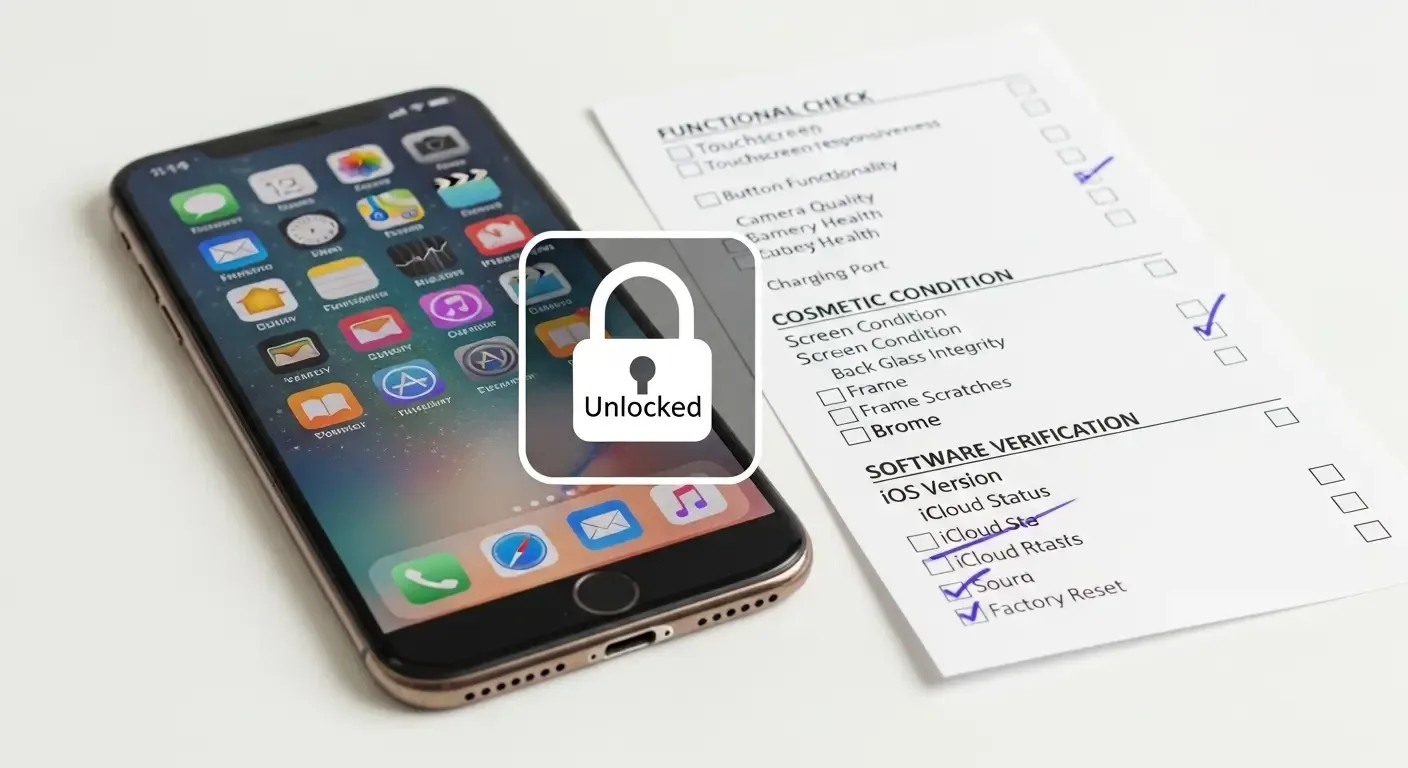
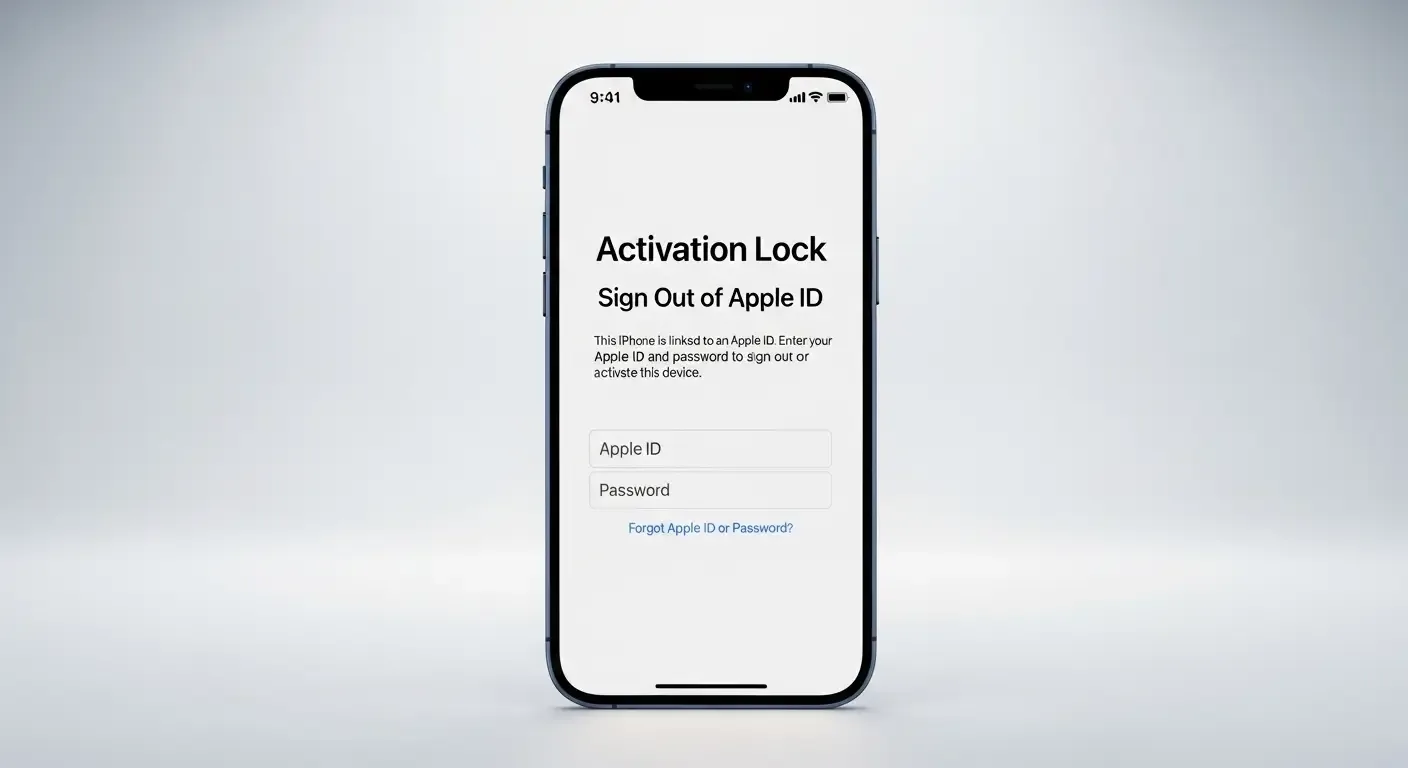
Ask the seller to power on the device in front of you. Check that it operates normally, is not locked by the previous Apple ID, and that details like the model number and serial number match the information on the box. You can confirm these in the phone’s Settings > General > About menu.
2. Check the Parts and Service History
For newer iPhone models, Apple added the Parts and Service History feature, allowing users to view the replacement history of key components such as the battery, display, or camera directly from the system.
- Go to Settings > General > About
- Scroll down to the Parts and Service History section
- If a component has been replaced, check whether it says Genuine Apple Part
If non-genuine parts are found, it could mean that the device was repaired by an unauthorized shop, which may affect its performance or future warranty eligibility.
3. Check warranty and coverage status
Visit the Apple Check Coverage website and enter the iPhone’s serial number to instantly see warranty expiration and AppleCare coverage details.
4. Special caution: Stolen Device Protection feature
Apple’s Stolen Device Protection feature safeguards user data if the iPhone is lost or stolen. It prevents wiping data or changing security settings unless the device is in a location familiar to the owner.
Important for sellers and buyers:
- The seller must disable Stolen Device Protection before erasing all content.
- In some cases, you may need to wait up to one hour to disable it if not in a familiar location.
- Only proceed to set up the iPhone anew once you’ve verified that the data wipe was done properly.
5. Test eSIM installation on the device
Buyers should test eSIM functionality before completing the purchase. Prepare your eSIM QR code from your carrier and try adding it to the device.
- Go to Settings > Cellular > Add eSIM
- Scan the QR code — if it installs successfully, the eSIM slot is functioning properly.
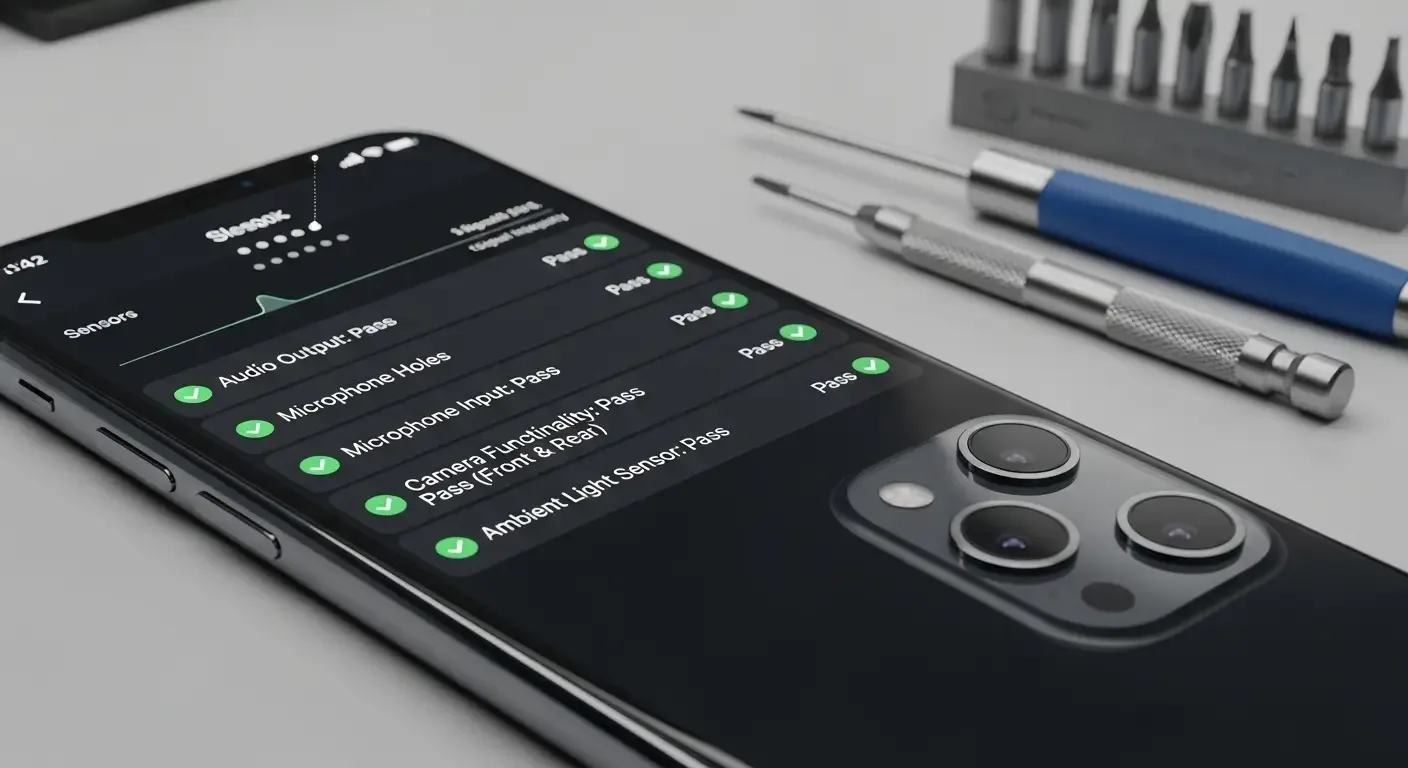
6. Device test checklist before buying
- Check the display for dead pixels or cracks
- Test both front and rear cameras by taking photos and videos
- Test speakers, microphone, and vibration
- Ensure Wi-Fi and Bluetooth connections work normally
- Test Face ID or Touch ID
- Test eSIM setup as described earlier
7. Secure payment when buying a used iPhone
To avoid scams using fake transfer slips, it’s recommended to pay using a QR Code bank transfer (PromptPay) method.
- The buyer should scan the seller’s PromptPay code directly
- The seller should confirm receiving the funds in their banking app before handing over the device
This method enhances security and greatly reduces the risk of being scammed by falsified payment evidence.
8. Safety tips for meeting up to trade
- Meet in public places such as shopping malls or busy cafés
- Verify the seller’s identity before meeting
- Avoid carrying large amounts of cash unnecessarily
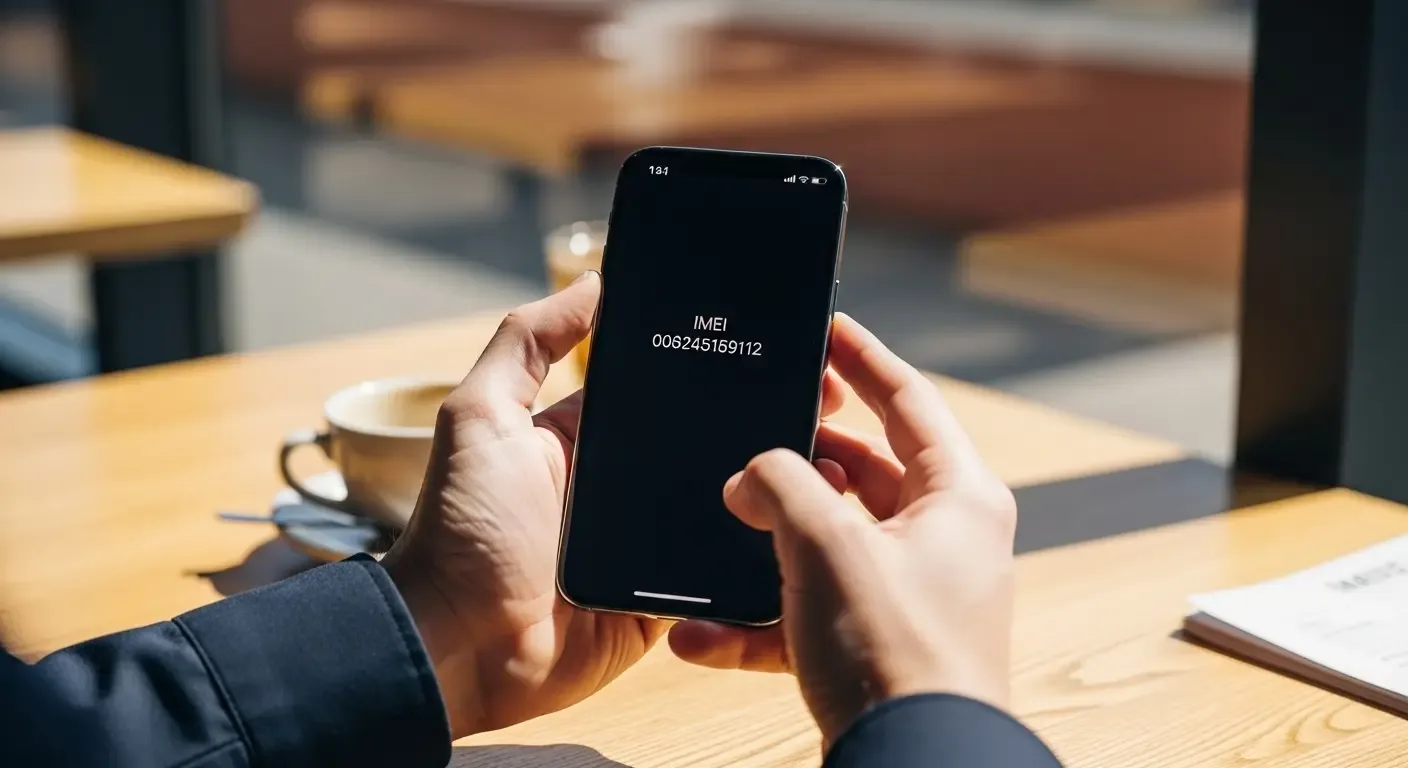
- Take a photo of the device’s IMEI or serial number as proof
9. Frequently Asked Questions (FAQ)
Q: What should I do if the device is locked by iCloud Activation Lock?
A: Do not buy it. This indicates the device is still linked to the previous owner’s account, which could mean it was stolen or not properly reset.
Q: Can I check if the iPhone has been repaired or had parts replaced?
A: Yes. Go to the “Parts and Service History” section in the settings. The system will show replaced components and specify whether they are genuine parts.
Q: What if I can’t disable Stolen Device Protection?
A: The original owner should be at a familiar location, such as home or work, wait about one hour, then try again to disable the feature before erasing all data.
Summary
Buying a used iPhone in 2025 requires more caution due to new features designed to protect device owners and enhance security. Checking the parts and service history, coverage status, disabling Stolen Device Protection, and testing eSIM compatibility are all essential steps to ensure you get a genuine, safe, and fully functional device.
References
- Apple Support: What to do before you sell, give away, or trade in your iPhone
- Apple Support: Check your service and support coverage
- Apple Support: About iPhone Parts and Service History
- Apple Support: About Stolen Device Protection for iPhone
- Cyber Crime Investigation Bureau (Thailand) – Safe online buying and selling tips