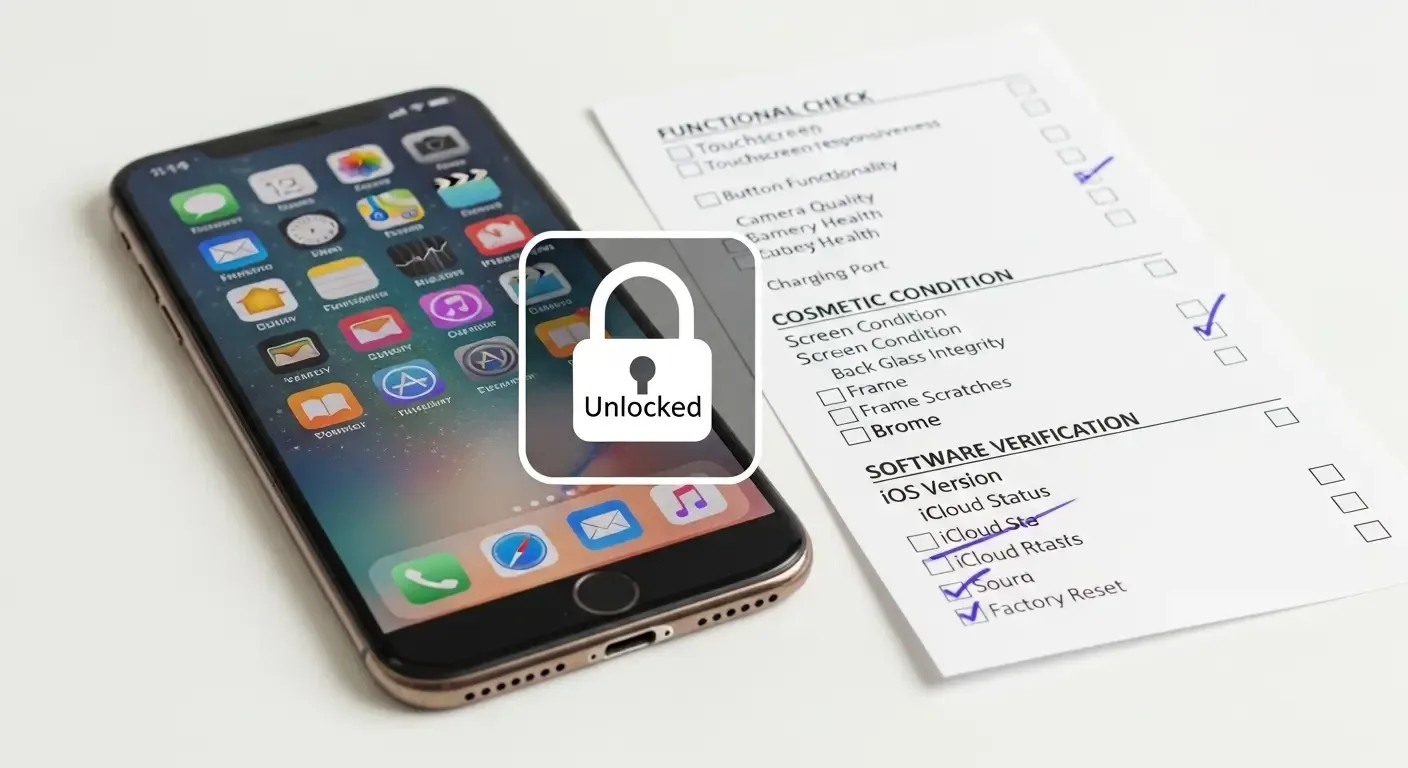
In 2025, buying or selling a secondhand iPhone remains popular, as many users want to upgrade to the latest model or find a quality device at a lower price. However, carefully inspecting the device before any transaction is essential to avoid potential issues later.
1. Check the device’s general information
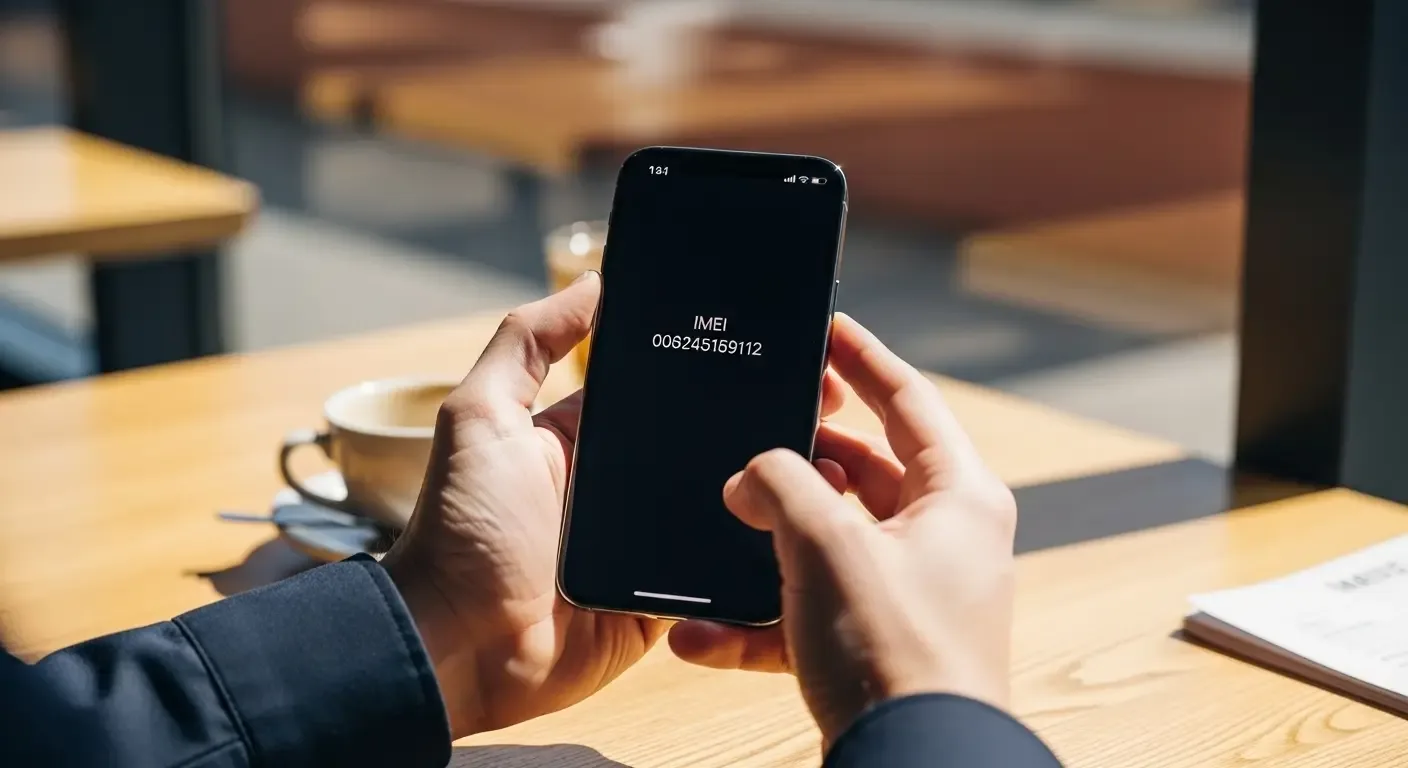
Start by checking the Model Number and Serial Number, found in Settings > General > About. This confirms the device’s authenticity and country of sale. Compare the details with Apple Check Coverage to verify warranty status.
2. Inspect battery health and charge cycles
To check battery health, go to Settings > Battery > Battery Health & Charging and review the Maximum Capacity value. A percentage close to 100% means the battery is still in good condition.
For newer models, you can also view the Cycle Count (number of charge cycles). Fewer cycles mean less wear, which can affect the resale value of a secondhand iPhone.
3. Check parts and repair history
Apple now lets users verify whether any parts have been replaced. Navigate to Settings > General > About and scroll to the ‘Part and Service History’ section. If components like the display, battery, or camera have been replaced, you’ll see whether genuine Apple parts were used.
If you see “Unknown Part,” that indicates the component is not genuine. This may impact performance and resale value. Always ask sellers or service centers for details before finalizing the purchase.
4. Update ports and connections
iPhones released in 2025 use a USB‑C port supporting high‑speed charging and data transfer. Test all three aspects:
- Charging: Plug in a cable to confirm response and charging speed.
- High‑speed data transfer: Connect to a computer to ensure proper detection and data flow.
- External display connection: For models supporting DisplayPort Alternate Mode, connect to a monitor using a USB‑C cable to confirm video and audio output.
5. Test special features on newer models
In the latest iPhones (iPhone 15 Pro Series and later), be sure to test special functions to ensure they work properly:
- Dynamic Island: Test live notifications or activities such as incoming calls, music playback, or app usage to ensure smooth operation.
- Action Button: This customizable button can launch the camera, flashlight, or Shortcuts. Press it to confirm it responds as configured.
- LiDAR Sensor: Important for AR and night‑mode photography. Open the Camera app and test whether focusing is fast in low light.
6. Inspect display, camera, and audio
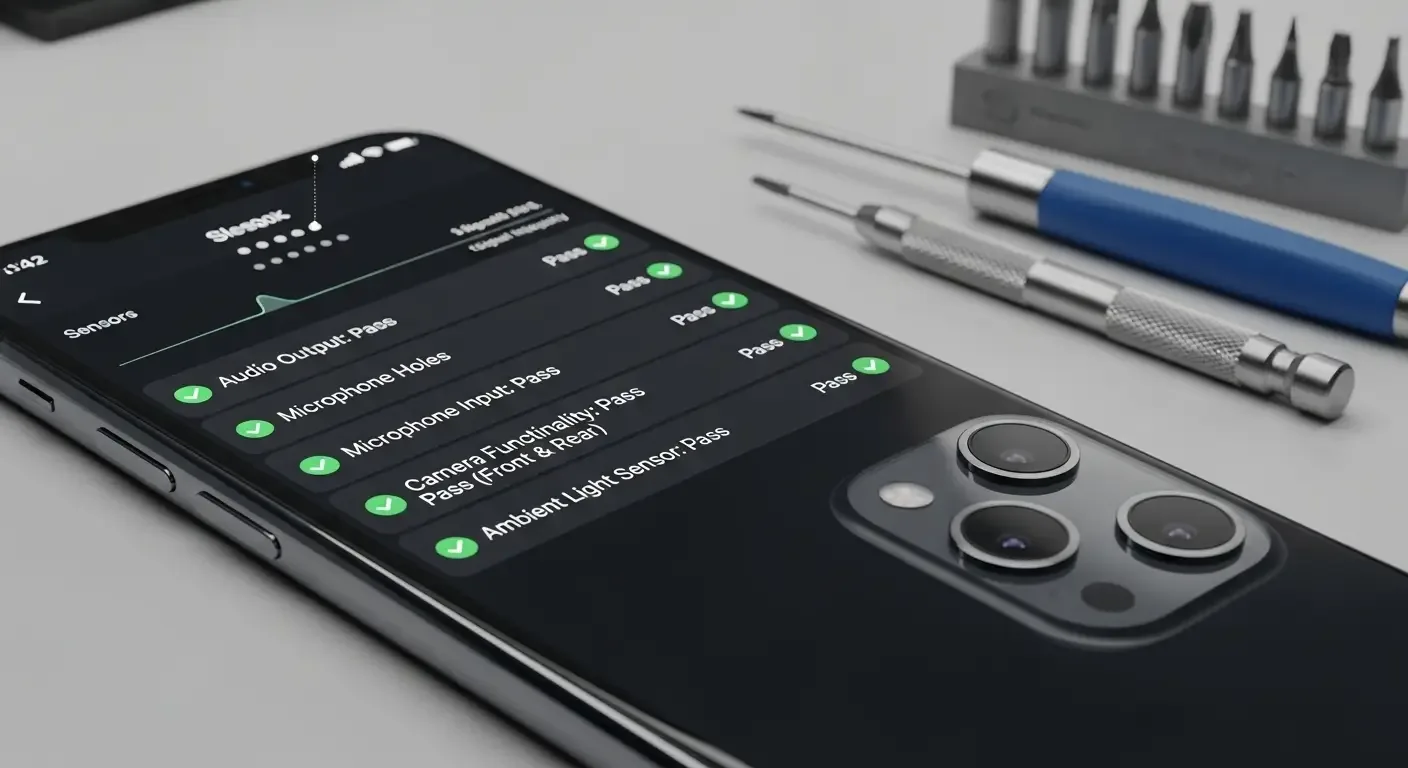
Check display quality by showing a white and black background to spot bright dots or shadows. Then test front and rear cameras for clarity, image stabilization, and autofocus. Finally, record a video with sound to test microphones and play audio to check speaker clarity.
7. Checklist before erasing data
Before giving away or selling the iPhone, erase personal data completely by following Settings > General > Transfer or Reset iPhone > Erase All Content and Settings to return it to factory state.
For users with eSIM activated, don’t forget to remove the eSIM profile first by going to Settings > Cellular > eSIM and selecting ‘Remove eSIM’. This helps prevent issues when switching carriers or activating a new number.
8. Cautions when buying a secondhand iPhone online
If purchasing through an online platform, avoid making payments before inspecting the device in person. Always review the seller’s history, ratings, and request a purchase receipt or AppleCare+ document (if available) for authenticity assurance.
FAQ: Frequently Asked Questions
Q: If Maximum Capacity drops below 80%, should the battery be replaced?
A: Yes, it’s recommended to replace the battery because lower capacity can reduce performance and cause unexpected shutdowns.
Q: Can repair history be checked on all models?
A: This feature is available on iOS 15.2 and later, and on specific models. iPhone 12 and newer provide more detailed information.
Q: What should I do if non‑genuine parts are detected?
A: Ask for more details about the source. If replacement was done at a non‑authorized shop, it may affect warranty and long‑term performance.
Summary
Thoroughly inspecting a secondhand iPhone 2025 before buying or selling not only ensures confidence but also helps maintain the device’s long‑term value. From checking the USB‑C port, testing Dynamic Island and Action Button, to reviewing battery health, repair history, and properly removing eSIM, these are steps you should never skip.