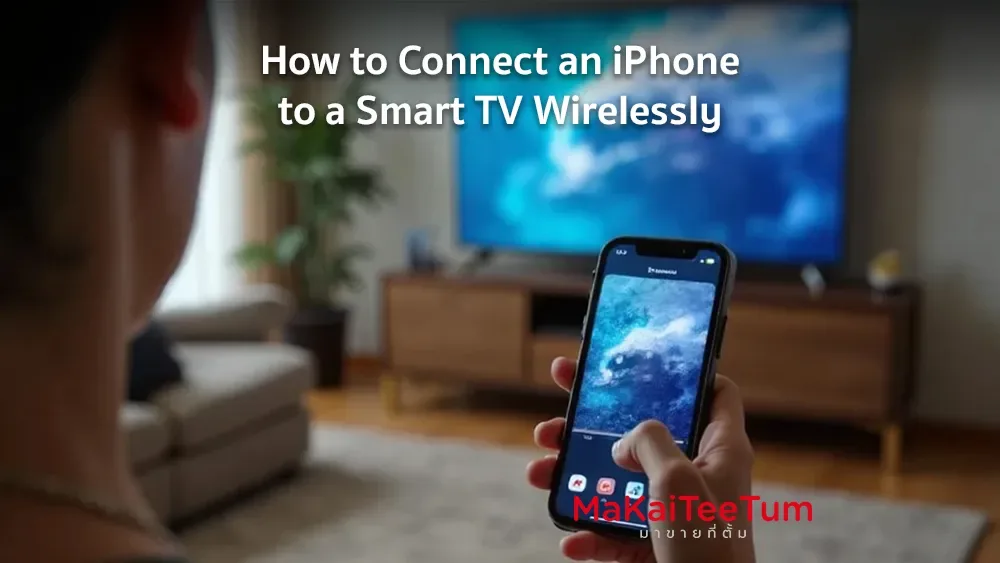
Connecting your iPhone to a Smart TV wirelessly allows you to display videos, photos, or other content from your iPhone on a larger screen effortlessly. This guide explores different wireless connection methods, helping you choose the best option based on your devices.
Using AirPlay with Apple TV or AirPlay 2-Compatible Smart TVs
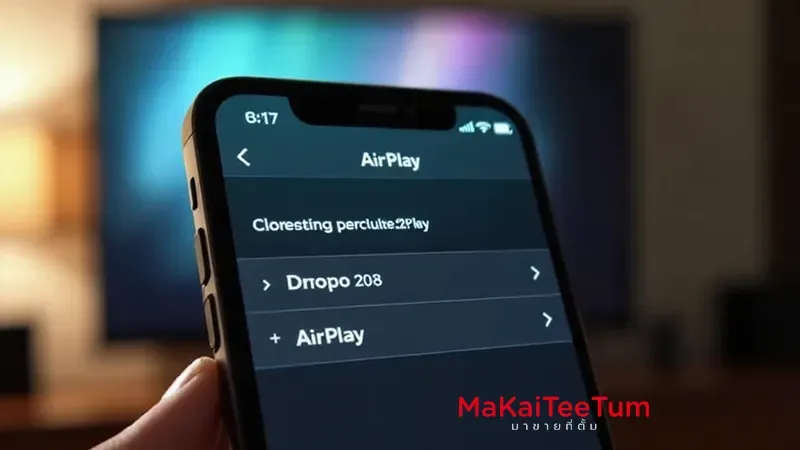
AirPlay is Apple’s technology that enables seamless streaming from iPhone to Apple TV or Smart TVs that support AirPlay 2. How to Use AirPlay:- Check compatibility – Ensure your iPhone and Apple TV or Smart TV support AirPlay 2 and are connected to the same Wi-Fi network.
- Enable AirPlay on the TV – For Apple TV, go to Settings > AirPlay and enable it. For Smart TVs, refer to the manufacturer’s manual to enable AirPlay.
- Stream content:
- Video: Open a video on your iPhone, tap the AirPlay icon, and select the target device.
- Photos: Open the Photos app, tap the Share icon > AirPlay, and select the target device.
- Enter the code (if prompted) – If a code appears on your TV screen, enter it on your iPhone.
Using Screen Mirroring
Screen Mirroring allows you to display your iPhone’s entire screen on the TV.
Steps to Use Screen Mirroring:
- Check compatibility – Ensure your iPhone and TV support Screen Mirroring and are on the same Wi-Fi network.
- Open Control Center on your iPhone:
- For iPhone X and later, swipe down from the top-right.
- For older models, swipe up from the bottom of the screen.
- Select “Screen Mirroring” – Tap Screen Mirroring and choose your TV from the list.
- Enter the code (if required) – If a code appears on your TV, enter it on your iPhone.
Using TV Manufacturer Apps
Some Smart TV brands provide dedicated apps for iPhone-to-TV connectivity.
Examples:
- Samsung Smart View: Download the Smart View app from the App Store to connect your iPhone to Samsung TVs.
- LG TV Plus: Use LG TV Plus to share content and control your LG Smart TV
Using Third-Party Apps
If your TV does not support AirPlay and lacks a dedicated app, third-party applications can enable screen mirroring.
Popular third-party apps:
- AirBeamTV: Allows screen mirroring from iPhone to TVs without additional hardware.
- AllCast: Streams content from iPhone to DLNA-supported TVs.
Using Chromecast
Chromecast enables wireless streaming from an iPhone to a TV.
Steps to Connect Using Chromecast:
- Set up Chromecast – Plug Chromecast into the TV’s HDMI port and connect it to the same Wi-Fi network as your iPhone.
- Download supported apps – Install YouTube, Netflix, or other Chromecast-supported apps.
- Start streaming – Open an app, tap the Cast icon, and select your Chromecast device.
Using an HDMI Cable and Adapter
For TVs that lack wireless connectivity options, a Lightning Digital AV Adapter with an HDMI cable allows direct iPhone-to-TV connection.
Steps to Connect via HDMI:
- Connect the adapter – Plug the Lightning Digital AV Adapter into your iPhone.
- Connect the HDMI cable – Insert one end into the adapter and the other into the TV’s HDMI port.
- Select the HDMI source – On your TV, switch the input source to the connected HDMI port.
Common Issues and Troubleshooting
- Unstable Wi-Fi or network connectivity – Wireless connections rely on stable Wi-Fi. If you experience lag or stuttering, restart your router or use a wired HDMI connection.
- TV does not support AirPlay – If your TV lacks AirPlay 2 support, consider using the manufacturer’s app or third-party apps.
- AirPlay not working – Ensure all devices use the same Wi-Fi network and AirPlay is enabled on the TV.
- Chromecast not detecting iPhone – Verify that both Chromecast and iPhone are on the same Wi-Fi network and that the app supports Chromecast streaming.
Conclusion
There are multiple ways to connect your iPhone to a Smart TV wirelessly, depending on your TV type and available devices. AirPlay 2 is the most seamless option for compatible TVs, while Screen Mirroring works well for full-screen display. If your TV lacks AirPlay, Chromecast, manufacturer apps, or third-party solutions can provide alternative streaming options.
References: